
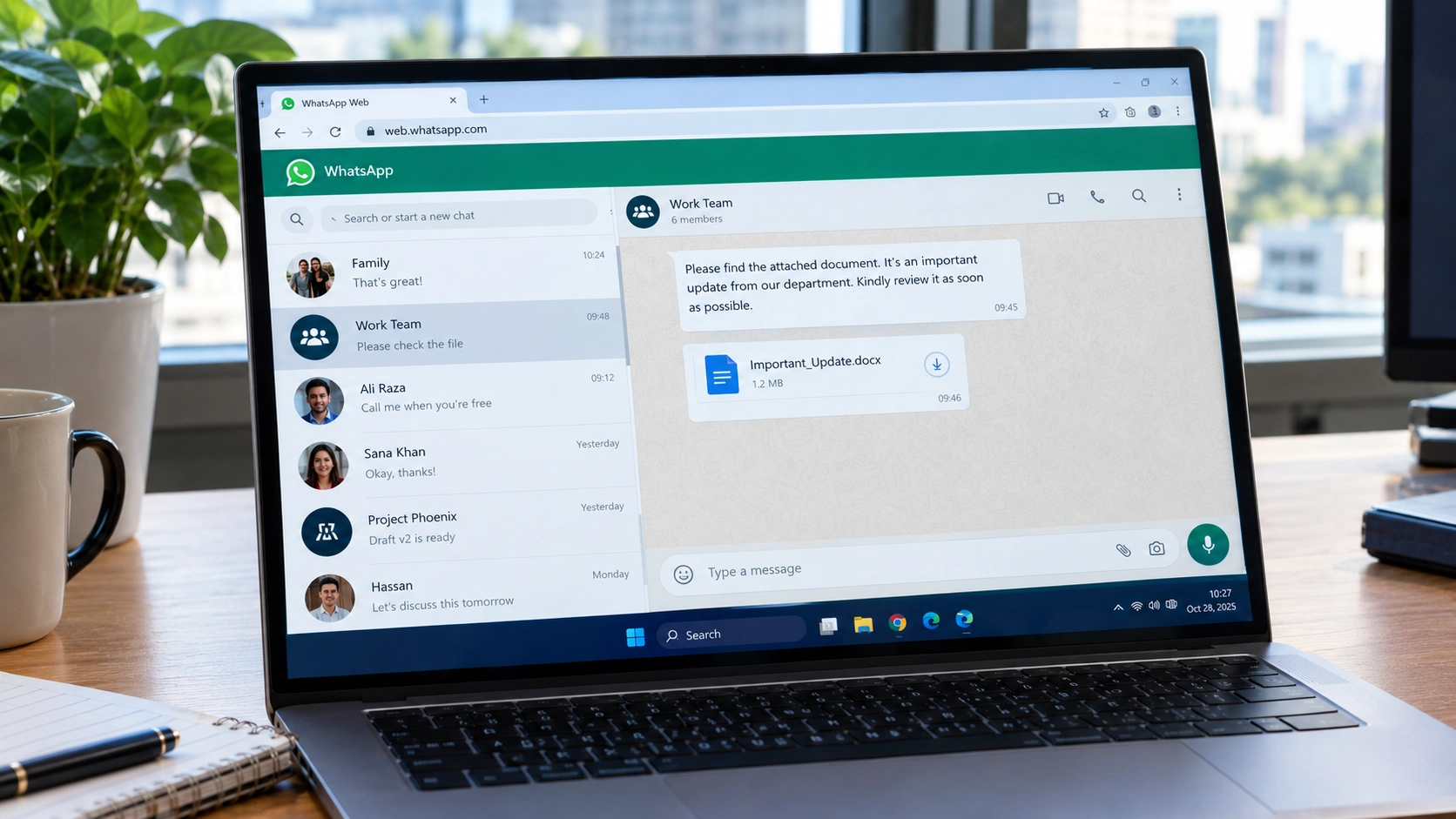
A message that looks like an official document, urgent notice or important update can become a security risk when it persuades someone to open a malicious file. Pakistan’s National Cyber Emergency Response Team (PKCERT) has issued an advisory warning about targeted phishing and malware involving WhatsApp Web, WhatsApp Desktop and email on Windows systems.
The potential consequences go beyond an unwanted message. If someone runs a malicious program, attackers may be able to steal credentials, access information stored on the computer or establish remote access. If an active WhatsApp session is also exposed, it could provide another way to impersonate the account holder. The risk depends on what the recipient did, not simply on whether a message arrived.
The advisory focuses on government organisations, senior officials and people who handle sensitive information. It does not establish that every WhatsApp user is being targeted or that WhatsApp itself has a newly discovered software vulnerability.
How can a WhatsApp message lead to a Windows malware infection?
Phishing is a technique used to trick people into taking actions that benefit an attacker. A message may create urgency, appear to come from a trusted person or organisation, or offer a document the recipient believes they need.
A typical attack can follow this sequence:
- A message arrives. It may appear in WhatsApp Web, WhatsApp Desktop or email and refer to an official notice, document or urgent request.
- The recipient is persuaded to open something. This could be a link, archive, disk-image file or executable. Receiving a message or downloading a file does not, by itself, prove that a device is infected.
- The recipient runs a malicious file or follows an unsafe instruction. Downloading a file is not the same as executing it. A phishing link may also steal login details without installing malware.
- The malicious software attempts to carry out its purpose. Depending on its capabilities and the access it obtains, it may steal credentials, collect information or establish remote access.
- An exposed account or session may be misused. If attackers obtain valid credentials or access to an active session, they may try to impersonate the victim or contact other people.
This sequence explains how phishing and malware attacks can work. It does not confirm that every stage occurred in the incident described by the advisory. The exact delivery method, malware family and attacker capabilities cannot be established from the available advisory details alone.
Why WhatsApp Web and Desktop matter
WhatsApp Web and WhatsApp Desktop allow people to use their accounts from a computer. If that computer is compromised, information and accounts accessible from it may also be at risk.
For example, malware on a Windows computer may attempt to access files, credentials or other information available to the compromised user. If a WhatsApp session is exposed, an attacker may also try to misuse it. The outcome depends on the access obtained; malware does not automatically take over every WhatsApp account.
There is an important distinction: the advisory warns about attacks delivered through these channels. It does not, by itself, prove that WhatsApp Web or Desktop contains a newly discovered vulnerability. Attackers can abuse legitimate services to deliver phishing messages without exploiting a flaw in those services.
Seven checks to make on your Windows PC
If you received a suspicious message, use these checks to decide what to do next. You do not need to assume your computer is infected simply because a message arrived.
1. Establish what you actually did
Start by identifying whether you only received the message, clicked a link, downloaded a file, ran it or entered sensitive information.
- You received a message but did nothing: The message alone is not evidence that your PC is infected. Do not open its links or attachments.
- You clicked a link: Close the page and avoid entering information or downloading anything else. If you supplied a password or other sensitive details, secure the affected account.
- You downloaded a file but did not run it: Do not open it. Remove it safely if appropriate, and follow your organisation’s security policy if it is a work device.
- You ran a suspicious file, command or installer: Treat this as a higher-risk situation and follow the response steps below.
- You entered a password, verification code or financial details: Secure the affected account from a separate, trusted device.
These categories help determine the appropriate response, but they cannot guarantee that a device is safe or compromised.
2. Do not run the file again
Do not reopen a suspicious attachment, launch it to see what it does or follow instructions contained in it. Avoid uploading confidential work files to public malware-scanning websites.
If you suspect a file ran and the computer may be compromised, disconnect it from Wi-Fi or the network while seeking help. If it is a work device, contact your IT or security team promptly and follow their instructions.
Do not casually wipe the computer, reinstall Windows or delete potential evidence before your security team has advised you, particularly if an investigation may be necessary.
3. Run a reputable security scan
On a personal Windows computer, open Windows Security → Virus & threat protection and review the available scan options. Run an appropriate scan with Microsoft Defender or another reputable, up-to-date security product.
Windows Security may also offer Microsoft Defender Offline scan. This restarts the computer and scans outside the normal Windows environment, which can help detect some persistent threats. Save your work first and follow the on-screen instructions.
A clean scan is reassuring, but it cannot prove that a device is completely uncompromised. If a suspicious program ran, sensitive information was exposed or unusual activity continues, seek expert assistance even if the scan reports no threat.
4. Check your WhatsApp linked devices
Using your phone, open WhatsApp and review Linked devices. Sign out of sessions you do not recognise or no longer use.
If you believe your computer or WhatsApp session was compromised, review the account again after securing the device. Enable WhatsApp two-step verification if you have not already done so, and never share verification codes with someone who contacts you unexpectedly.
This check helps identify unfamiliar sessions. It cannot establish that your Windows computer is clean, and a familiar session is not necessarily safe if the device itself is compromised.
5. Secure passwords and other exposed accounts
If you entered a password after following a suspicious link, change it from a separate device you trust. Prioritise the affected account, your email account and any other accounts that reused the same password. Use unique passwords and enable multifactor authentication where available.
If you entered bank-card details, banking credentials or other financial information, contact your bank through its official app, website or telephone number and explain what happened.
If you disclosed a work password, contact your organisation’s IT or security team. A password change alone may not be enough if the device or account has also been compromised.
6. Update Windows and your applications
Install security updates for Windows, your browser and other software through their official update mechanisms. Keep security protection enabled, avoid unapproved programs and never run commands copied from an unexpected message without verifying them.
Updates reduce exposure to known vulnerabilities, but they do not undo a compromise that has already happened. Do not assume an updated computer is clean if a suspicious file was previously executed.
7. Watch for activity you cannot explain
Look for unfamiliar sign-ins, unexpected messages sent from your accounts, security alerts, new applications or other unusual activity. These signs deserve investigation, but none is conclusive proof of malware on its own.
Record what you observed and when. Preserve the original message, sender details and file name if it is safe to do so. Do not forward a suspected malicious attachment to colleagues as a warning. Share it through your organisation’s approved reporting process.
What should you do if you already opened the file?
Your next step depends on what happened. Use this guide instead of treating every exposure as the same incident.
| WHAT HAPPENED? | WHAT YOU SHOULD DO |
|---|---|
| Message received only | Do not click links or open attachments. Report or delete the message according to your organisation’s security policy. |
| Link clicked No details entered and nothing downloaded | Close the page and avoid further interaction. Watch for unusual account activity. If a file downloaded or ran, follow the relevant higher-risk steps below. |
| File downloaded File not opened or run | Do not open the file. Remove it safely if appropriate. If this happened on a work device, follow your organisation’s security procedures. |
| File or command executed | Treat the device as potentially compromised. If compromise is suspected, disconnect it from the network and contact IT or a qualified security professional. Follow their instructions. |
| Password or verification code disclosed | Use a separate trusted device to secure the affected account. Change exposed or reused passwords, review active sessions and enable multifactor authentication. |
| Banking details shared or payment made | Contact your bank immediately through an official channel. Explain what happened and follow its instructions. |
| Work or government device involved | Report the incident promptly through the approved internal security channel. Do not investigate, wipe or reset the device yourself unless instructed. |
Important: Clicking a link does not automatically mean your computer is infected. The risk depends on what happened next. If you ran a suspicious file or disclosed sensitive information, act promptly and seek help appropriate to the situation.
Clicking a link does not automatically mean your computer is infected. The risk increases if you entered sensitive information, ran a downloaded file, approved an unexpected prompt or installed software. The exact risk depends on what the page or file did, so seek appropriate help if you are unsure.
Why the warning matters for organisations
For organisations handling sensitive information, the concern extends beyond a single computer. A compromised endpoint may expose files, credentials or access to work services. An account takeover may then allow an attacker to send convincing messages to colleagues or contacts.
Organisations should follow the advisory and their own security policies. Relevant measures include restricting unapproved software and scripts, maintaining endpoint protection, reviewing account access, training staff to recognise suspicious documents and using approved communication platforms for sensitive information.
The PKCERT advisory recommends caution around WhatsApp Web and Desktop on Windows systems for officials and other high-risk users. Whether an organisation should restrict access should be decided by its security team, considering the advisory, operational requirements and approved alternatives. This is not a universal instruction for every WhatsApp user to stop using the service on a computer.
What the advisory establishes and what remains unconfirmed
It is important to separate the warning from claims that the available information does not establish.
The advisory warns about:
- Targeted phishing and malware involving WhatsApp Web, WhatsApp Desktop and email on Windows systems.
- Potential consequences including credential theft, data exposure, remote access and misuse of exposed WhatsApp sessions.
- Elevated concern for government bodies, senior officials and people who handle sensitive information.
The supplied advisory details do not establish:
- That every WhatsApp user or Windows computer is being targeted.
- That WhatsApp Web or Desktop has a newly discovered software vulnerability.
- The identity of the attackers, the full scope of a campaign or the number of confirmed victims.
- That the listed filenames, domain, IP address, hash and command are verified indicators of a live campaign.
The last point matters. The supplied material lists 192.0.2.1, an IP address reserved for documentation and examples. The listed SHA-256 value appears to be the standard hash of empty input, not a verified malware sample. A registry autorun path and a PowerShell command, without further context, are not proof of malicious activity either.
These entries should not be copied into security tools or presented as confirmed campaign indicators without independent verification. This does not, by itself, invalidate the entire advisory. It means readers and security teams should distinguish the general warning and recommended precautions from technical indicators that have not been validated.
Where to report a suspected incident
For an incident relevant to Pakistan’s national cyber response process, consult PKCERT’s official reporting portal: https://pkcert.gov.pk/report-incident/. If a work device or sensitive information is involved, follow your organisation’s internal reporting process as well.
Readers in other countries should contact their organisation’s security team or the relevant national cyber incident-reporting service. If financial information or an account is involved, contact the affected service provider or bank through an official channel.
The bottom line
A suspicious WhatsApp message does not automatically mean your computer has been hacked. What matters is what happened after it arrived. Clicking a link, downloading a file, executing a program and disclosing a password create different risks and call for different responses.
If you ran a suspicious file on Windows, do not run it again. Seek appropriate security help, scan the computer and secure exposed accounts from a separate trusted device. If you handle sensitive information at work, report the incident promptly.
The safest response is neither panic nor dismissal. Establish what you did, act according to the level of exposure and avoid treating unverified technical indicators as proof.
Sources and Methodology
This article explains the supplied PKCERT advisory and separates its warnings from conclusions the available evidence does not establish. Secritic has not independently identified the attackers or analysed a malware sample for this report.
Security note
This article provides general security guidance, not a diagnosis of an individual device. Product menus and reporting procedures may change. Follow current official instructions and your organisation’s incident-response policy.

Community discussion
Join the conversation
0 comments
Be the first to join in
There are no comments yet. Sign in to start a thoughtful discussion.
Sign in to comment
Join the conversation with your Secritic account. Comments are available to signed-in readers.