

An image attachment does not always behave like an ordinary picture. Some image formats support interactive elements, hyperlinks and even JavaScript. Under the right conditions, those features can turn an apparently harmless image file into the starting point of a phishing journey.
Microsoft’s latest security research has brought renewed attention to one such format: Scalable Vector Graphics, better known as SVG. In its November 5, 2026 report on the email threat landscape, Microsoft revealed that SVG attachments accounted for 49% of CAPTCHA-gated phishing attacks in September. The figure had reached 65% in August, following a sixfold increase in SVG attachment volume that month.
Microsoft also detected approximately 3.1 million CAPTCHA-gated phishing attacks in September. These figures caught my attention because SVG files are commonly used for logos, illustrations, icons and other graphics. Unlike conventional photographs, however, an SVG file can contain more than visual information. Its underlying structure can support interactive behaviour that is not immediately obvious to someone who simply sees an image attachment.
I wanted to understand what happens when an SVG is opened directly in a browser, whether its behaviour changes when it is embedded in a webpage, and how it could become part of a journey leading to a fraudulent sign-in page. Rather than relying only on descriptions of the technique, I created my own SVG files, tested them in Brave, Google Chrome and Microsoft Edge, and built a harmless local demonstration of an SVG-to-CAPTCHA-to-sign-in sequence.
The results showed why the way a browser loads an SVG matters. The same file behaved differently depending on whether I opened it as a document, displayed it through an HTML image element or loaded it inside an iframe. I also demonstrated how a clickable link inside an SVG could lead to a local verification page and then to a fictional sign-in destination.
Why Are Attackers Using SVG Attachments?
SVG stands for Scalable Vector Graphics. It is an image format based on XML, a markup language used to organise information through structured elements. PNG and JPEG files generally store images as raster graphics, meaning they represent pictures through pixels. SVG works differently: it describes graphics using elements such as shapes, paths, colours and text.
This makes SVG particularly useful for illustrations, logos and icons that need to remain sharp at different sizes. A browser can render the graphic using the instructions contained in the file rather than relying on a fixed grid of pixels. But SVG also supports features beyond static graphics, and that is where its security relevance becomes important.
An SVG document can contain hyperlinks, interactive elements and JavaScript. When the browser treats the SVG as a document, scripts can interact with elements inside that document, subject to the browser’s security rules. A clickable element can also take someone to another webpage. This means an SVG can do more than display a picture: it can provide an interactive starting point for a sequence of actions.
That does not mean every SVG is dangerous. Most SVG files are simply graphics, and browsers apply restrictions depending on how the file is loaded. An SVG opened directly as a document does not necessarily have the same capabilities as one displayed through an ordinary HTML image element. The distinction is important when an SVG arrives unexpectedly as an email attachment.
A recipient may recognise the file as an image and assume that opening it is no different from viewing a photograph. However, the file’s actual behaviour depends on its contents and the browser context in which it is opened. Microsoft’s September figures show that attackers have increasingly used SVG attachments in CAPTCHA-gated phishing, but the 49% figure relates specifically to that category of attacks. It does not mean SVG was responsible for 49% of all phishing activity.
What I Decided to Test
I wanted to examine three questions. First, can an SVG document execute its own JavaScript when opened directly in a browser? Second, does the same behaviour occur when the SVG is loaded through an ordinary HTML image element or an iframe? Finally, can an SVG hyperlink form the first stage of a navigation sequence that leads to a CAPTCHA-style page and then a sign-in destination?
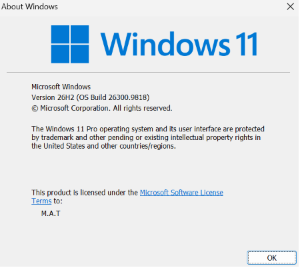
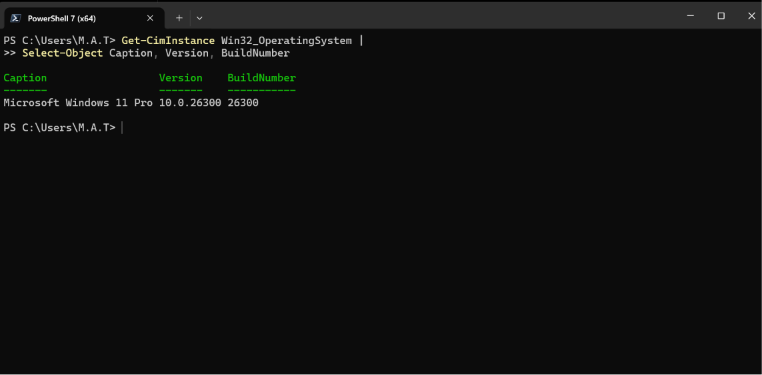
I conducted the experiment on my Windows 11 Pro PC using PowerShell 7.6.9. The recorded operating system build was 26300.9818. I used Brave, Google Chrome and Microsoft Edge to compare how the locally created files behaved in different browser environments.
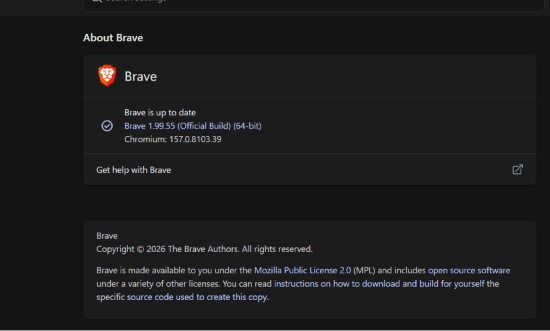
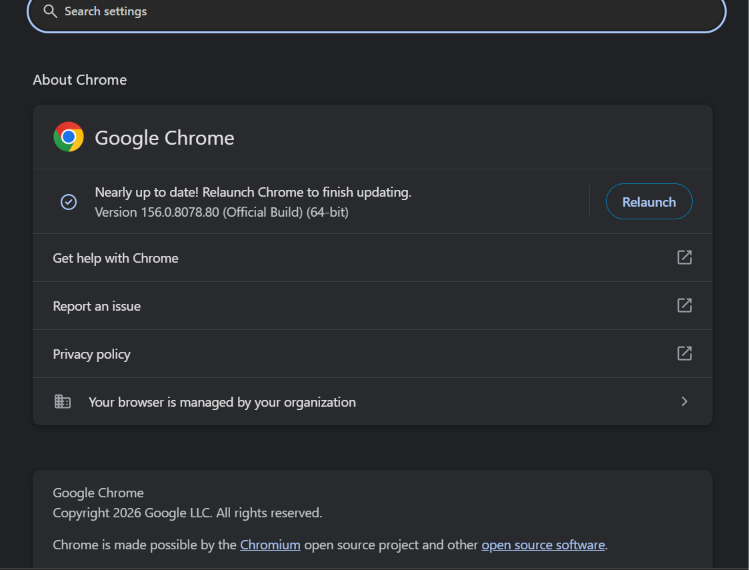
The recorded browser versions were:
- Brave: 1.99.55, using Chromium 157.0.8103.39
- Google Chrome: 156.0.8078.80
- Microsoft Edge: 157.0.4341.42
I created a dedicated investigation directory containing the original test files, evidence screenshots and logs. All experimental files were created locally for this investigation. I did not download malicious SVG samples, visit a real phishing website or use an external CAPTCHA service.
The purpose was to examine browser behaviour in a controlled demonstration, not to compromise a system or reproduce a criminal campaign. I kept the test files and their recorded hashes so that the original samples could be identified during the investigation.
I Created Two SVG Files
Inside the SVG Investigation
System environment, browser versions and initial SVG tests
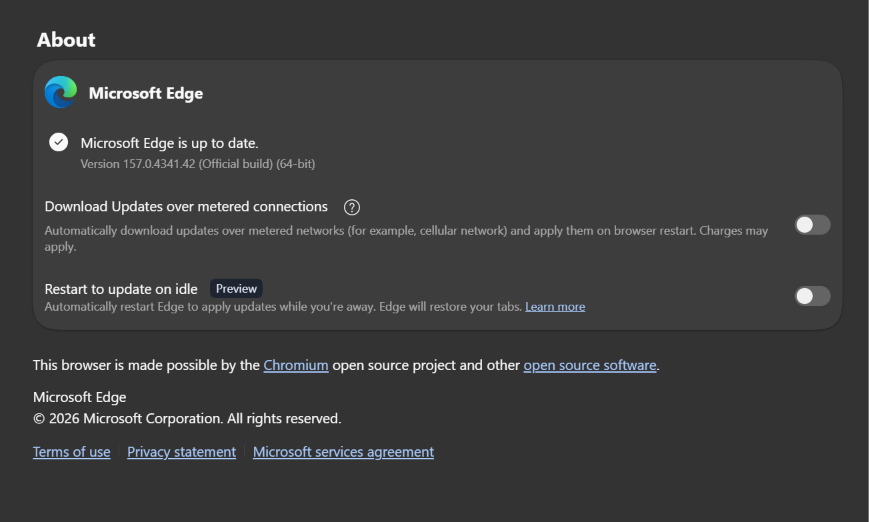
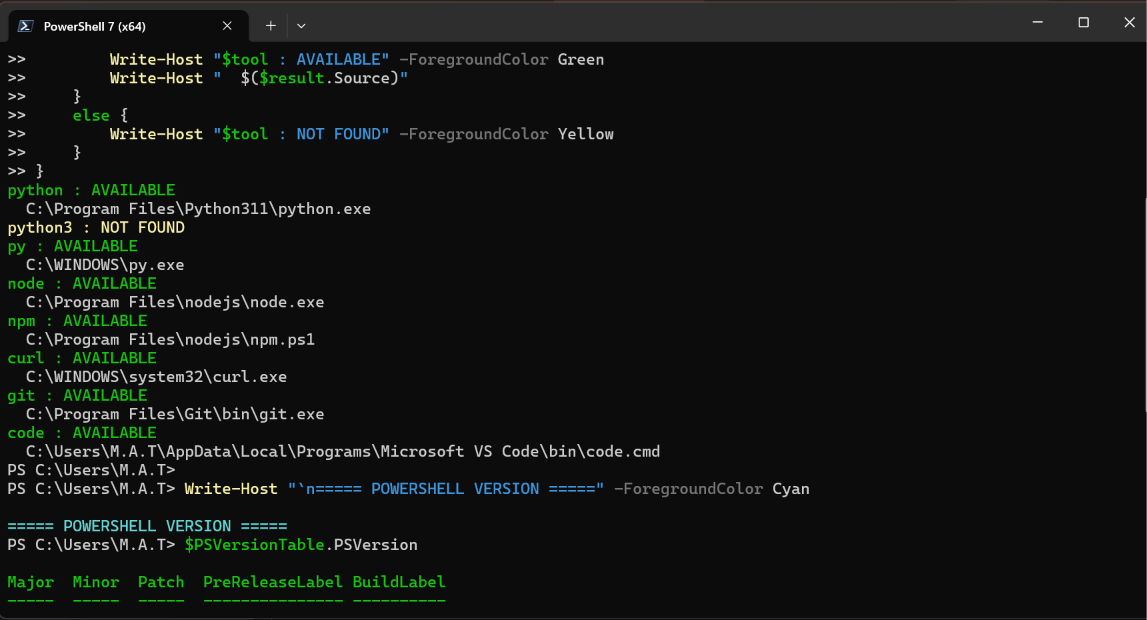
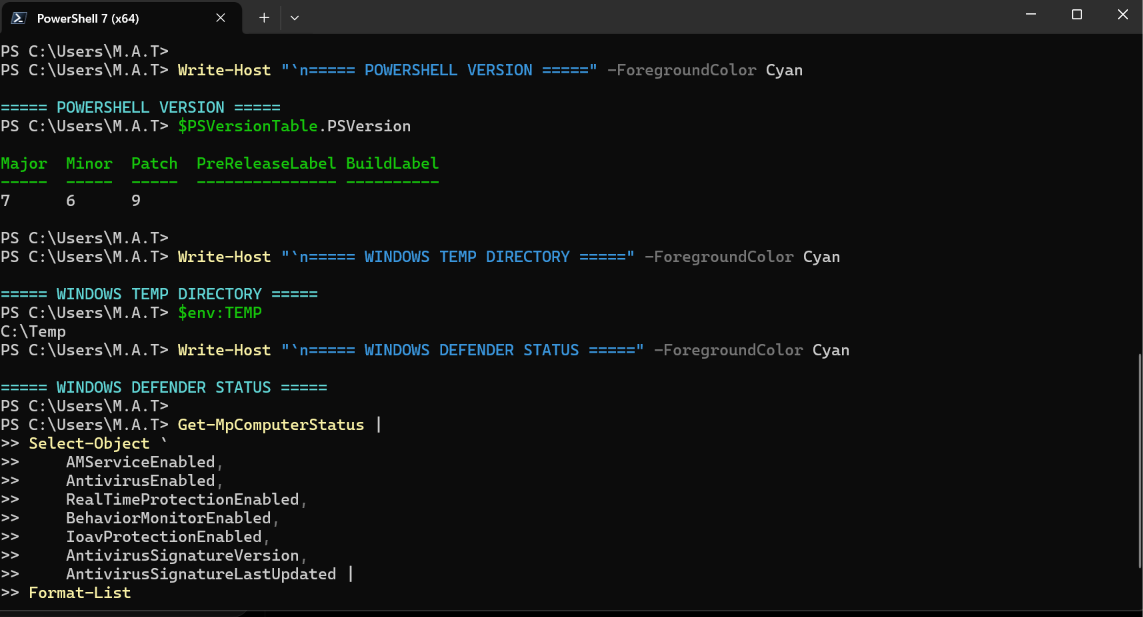
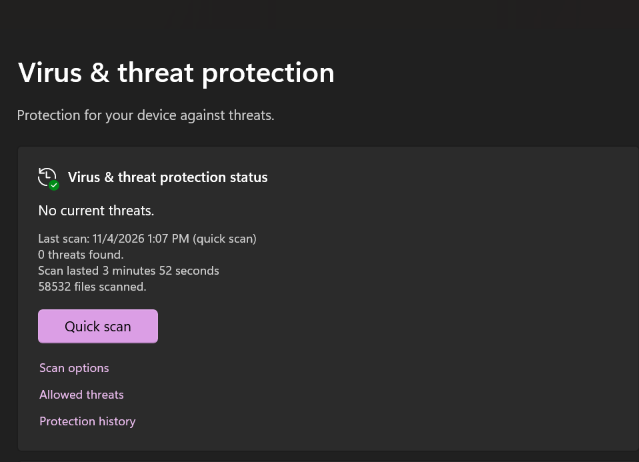
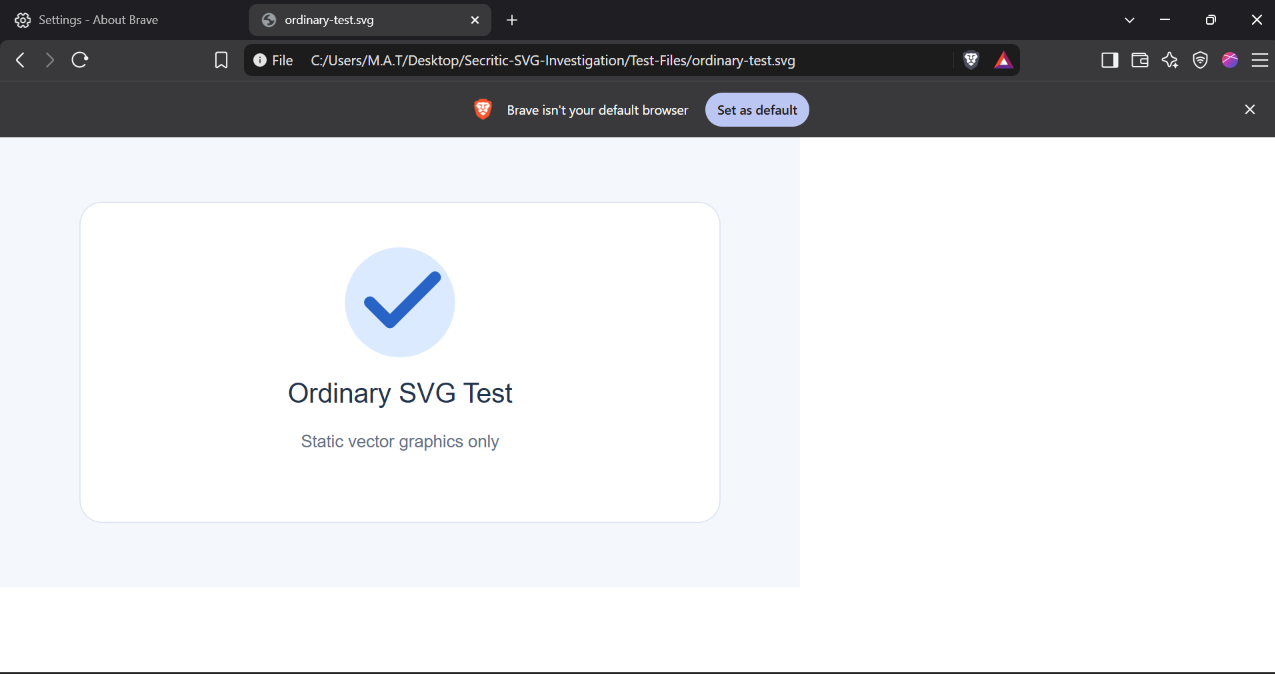
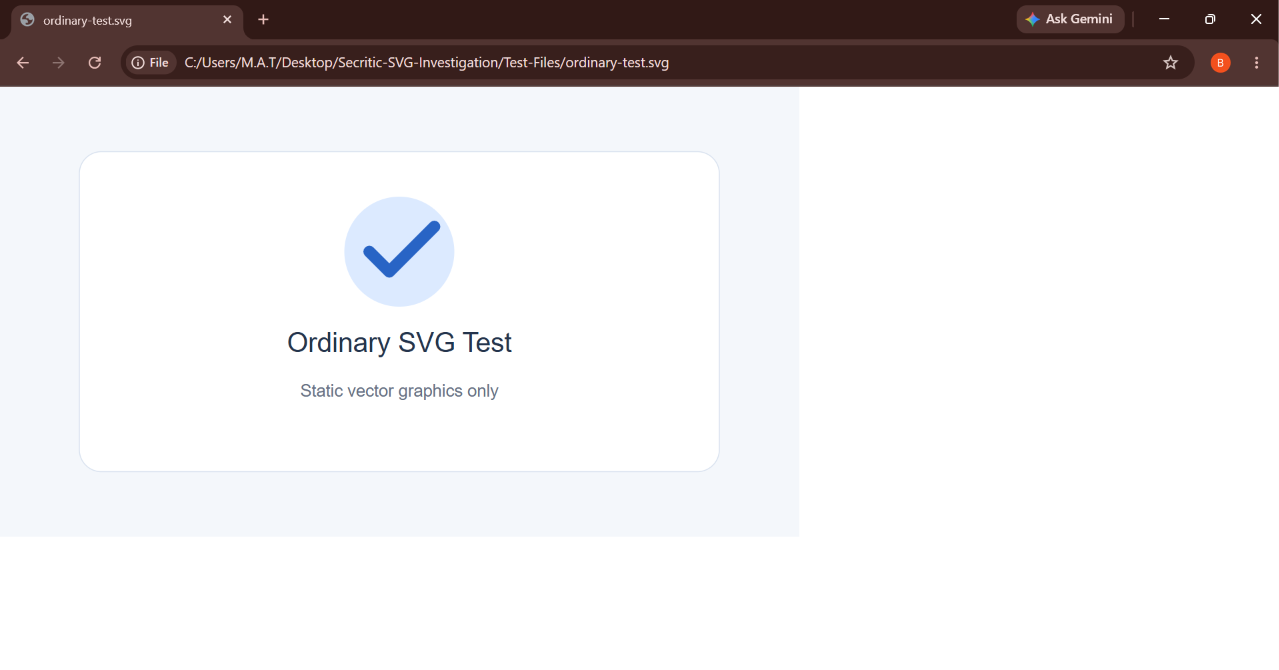
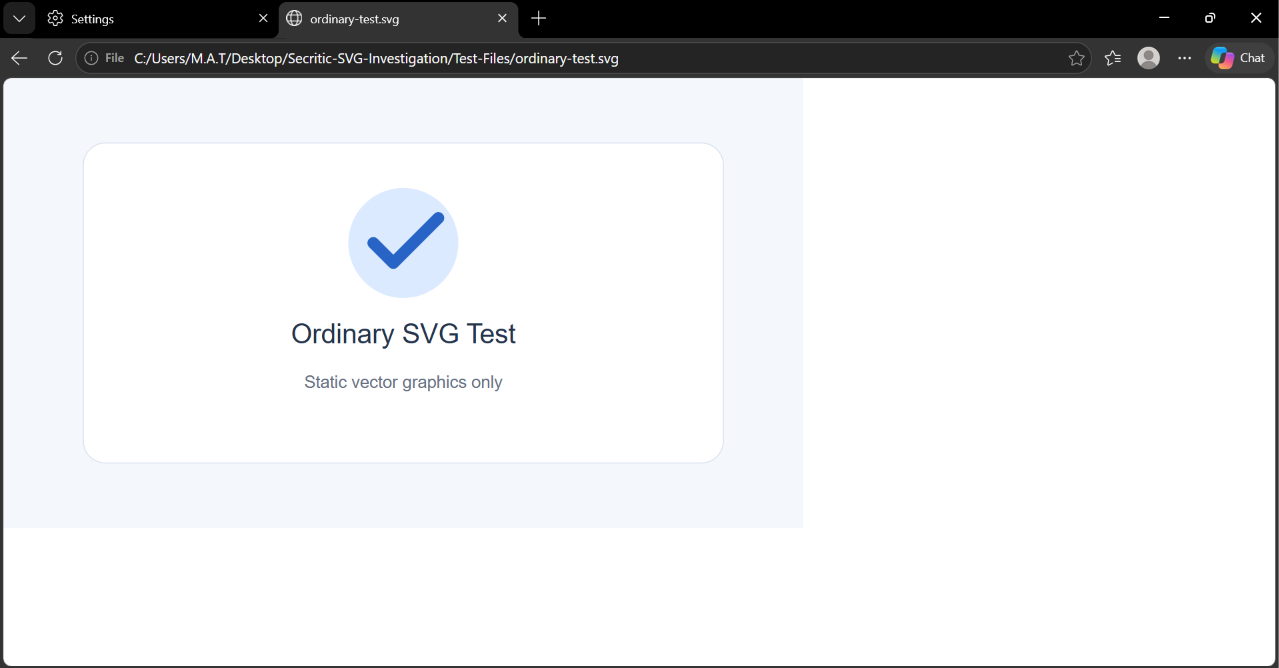
The first file, ordinary-test.svg, contained basic vector graphics, including rectangles, a circle, a path and text elements. I used it as a baseline to confirm that an ordinary SVG displayed correctly in the browsers before moving on to the interactive test.
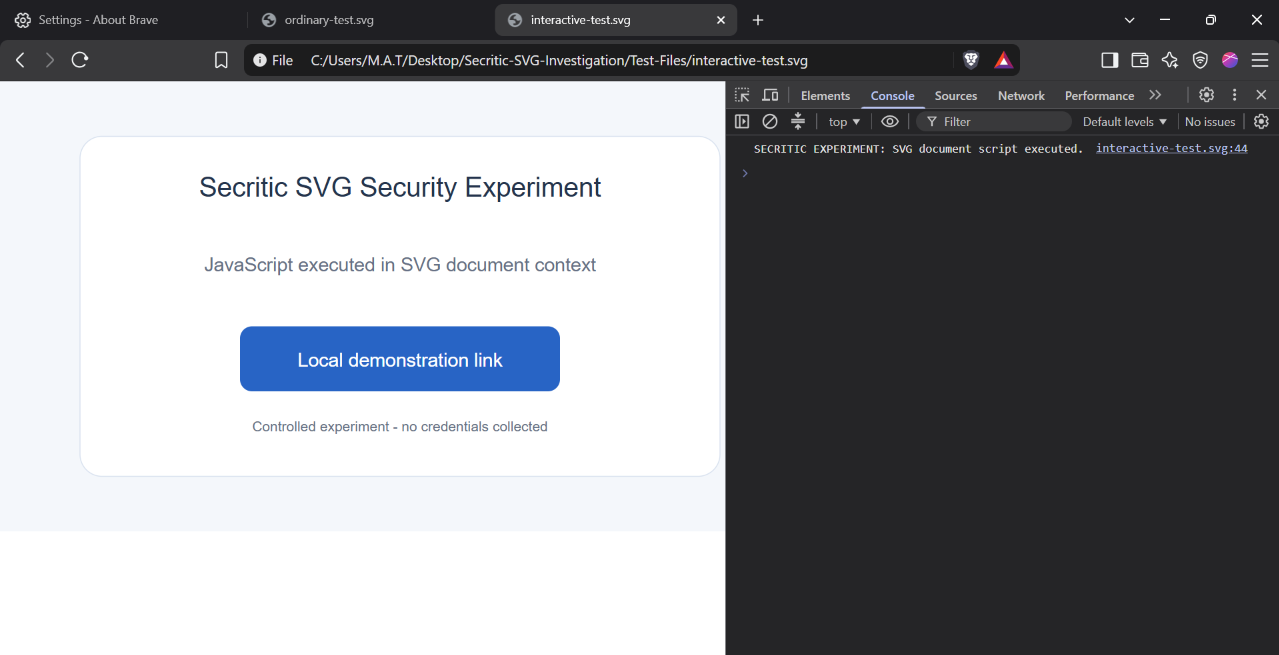
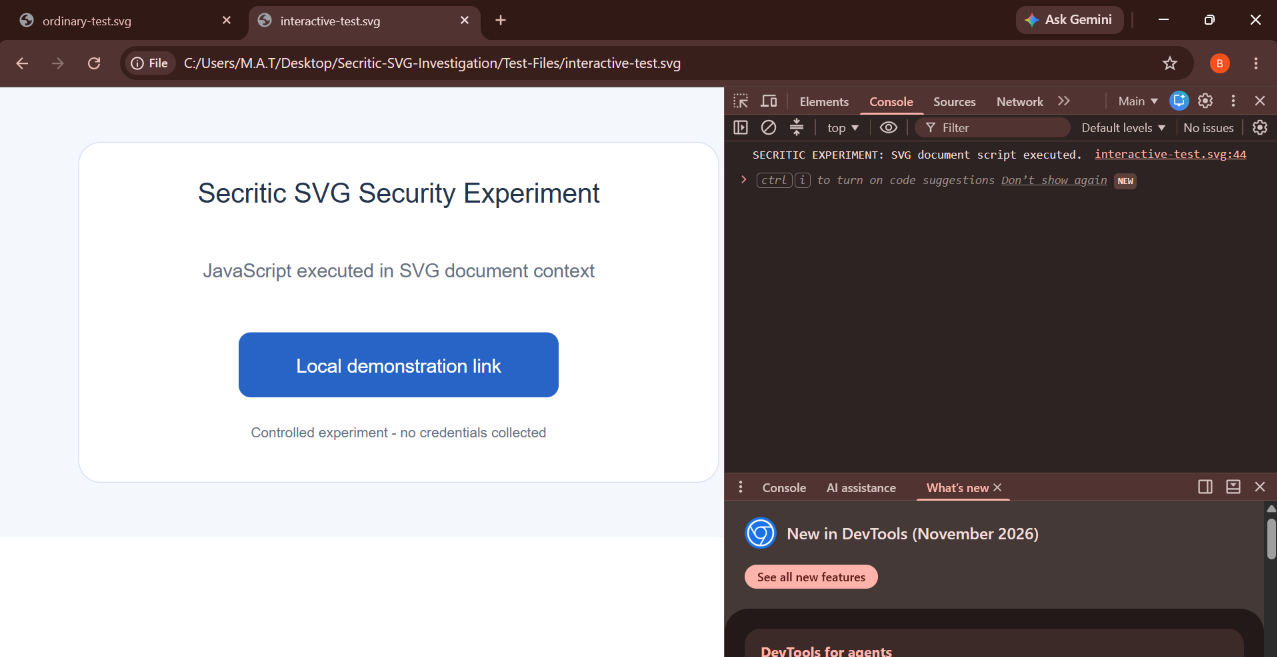
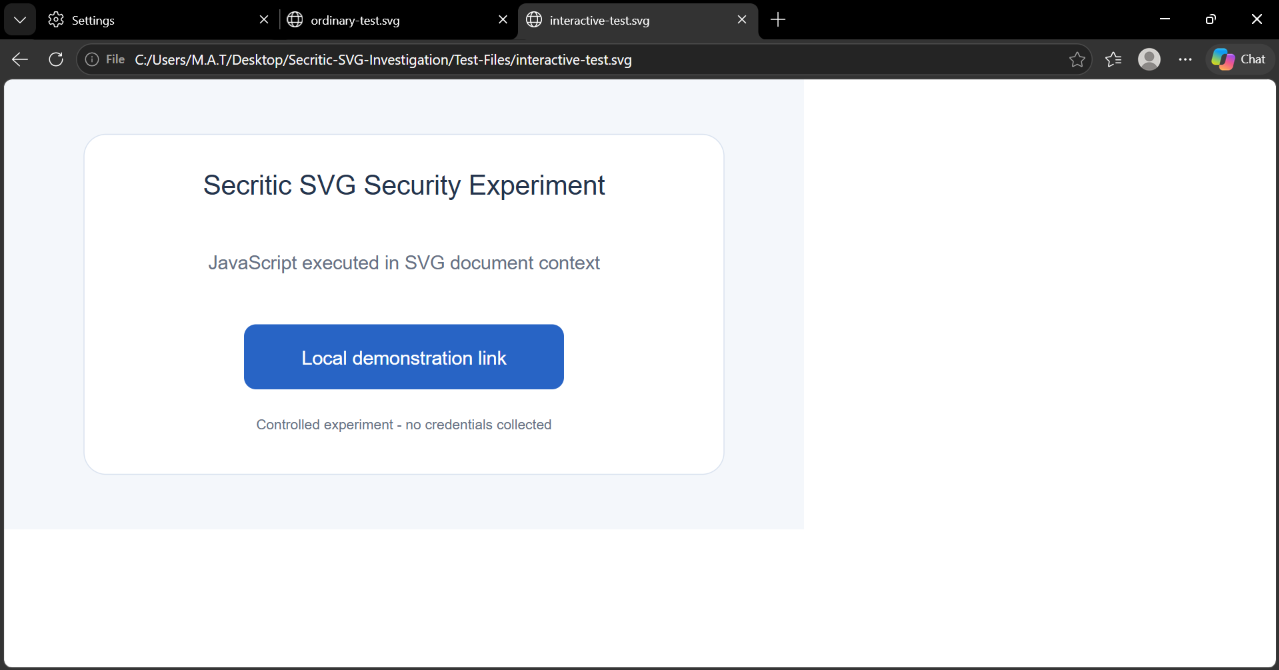
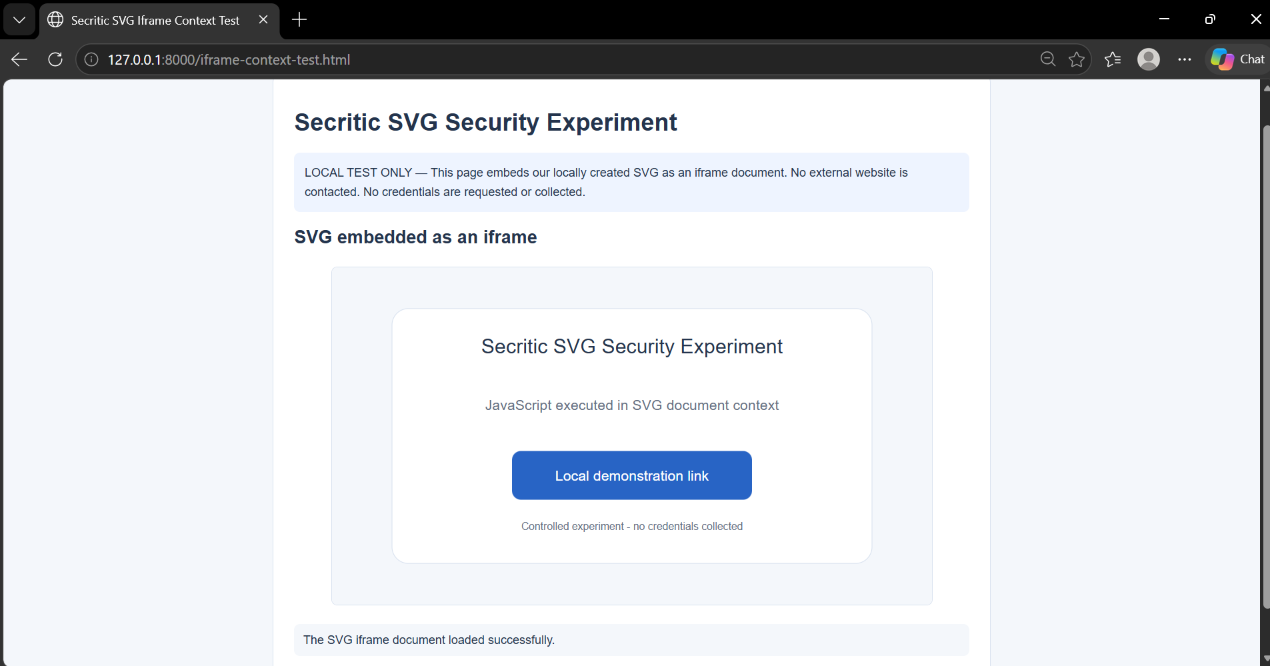
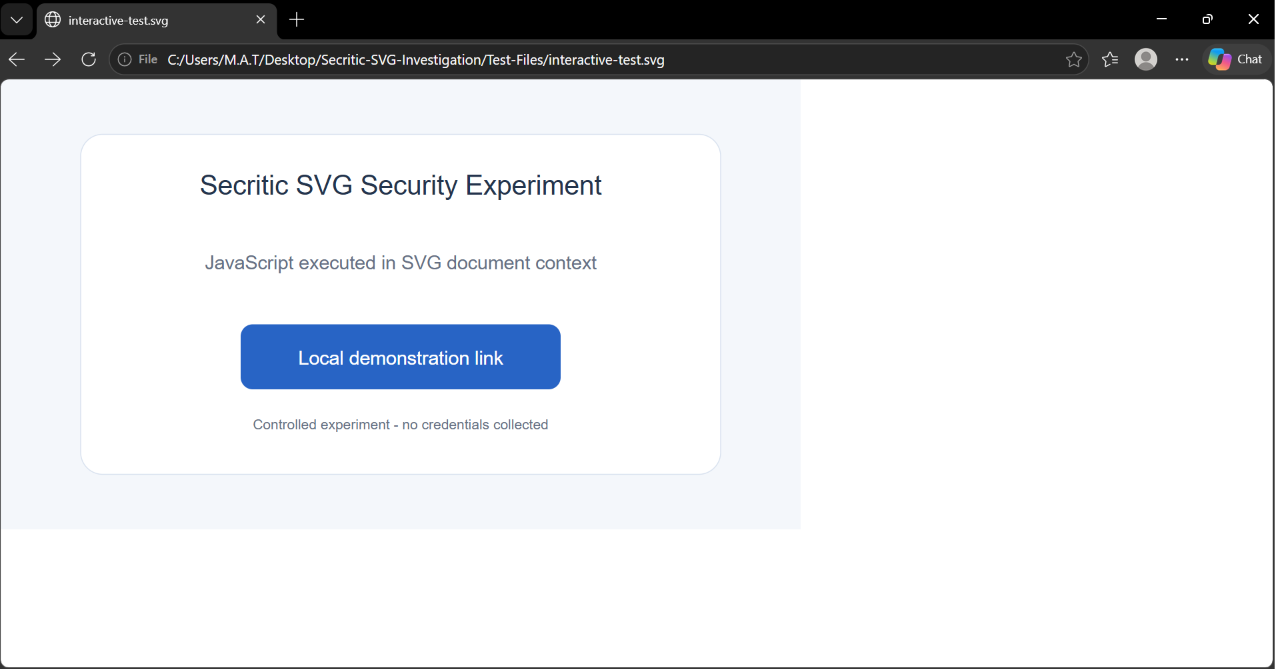
The second file, interactive-test.svg, was designed to examine SVG document behaviour. It contained vector graphics, a text element, a hyperlink and a harmless JavaScript block. The script was deliberately simple: it changed the text displayed inside the SVG and wrote a message to the browser console when it executed.
Before the script ran, the status element displayed:
Initial status: Script not yet confirmed
After execution, the text changed to:
JavaScript executed in SVG document context
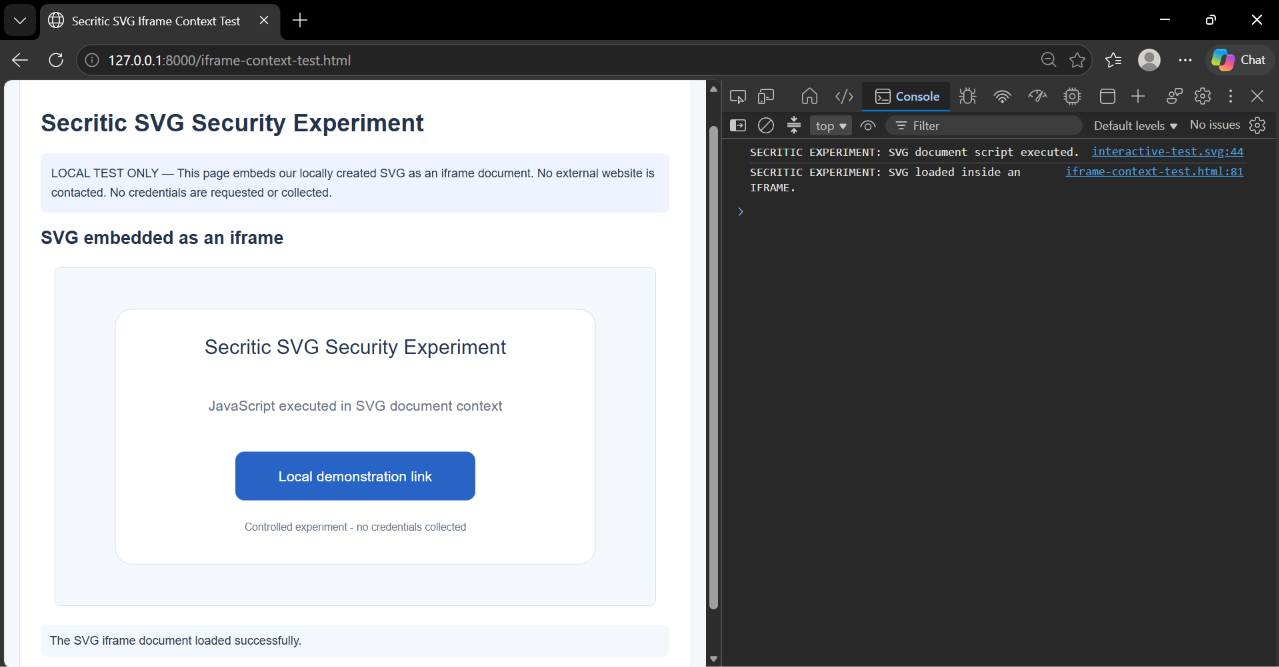
The script also produced this message in the browser console:
SECRITIC EXPERIMENT: SVG document script executed.
The hyperlink in the SVG pointed to a locally hosted demonstration page at 127.0.0.1:8000/captcha-demo.html. This allowed me to examine the navigation stage without connecting to an external website or using a real phishing destination.
Both SVG files were created specifically for this experiment. I also recorded their SHA-256 hashes, alongside hashes for the HTML demonstration files. These hashes provide a way to identify the exact test files used during the investigation; they do not, by themselves, establish that a file is safe or malicious.
What Happened When I Opened the SVG Directly?
I started by opening the ordinary SVG in the browser. It displayed correctly, providing the expected baseline. I then opened interactive-test.svg directly as a browser document to see whether its embedded JavaScript would execute.
The result was different from the static test. Instead of retaining its original status message, the interactive SVG displayed: “JavaScript executed in SVG document context”. I opened Developer Tools and checked the browser console, where the experiment’s JavaScript execution message appeared as well.
This confirmed that the JavaScript embedded in my SVG had executed when the file was opened directly as a document. The result was not caused by an external script or a separate webpage: the test code was contained in the SVG file itself and changed an element within that document.
I repeated the direct-opening test in Brave, Chrome and Edge. The same general behaviour was observed in all three browsers. This is an important distinction: I had not discovered a browser vulnerability. I had demonstrated an existing SVG capability using harmless code that I created myself.
The result shows why an SVG should not automatically be treated as a passive picture. When a browser opens it as a document, the browser can process its supported document features, including scripting. What those features can do remains subject to the browser’s security model and the context in which the file is opened.
The Same SVG Behaved Differently Inside an Image Element
How Browsers Handled the SVG
Chrome, Edge and the HTML image-element comparison
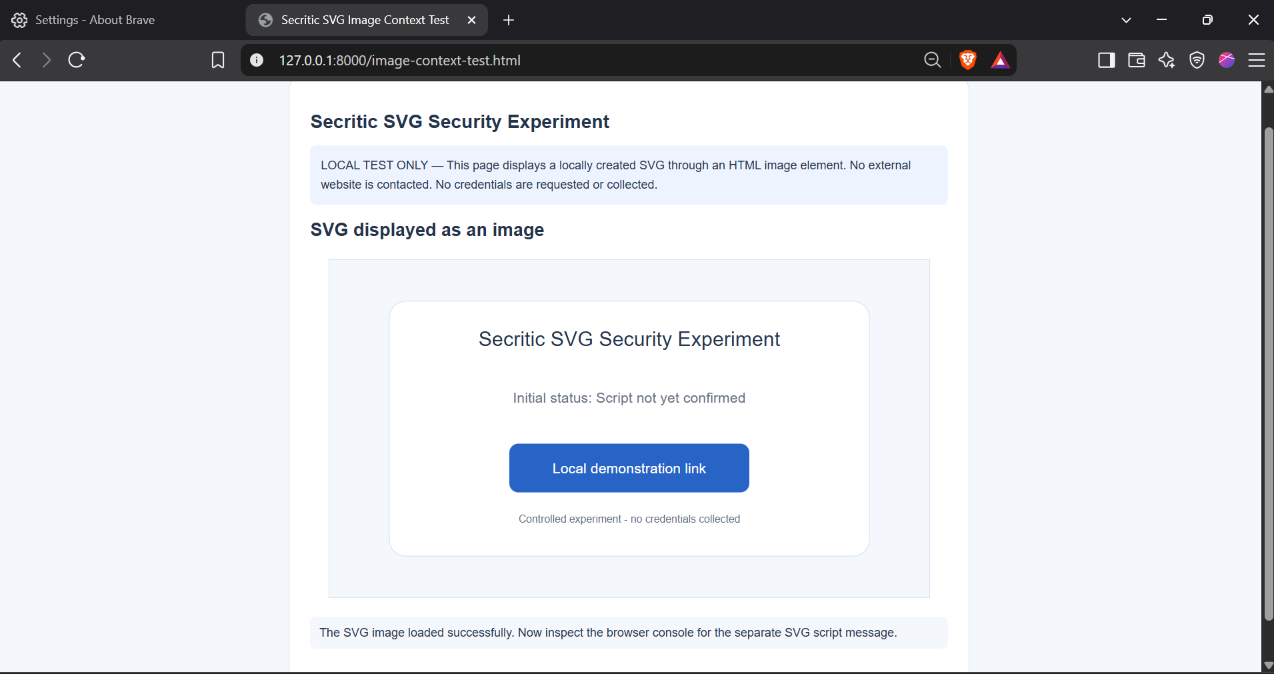
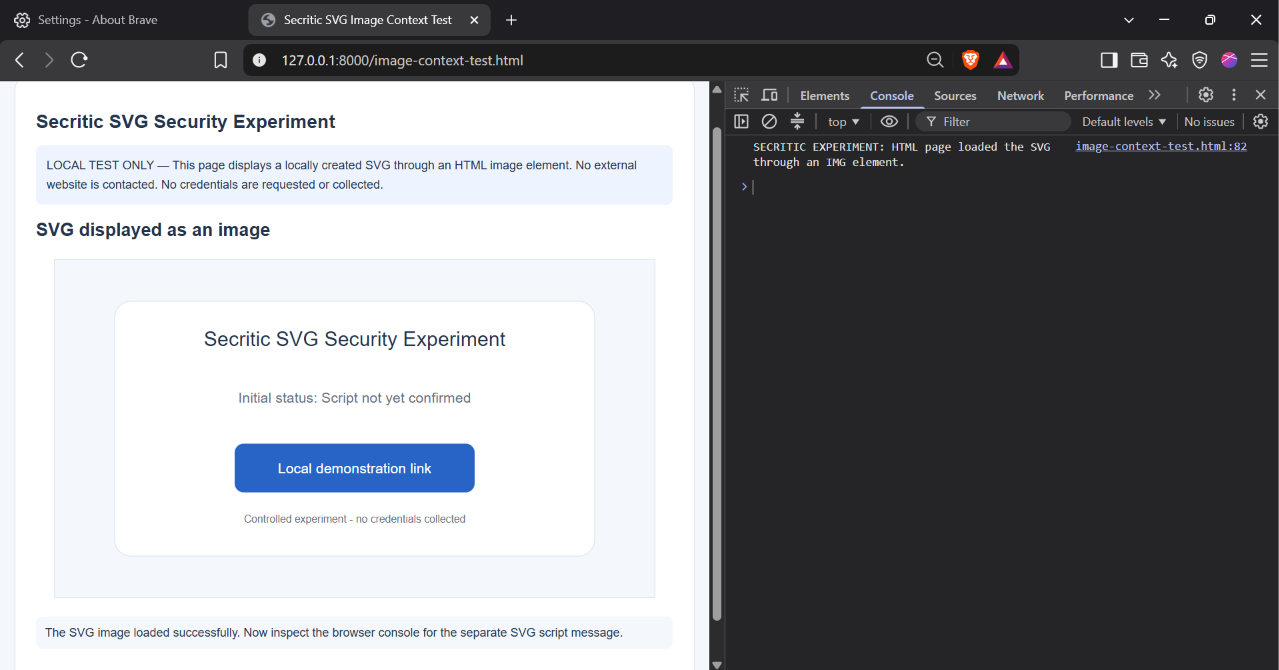
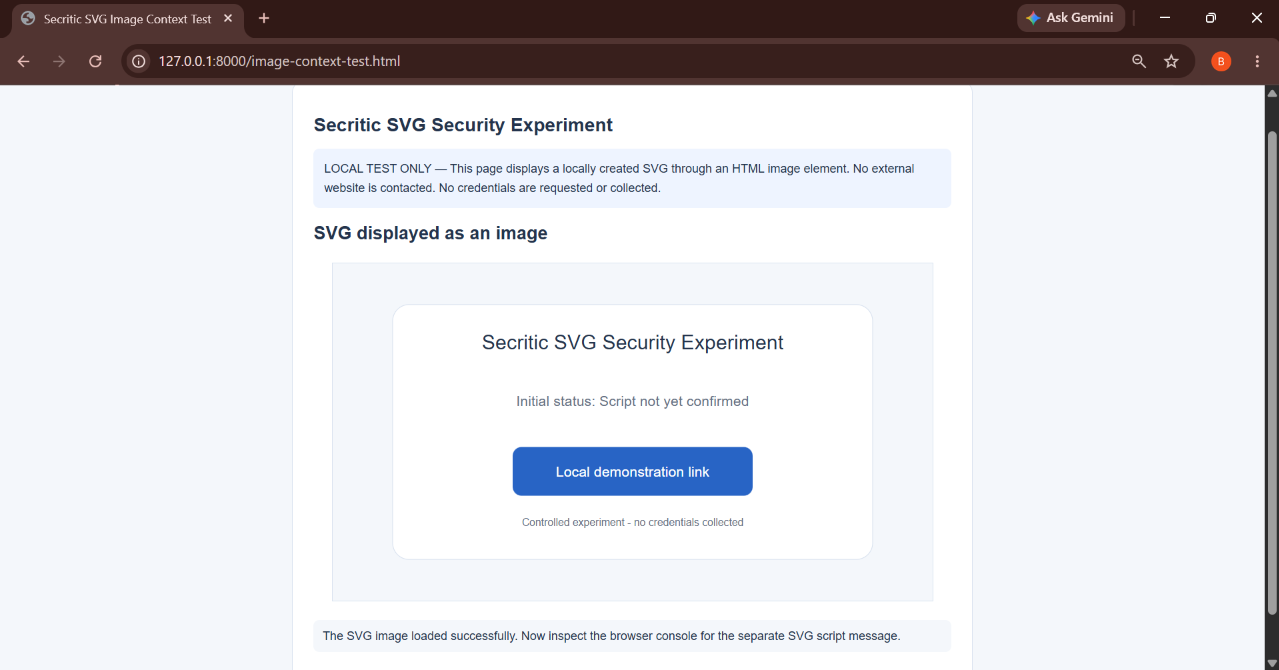
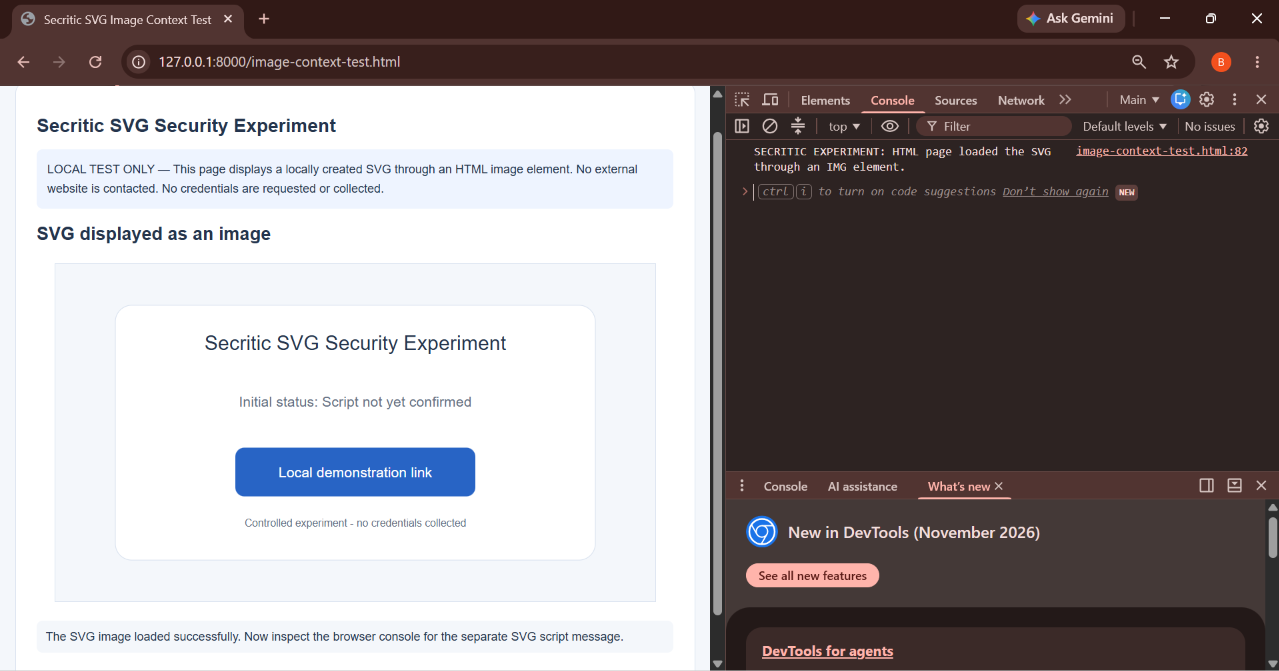
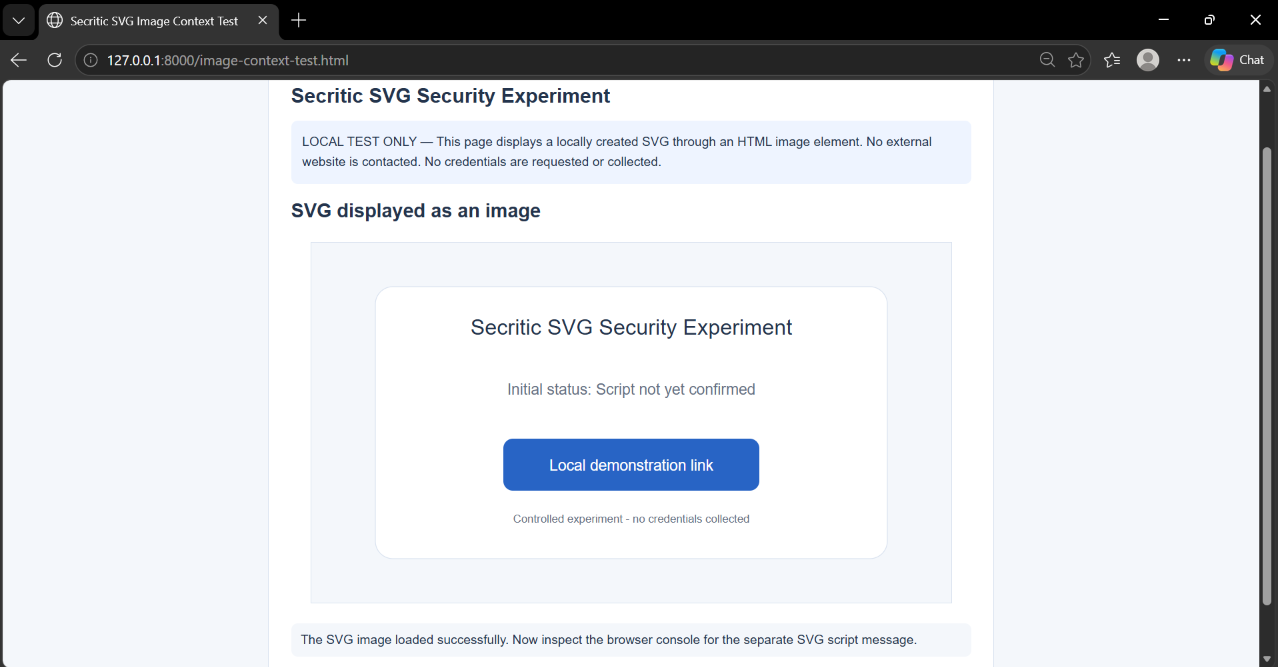
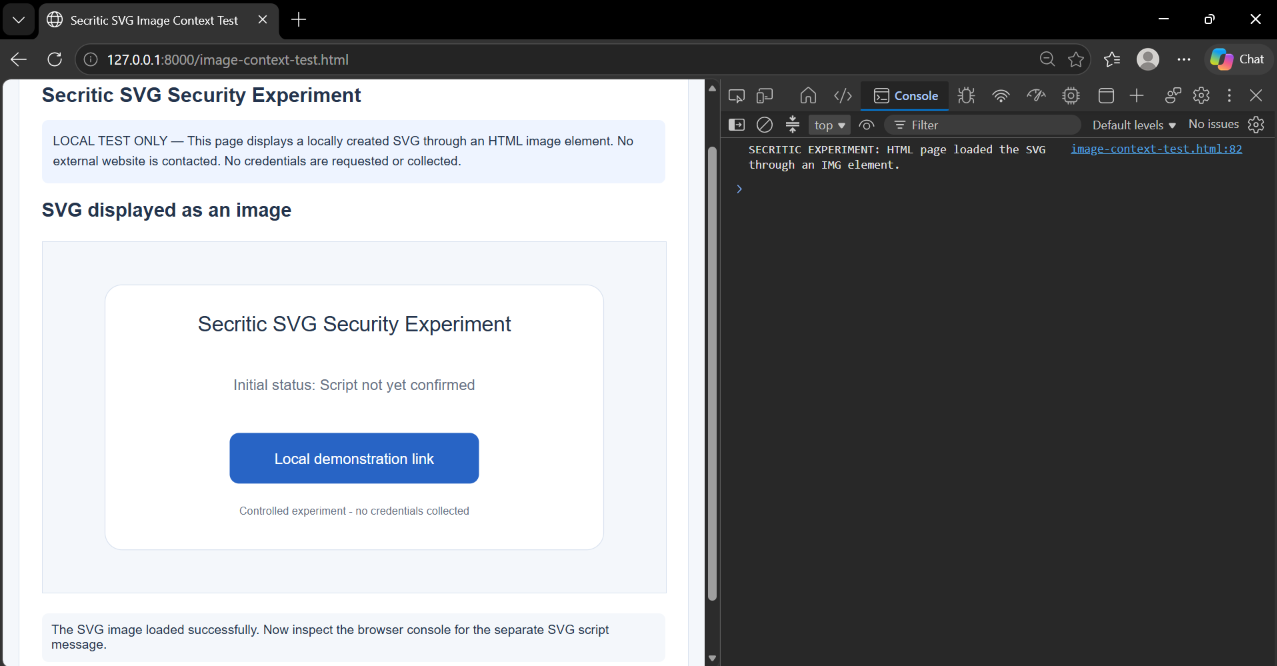
Next, I wanted to find out what would happen if a webpage displayed the same interactive SVG as an ordinary image. For this test, I created a separate HTML file named image-context-test.html. The page loaded interactive-test.svg using an HTML img element, the standard method websites use to display images within a webpage.
The image appeared successfully, but the SVG’s JavaScript did not produce the same result as before. Its status text remained “Initial status: Script not yet confirmed”, rather than changing to the message that appeared when I opened the SVG directly. The parent HTML page also produced its own console message: “Security experiment: HTML page loaded the SVG through an IMG element.”
This distinction matters because the SVG had not failed to load. The browser displayed its graphics successfully, but its embedded script did not execute as it had when the file was opened directly. In other words, displaying an SVG as an image is not the same as opening it as an interactive document.
I repeated this test in Brave, Chrome and Edge and recorded the results. The behaviour was consistent with the restrictions browsers apply when SVG is used as an image. In this context, scripts are disabled and links inside the SVG cannot be activated in the same way as they can when the SVG is treated as a document.
This is an important security distinction. A website displaying an SVG through an ordinary image element does not automatically give the SVG the same document-level capabilities it would have if someone opened it directly. The browser’s loading context changes which features are available.
What Changed When I Loaded the SVG Inside an Iframe?
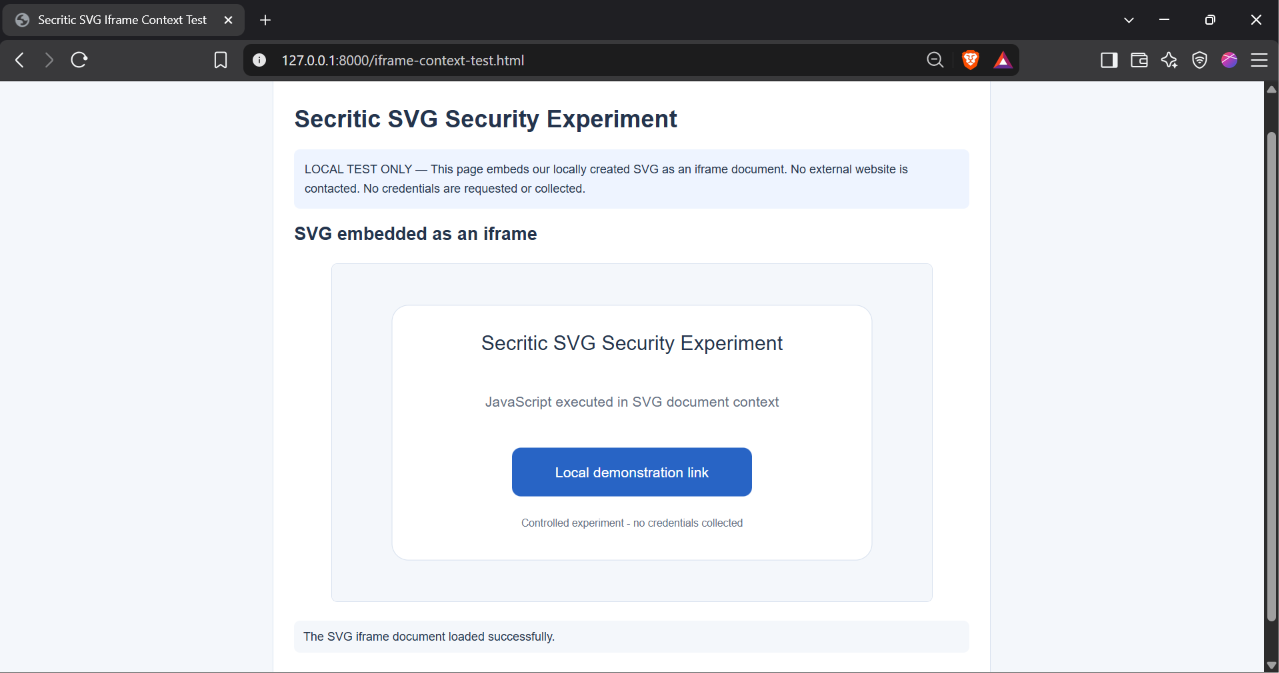
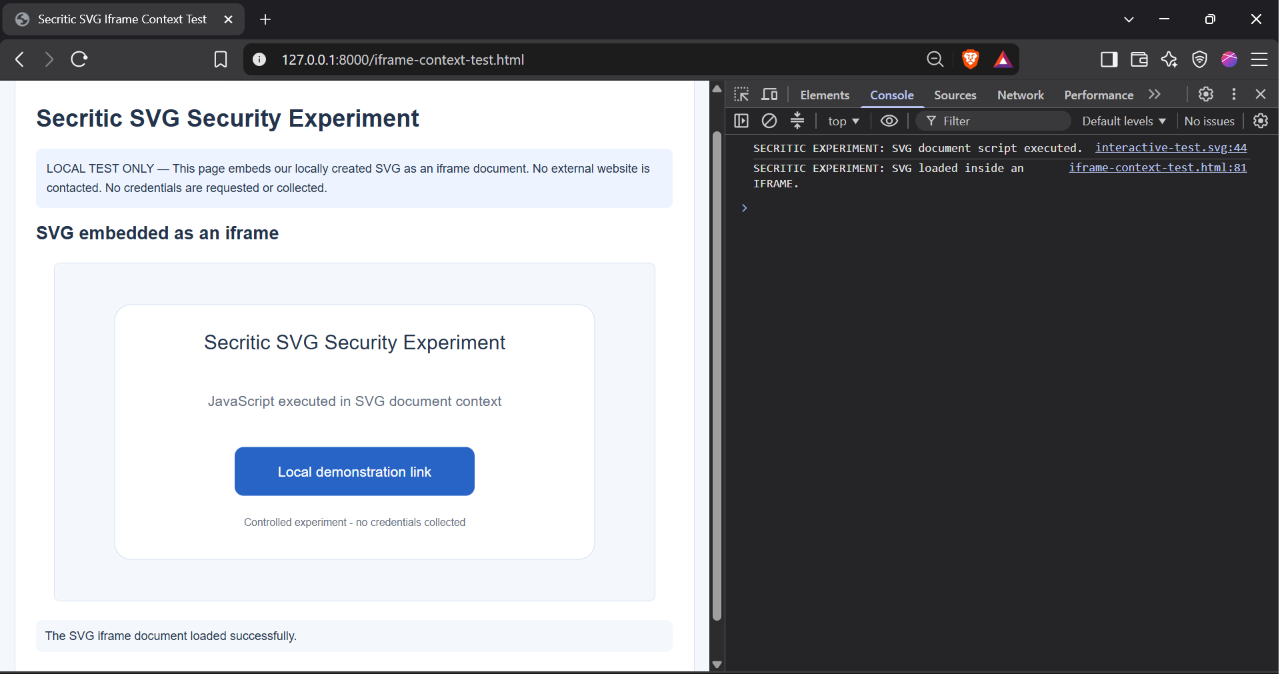
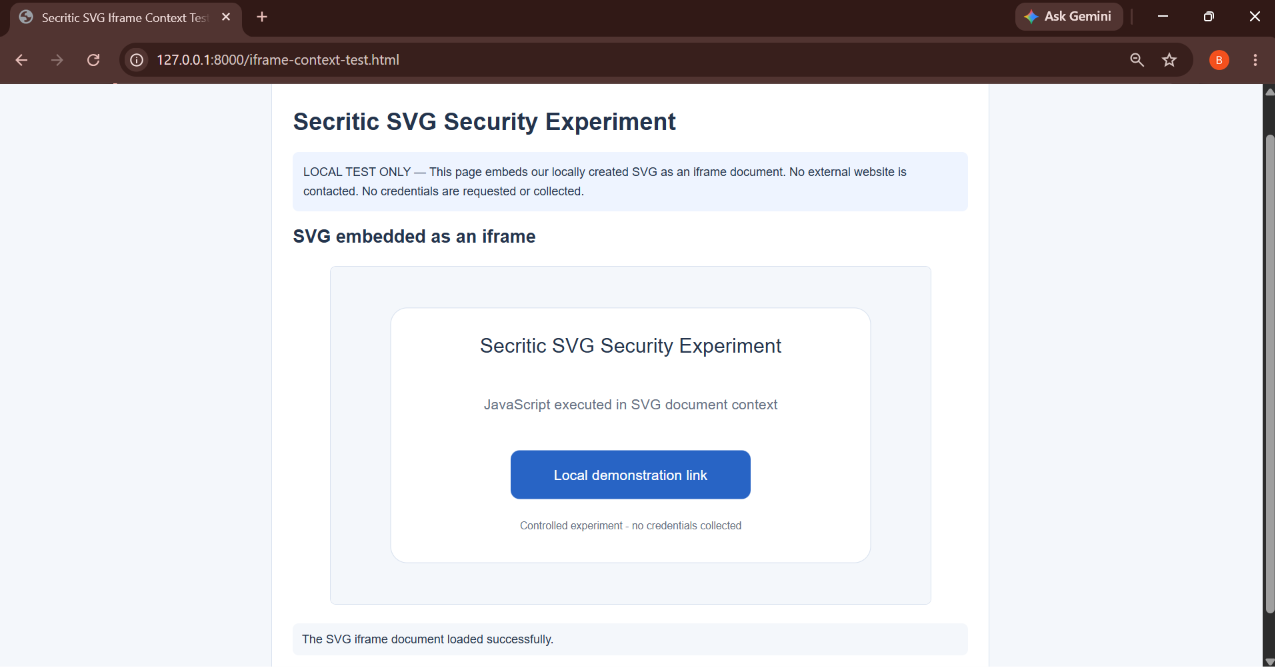
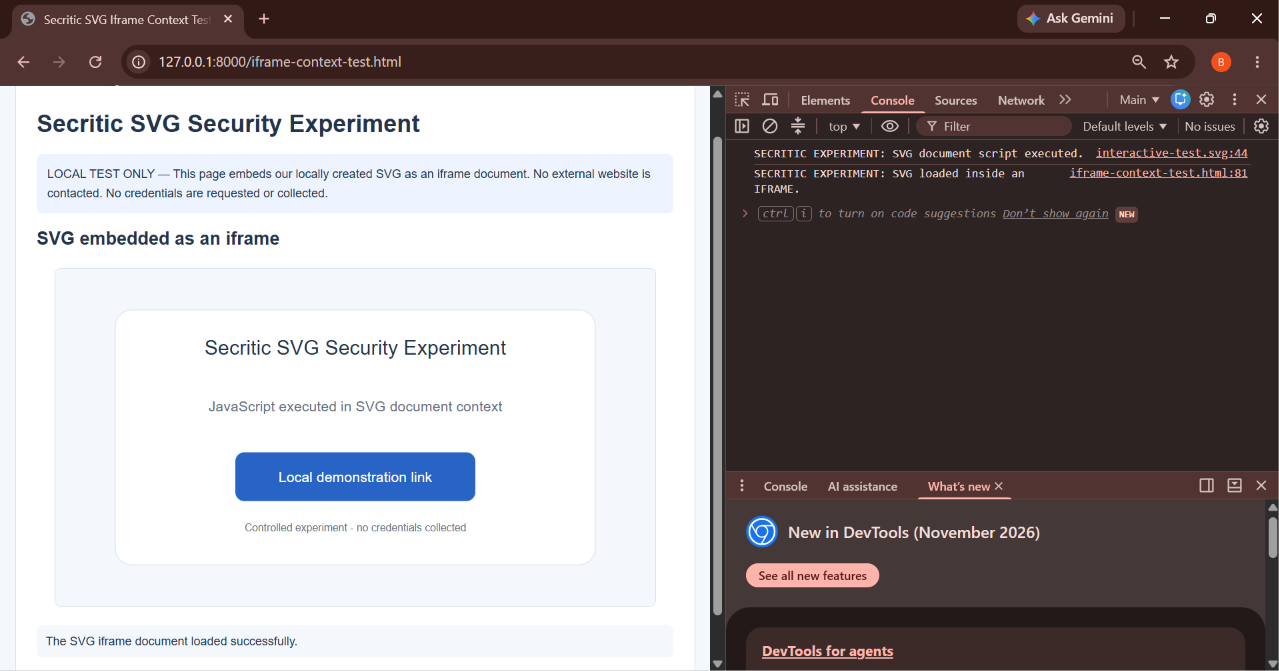
I then tested a third situation. Instead of using an image element, I created iframe-context-test.html and loaded the same SVG inside an iframe. An iframe creates a separate document browsing context within an HTML page, so it is different from displaying an SVG as an image.
The SVG loaded successfully, and its document-level JavaScript executed. The browser console displayed the SVG execution message, bringing back the behaviour I had observed when opening the file directly. This was a useful comparison because the SVG itself had not changed; I had changed the way the HTML page loaded it.
I performed the same iframe test in Brave, Chrome and Edge. The results demonstrated that the way an SVG is embedded can change which features are available. An SVG loaded as a document inside an iframe is not subject to the same image-context restrictions as an SVG displayed through an img element.
There is an important qualification, however. An iframe does not automatically give an embedded document unrestricted access to the webpage containing it. Browser origin rules still apply, and iframe sandbox settings can impose additional restrictions on what the embedded document can do. The fact that a script executes inside an SVG iframe does not mean that it can freely control the parent page or bypass the browser’s security protections.
Taken together, the direct-opening, image-element and iframe tests showed that the same SVG can behave differently depending on its browsing context. This is consistent with the SVG security guidance documented by the Mozilla Developer Network and the W3C.
I Built a Local CAPTCHA-to-Sign-In Demonstration
Inside the Iframe and Local Demonstration
Document-context execution and the local demonstration pages
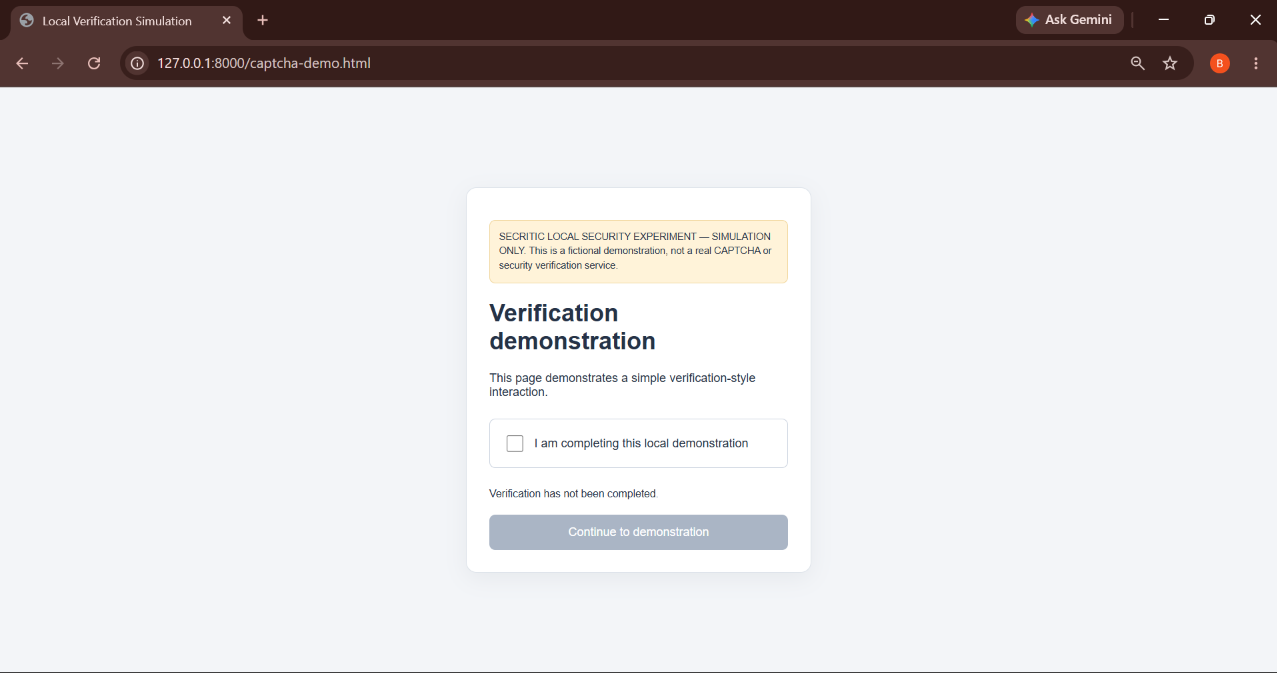
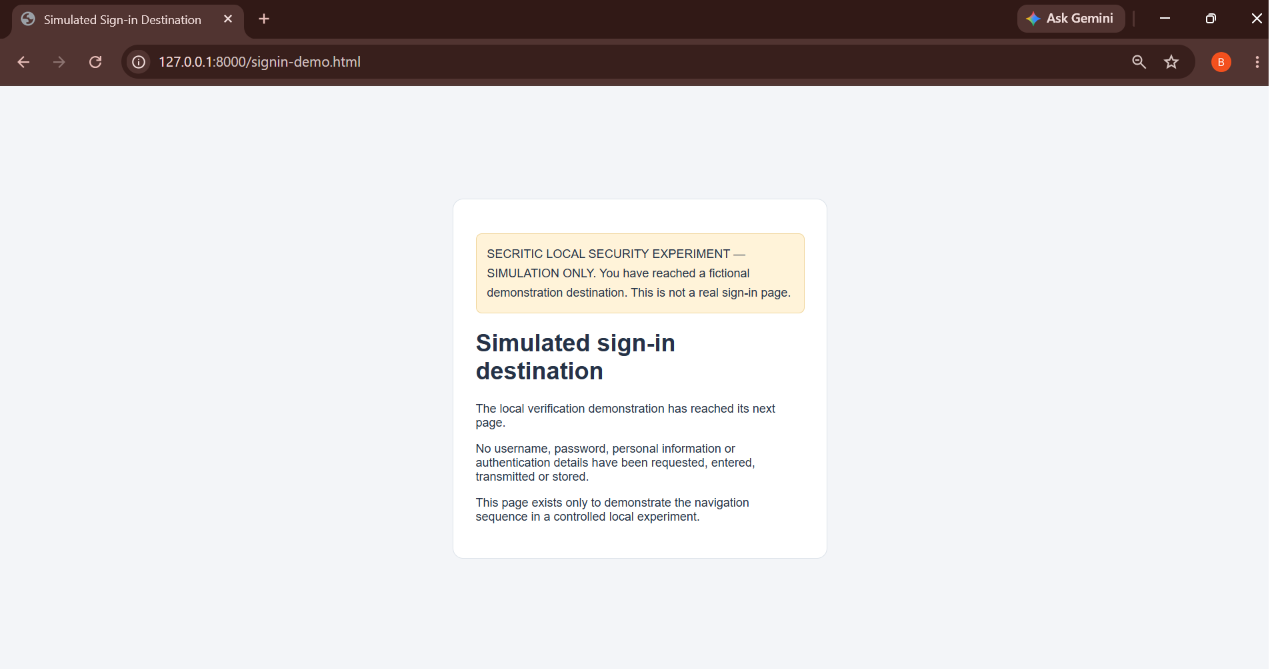
After examining the SVG behaviour, I moved to the navigation experiment. I wanted to demonstrate how an SVG attachment could form the beginning of a longer phishing-style journey, rather than simply showing that JavaScript could execute inside an SVG document.
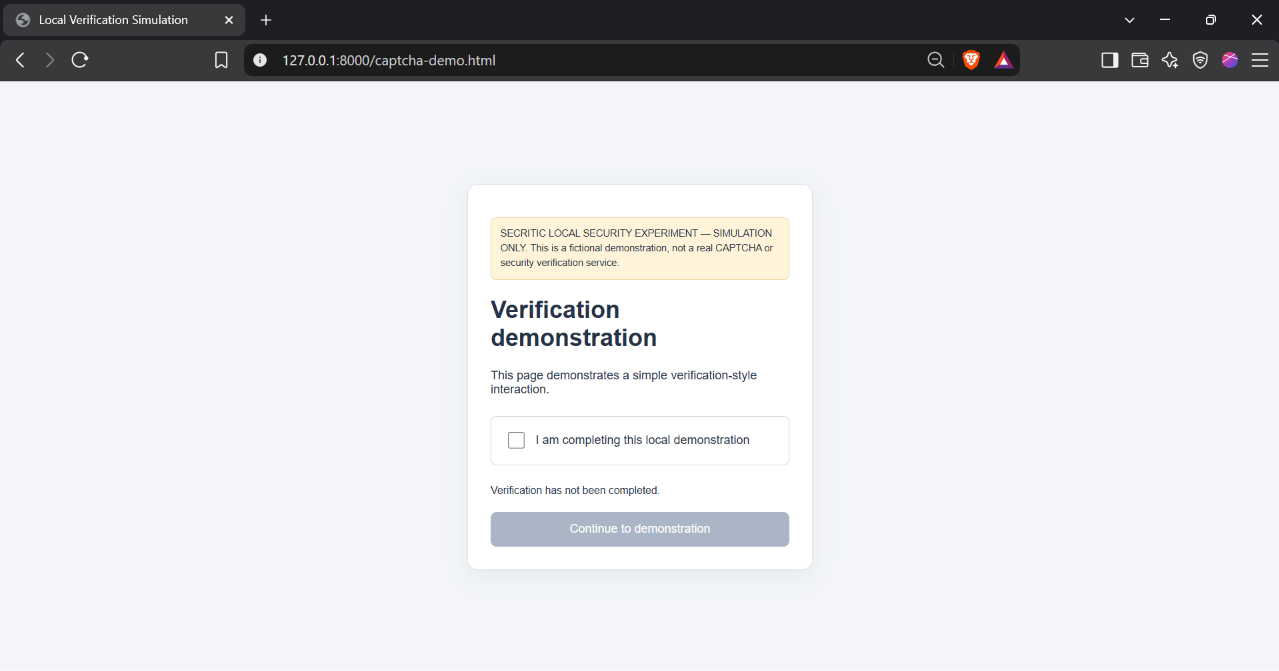
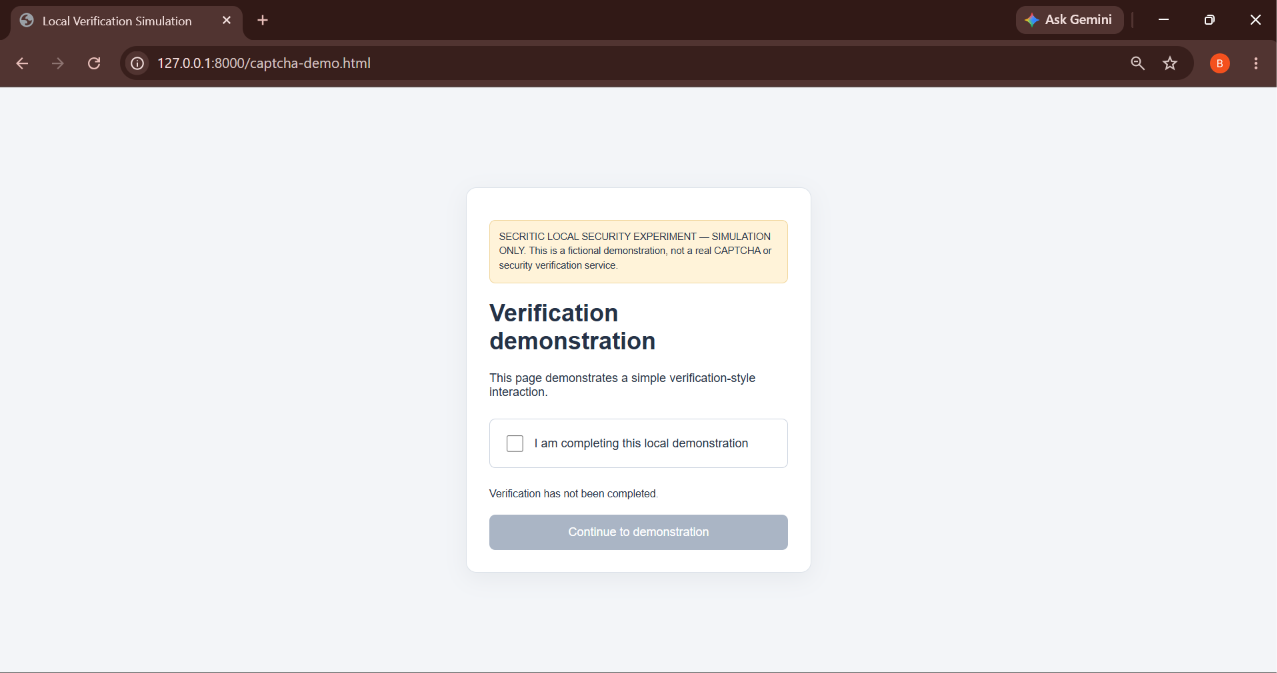
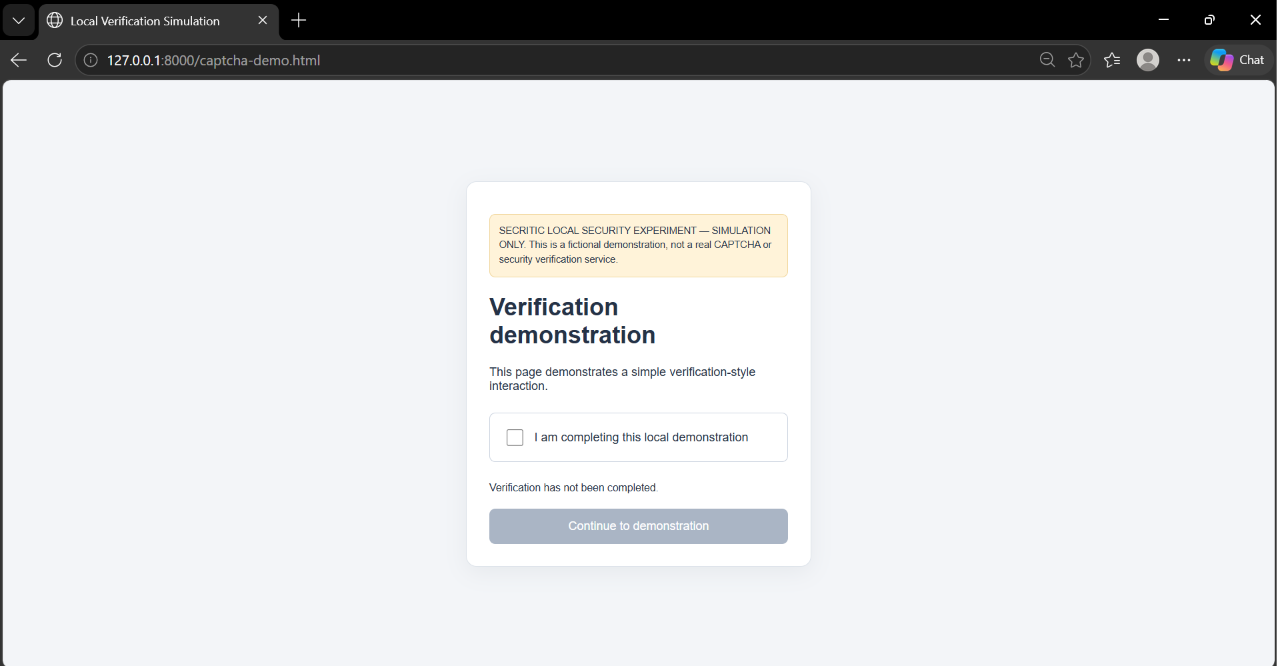
I created two additional HTML pages for this purpose. The first was captcha-demo.html, which represented a CAPTCHA-style verification page. It contained a checkbox and a Continue button. The interaction was entirely local: selecting the checkbox changed the demonstration state and enabled the Continue button.
This was not a genuine CAPTCHA service. It did not contact an external provider, perform real human verification or communicate with a third-party website. It was a simple page created to demonstrate the role a verification screen could play between an initial link and a later destination.
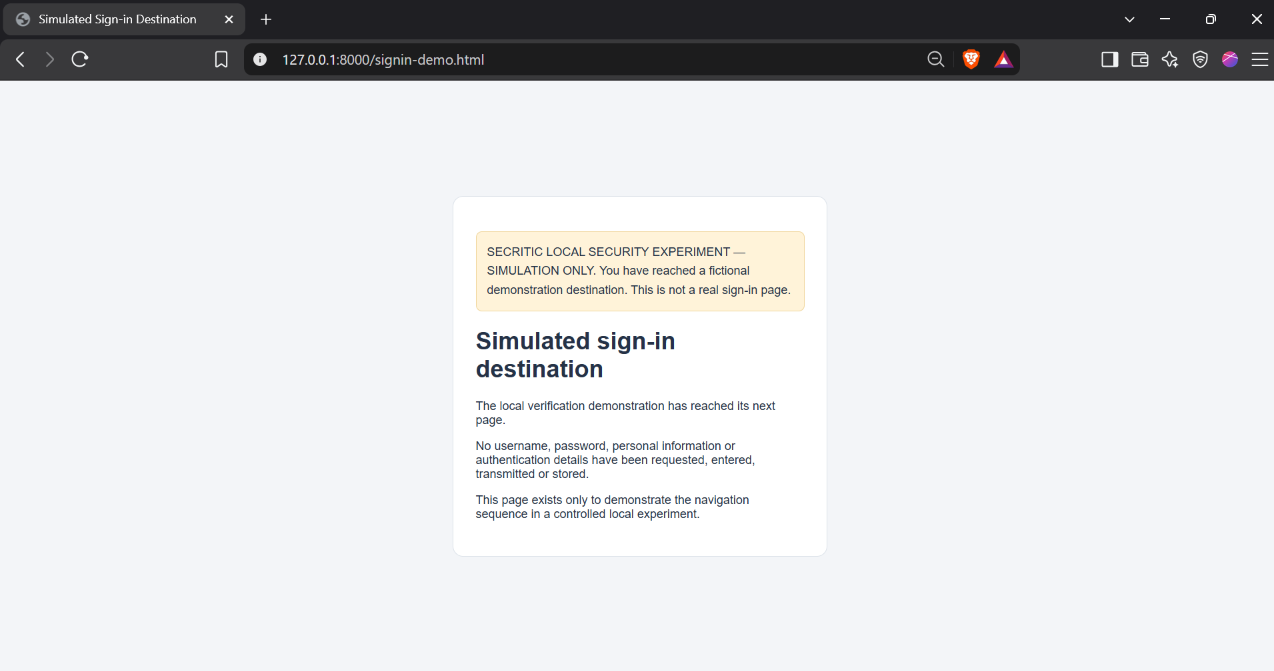
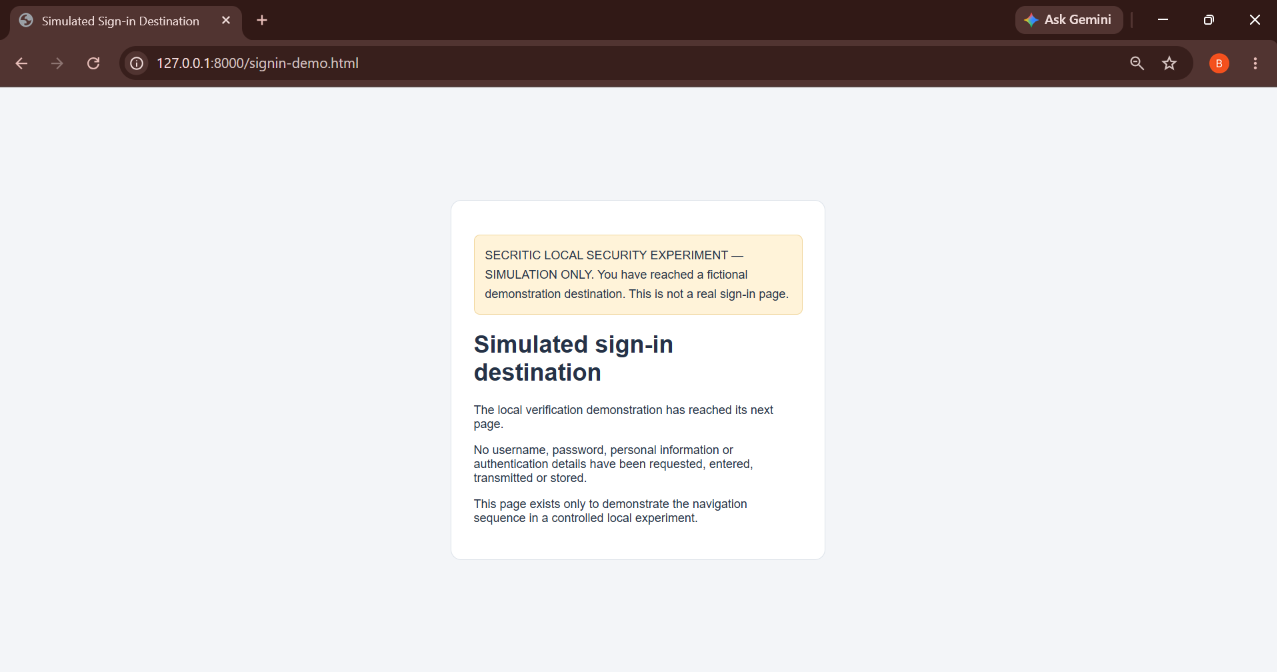
The second page was signin-demo.html. It represented a fictional sign-in destination using experimental branding. It did not imitate a real company’s account portal, collect passwords or transmit credentials. Its purpose was to show what the final page in the local navigation sequence looked like.
The two pages were connected through the local navigation sequence. My interactive SVG already contained a hyperlink pointing to the CAPTCHA demonstration. When I activated that link, the browser opened the local CAPTCHA page. After completing the harmless verification interaction, I selected Continue and reached the fictional sign-in destination.
The complete sequence was:
SVG hyperlink → CAPTCHA-style verification → fictional sign-in destination
This demonstrated how a file that initially appears to be an image can participate in a navigation journey leading to an ordinary HTML webpage. The important detail is that the SVG did not automatically compromise the computer or steal information. In my demonstration, navigation began when I activated the hyperlink, followed by the separate verification interaction.
No real phishing domain was involved, and no credentials were entered, collected, stored or transmitted. The CAPTCHA and sign-in pages were both local files created for the experiment. This allowed me to examine the sequence without exposing an account or interacting with an actual phishing operation.
I Tested the Complete Sequence in Three Browsers
Following the SVG Navigation Sequence
The recorded navigation stages across Brave, Chrome and Edge
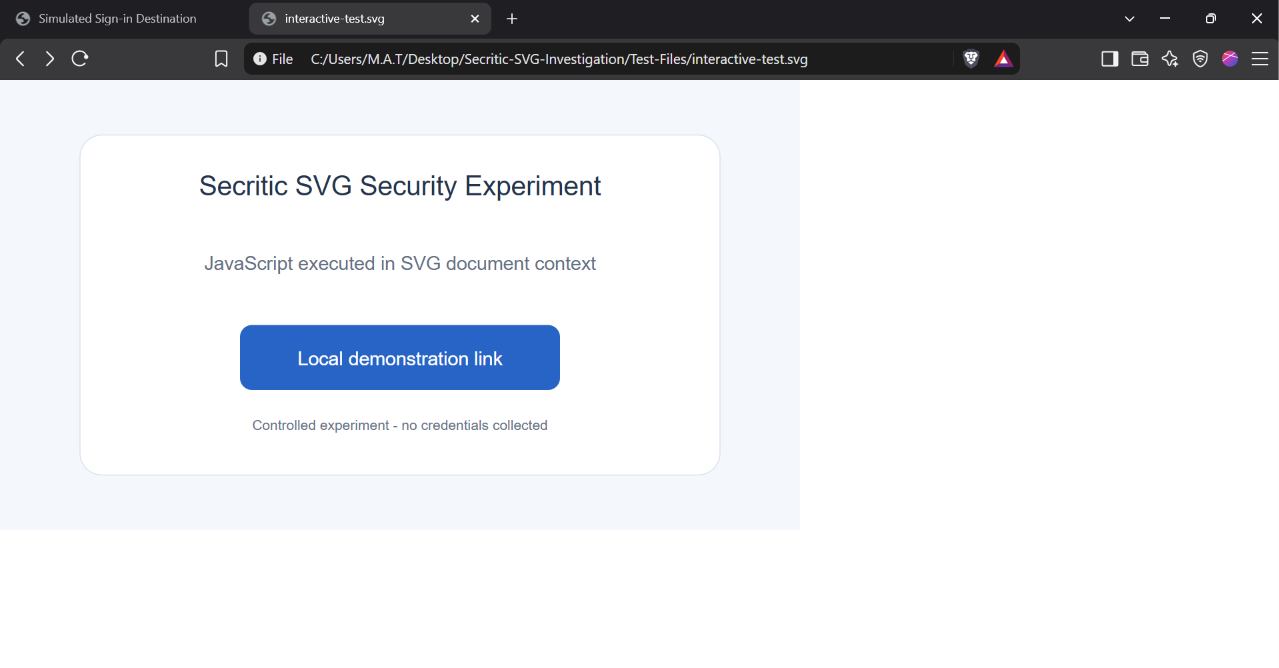
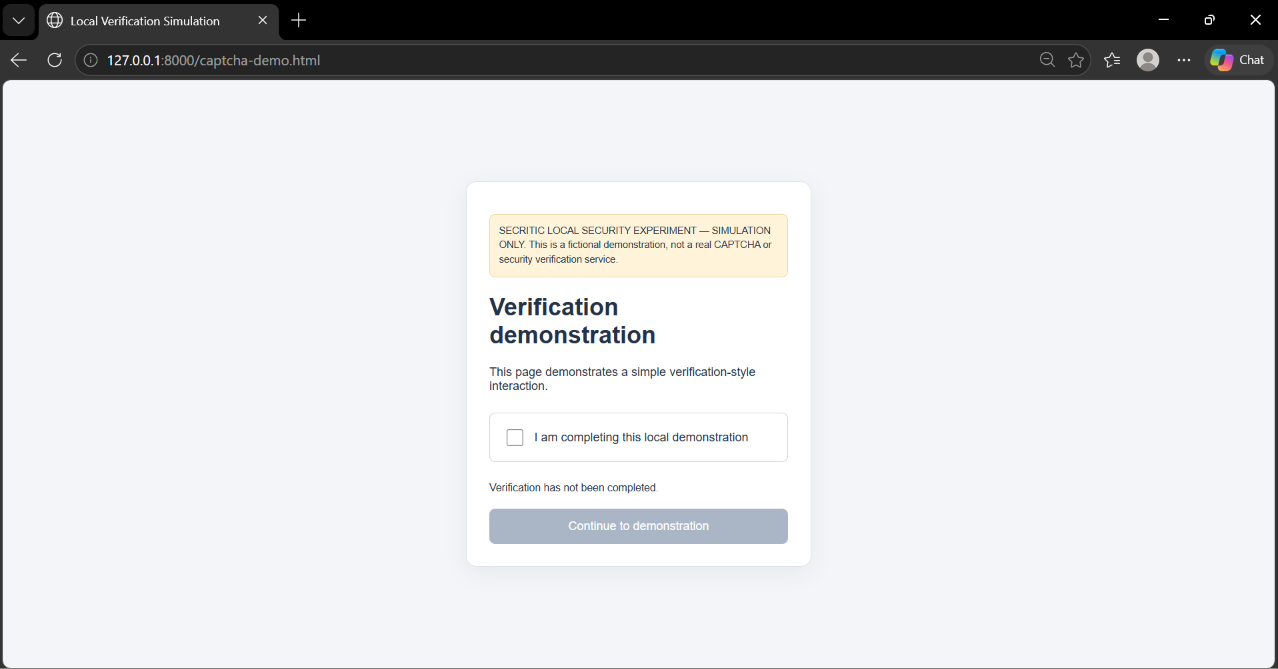
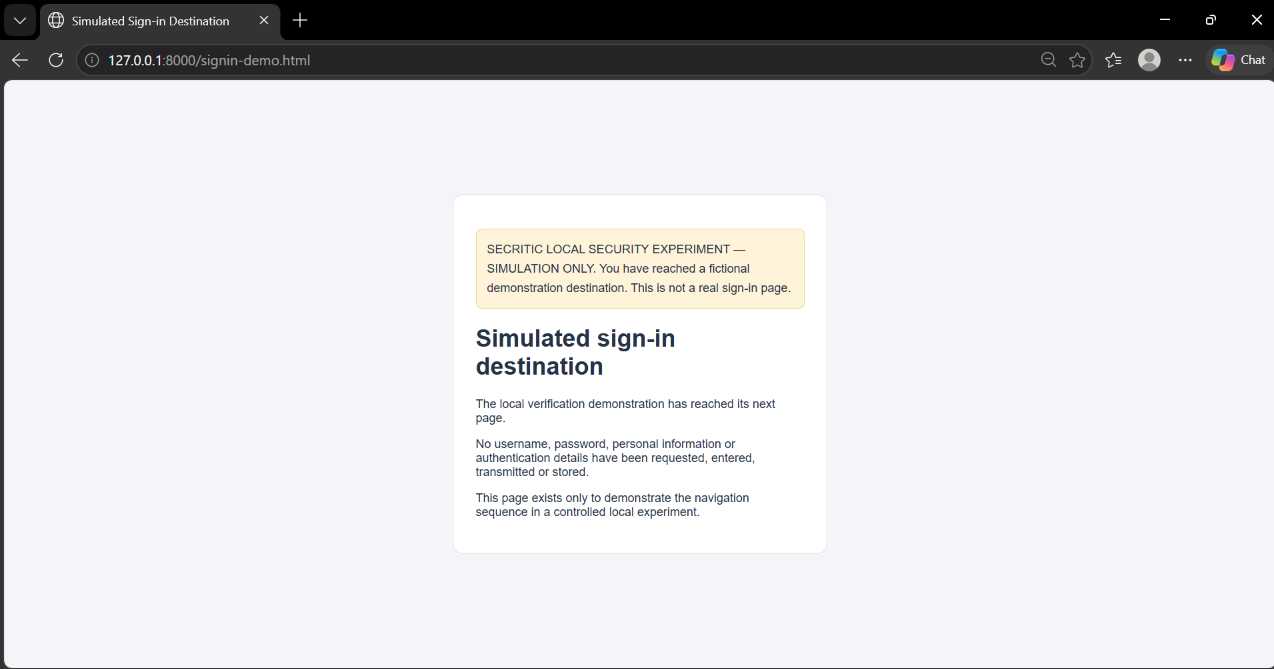
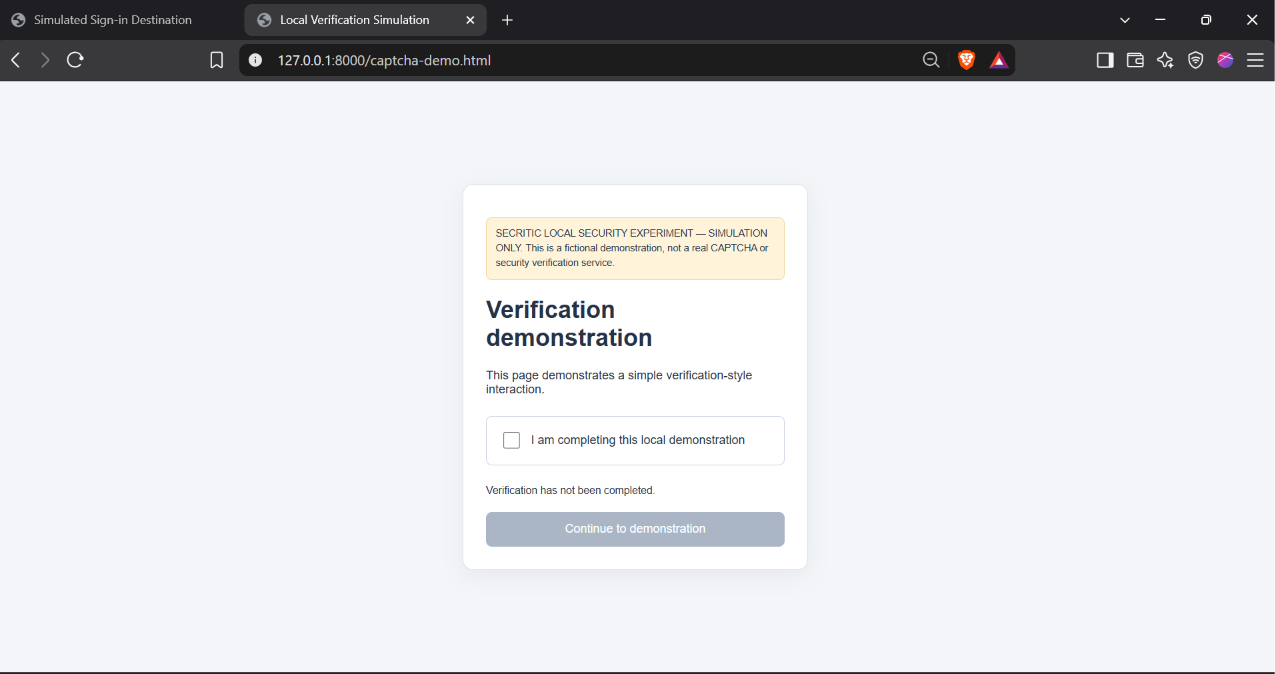
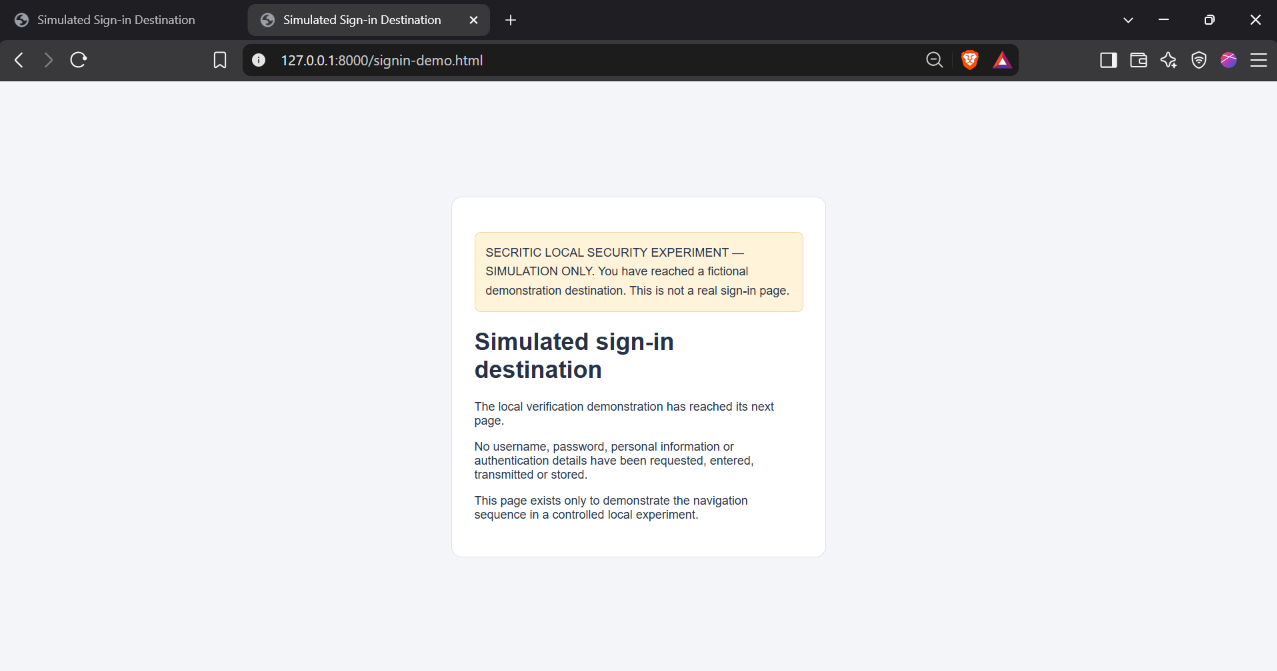
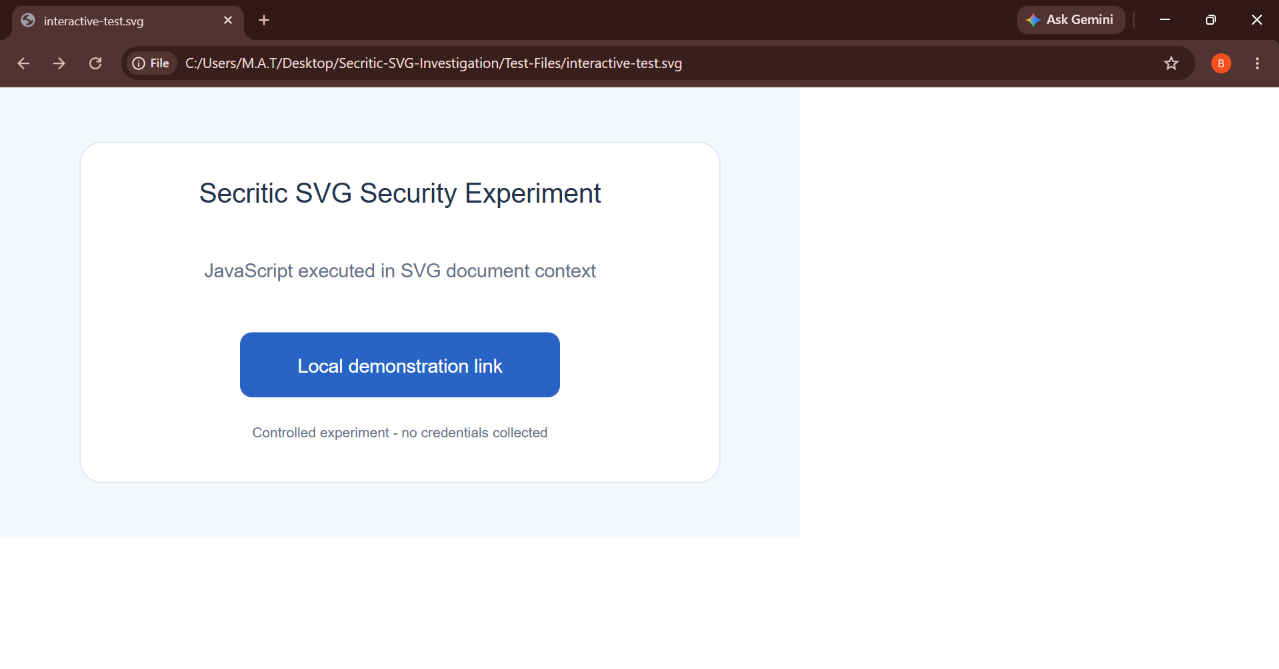
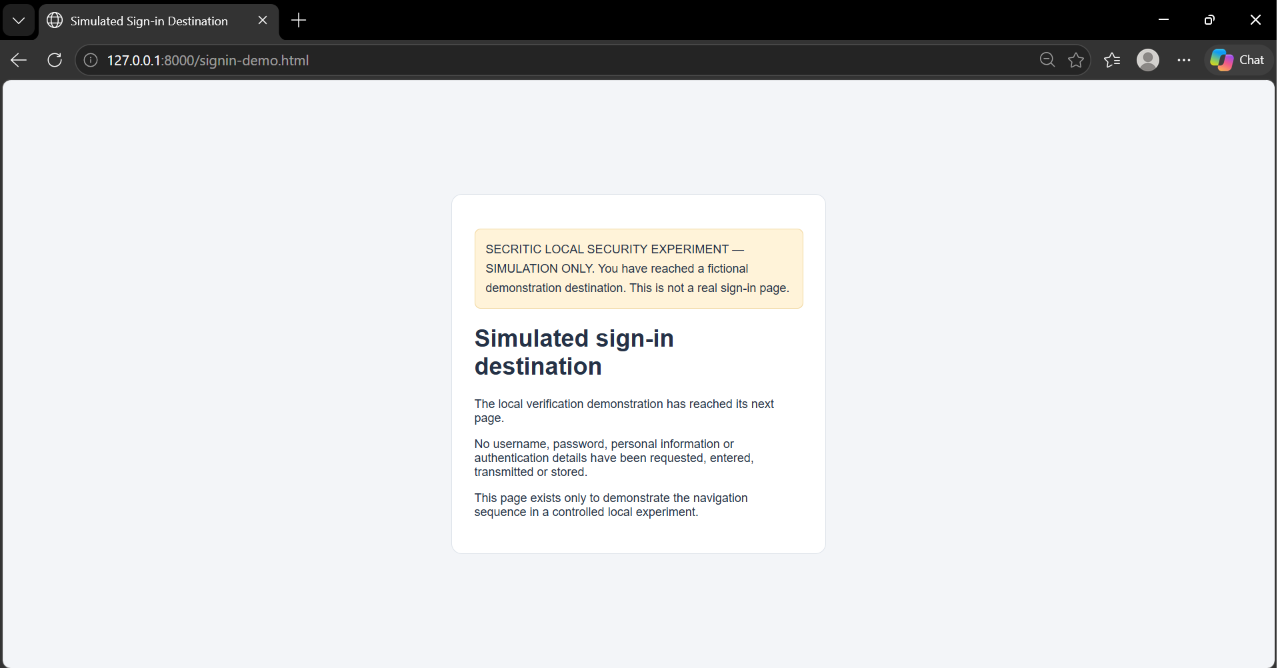
I then repeated the navigation sequence in Brave, Google Chrome and Microsoft Edge. The purpose was to establish whether the same locally created files could complete the demonstration in each browser, rather than relying on a result from just one browser.
In Brave, activating the SVG hyperlink opened the local CAPTCHA simulation. The verification interaction then enabled the Continue button, and selecting it opened the fictional sign-in destination. I recorded screenshots of the different stages so that the navigation could be followed from the initial SVG link to the final page.
In Google Chrome, the same navigation sequence completed successfully. The CAPTCHA page and fictional destination both loaded, and the local verification interaction worked as intended. I recorded the browser-specific stages separately to distinguish this test from the Brave results.
In Microsoft Edge, the same general sequence also worked. The browser opened the CAPTCHA simulation and subsequently displayed the fictional sign-in page after the local verification interaction. The screenshots provide a record of the stages completed in that browser.
The results were consistent across the three tested environments. I did not observe a difference that would justify describing one of these browsers as more vulnerable than another. However, this was a limited test using the same locally created files and a specific set of browser versions. It was not a comprehensive security assessment of Brave, Chrome or Edge, and it does not establish how every SVG attachment behaves in every browser configuration.
What Microsoft’s Research Tells Us
My experiment demonstrates the technical behaviour of locally created SVG files. Microsoft’s research provides the real-world context for why this behaviour deserves attention. In its November 5, 2026 report, Email threat landscape: Q3 2026 trends and insights, Microsoft described the increased use of SVG attachments in CAPTCHA-gated phishing during the third quarter.
The company detected approximately 3.1 million CAPTCHA-gated attacks in September. SVG attachments represented 17% of these attacks in July, increased to 65% in August and remained at 49% in September. Microsoft also reported that SVG attachment volume increased sixfold in August.
There is another important figure in the same report. SVG files accounted for 13% of malicious payloads in September under Microsoft’s separate measurement of malicious attachment types. This is a different measurement from the 49% figure. The two percentages should not be combined or presented as though they describe the same group of attacks.
Microsoft also reported that approximately 94–96% of payload-based attacks during the quarter directed recipients towards phishing websites or presented fraudulent sign-in pages locally. This finding is relevant because phishing does not always require malware to be installed on a computer. A fraudulent sign-in page can be enough to put an account at risk if someone is persuaded to enter their credentials.
The report’s statistics establish that SVG attachments became a significant part of CAPTCHA-gated phishing activity observed by Microsoft. They do not establish that every SVG was used in the same way, or that every campaign followed the exact sequence I created for this experiment.
That distinction is important. Microsoft’s figures come from its own threat telemetry, while my experiment demonstrates browser behaviour using files I created independently. My tests do not independently verify Microsoft’s global statistics, identify the source of a particular campaign or reproduce the exact implementation used by the attackers Microsoft observed.
Why Put a CAPTCHA in Front of a Phishing Page?
A CAPTCHA is normally used to distinguish human visitors from automated traffic. Legitimate websites use these checks to help prevent automated abuse, spam and unwanted requests. However, a CAPTCHA-style page can also appear as an intermediate step in a phishing journey before a visitor reaches a fraudulent destination.
Such a stage may make automated inspection more difficult, add another step to the journey or give the visitor the impression that the website is carrying out a routine security check. These are possible reasons why a CAPTCHA-style screen may be used in a phishing operation. Microsoft’s published statistics establish the growth of CAPTCHA-gated phishing, but they do not establish the precise motivation behind every individual campaign.
The important point for ordinary users is that a CAPTCHA does not establish the identity or legitimacy of the website displaying it. A fraudulent website can also show a checkbox, verification message or familiar-looking security screen. Passing that check does not make the next page trustworthy, nor does it prove that the website belongs to the organisation it claims to represent.
This is particularly important when an unexpected email attachment leads to a page asking someone to sign in. The verification screen can make the journey look routine, but the destination still needs to be checked independently. Users should not treat a successful CAPTCHA interaction as evidence that a sign-in request is safe.
How to Protect Yourself from Suspicious SVG Attachments
There is no need to avoid every SVG file. SVG is a widely used graphics format, and most files are legitimate. The important thing is to be careful with unexpected attachments and the websites they lead to, particularly when an email asks you to review a document, confirm an account or complete a payment.
Check the actual file extension. Do not rely only on the file’s icon or the name shown in an email. Check the complete filename and extension, and be cautious if the attachment is unexpected or its description does not match what you were expecting to receive. A file that appears to be an ordinary picture may contain interactive functionality that is not obvious from its appearance.
Be cautious with unexpected attachments. If an SVG arrives unexpectedly, especially in an email asking you to review a document, confirm an account or complete a payment, verify the sender through a separate trusted channel. Do not assume that an attachment is legitimate simply because the sender’s display name looks familiar. If the message claims to come from an organisation, use contact details or a website address you already trust.
Do not follow unexpected links inside attachments. An image or document can contain a clickable link. If you are not expecting it, do not activate it simply because it appears inside an image. Be particularly careful if the link takes you to a verification page or asks you to sign in before showing the information described in the email.
Do not trust a page just because it displays a CAPTCHA. A verification checkbox does not prove that a website belongs to Microsoft, Google, your bank or another organisation. Check the website address carefully and consider whether you were expecting to visit that domain. If an unexpected attachment takes you to a sign-in page, do not enter your credentials just because the page looks familiar.
Check sign-in requests independently. If an attachment leads to a sign-in page, close it and visit the organisation’s official website using an address you already trust. If you need to access an account, use the organisation’s normal app or a saved, verified bookmark rather than following an unexpected link.
Use browser and email security protections. Keep your browser and operating system updated. Email filtering, attachment scanning, reputation-based website protection and phishing-resistant authentication can all help reduce risk. These protections are valuable, but none should be treated as a guarantee that every malicious attachment or website will be blocked.
Ordinary users should not open suspicious SVG attachments simply to test whether they contain scripts. If an SVG needs to be examined for security reasons, use an appropriate security analysis environment rather than opening an unknown file as a browser document on a computer used for everyday work.
What My Experiment Establishes — and What It Does Not
The investigation demonstrated several things using files I created myself. An ordinary SVG displayed its vector graphics in the tested browsers. When I opened my interactive SVG directly as a document, its embedded JavaScript executed, changed its status text and produced a message in the browser console.
The same SVG loaded successfully through an HTML image element, but its embedded JavaScript did not execute in that context. When I loaded it inside an iframe, it behaved as a document and its script executed. These results demonstrated that the browser context in which an SVG is loaded can affect the features available to it.
I also demonstrated that a hyperlink inside the SVG could lead to a local CAPTCHA-style page, which could then lead to a fictional sign-in destination after a separate verification interaction. The complete local navigation sequence worked in Brave, Chrome and Edge under the conditions I tested.
However, this experiment does not establish that all SVG files are malicious, that every SVG executes scripts in every browser context, or that any of the tested browsers contains a newly discovered vulnerability. The JavaScript execution I observed is an existing SVG document capability, not evidence of a security flaw by itself.
The experiment also does not reproduce Microsoft’s exact criminal campaigns, establish how a particular attacker constructed a malicious attachment or independently validate Microsoft’s global threat statistics. No real phishing domain was used, no genuine CAPTCHA service was involved, and no credentials were collected, stored or transmitted.
The purpose was to understand the underlying browser behaviour safely and demonstrate how individual stages can fit together. The local pages were simulations, not evidence that a real attacker used the same code or sequence. Keeping that distinction clear is essential when reporting on security research: a controlled demonstration can explain a technique without proving that a particular criminal operation used that exact implementation.
An Ordinary-Looking Attachment Can Lead Somewhere Unexpected
The most important finding from my investigation is that an SVG should not always be treated as a passive picture. Its behaviour depends on what the file contains and how the browser opens it. A standalone SVG document can support scripting and interactive links, while an SVG displayed through an ordinary image element is subject to important browser restrictions.
My local demonstration showed how a hyperlink inside an SVG could lead to a CAPTCHA-style page and then a fictional sign-in destination. The sequence worked in all three browsers I tested, although that result should be understood within the limits of the specific files and browser versions used in the experiment.
Microsoft’s research shows why this deserves attention. SVG attachments accounted for a substantial share of CAPTCHA-gated phishing activity during the third quarter of 2026, reaching 49% in September after rising to 65% in August. Those figures do not mean that every SVG is malicious, but they do show why security teams and email users should pay attention to the format.
For email users, the practical lesson is straightforward: an attachment does not become trustworthy simply because it looks like an image, and a CAPTCHA does not make the website behind it legitimate. Check unexpected attachments carefully, pay attention to the destination of links and verify sign-in requests independently before entering sensitive information.



Community discussion
Join the conversation
0 comments
Be the first to join in
There are no comments yet. Sign in to start a thoughtful discussion.
Sign in to comment
Join the conversation with your Secritic account. Comments are available to signed-in readers.