
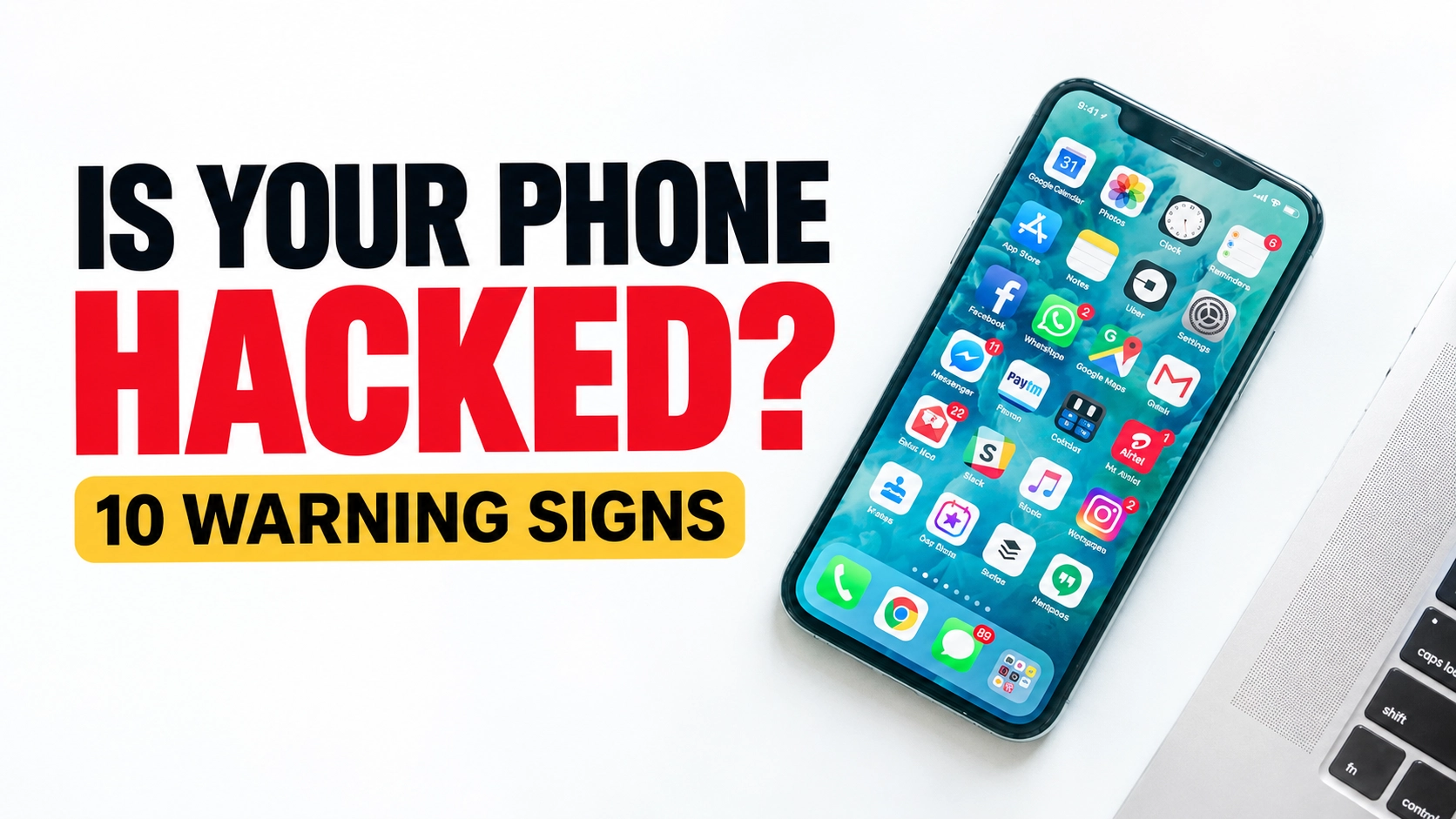
Your phone holds a lot of personal information, from private messages and photos to email accounts, banking apps and location data. If something unusual happens, it is natural to wonder whether someone has accessed your device without permission.
If you want to know if your phone is hacked, start by checking for unfamiliar account activity, apps you do not recognise, unexpected changes to your settings and security alerts. However, no single symptom proves that a phone has been hacked. Battery drain, overheating and slow performance can also have ordinary explanations.
It is important to understand the difference between a compromised phone and a compromised online account. Someone might gain access to your email or social media account by stealing a password without installing anything on your phone. In other cases, a harmful app, unauthorised access to the device or unwanted monitoring may be involved.
This guide explains the warning signs to look for, how to check an Android phone or iPhone, and what to do if you discover suspicious activity.
Can a phone really be hacked?
Yes. Smartphones can be compromised in several ways, but the word “hacked” does not describe just one situation.
For example, someone might trick you into entering your password on a fake website, install a harmful app on your device, gain access to an account that is already signed in, or exploit a software security weakness.
These situations require different responses. Changing your email password may help secure a stolen account, but it will not necessarily remove harmful software from a phone. Similarly, finding an unfamiliar app does not automatically mean that someone has accessed your banking details.
Before taking action, try to establish what has actually happened.
10 warning signs that your phone may be compromised
The following signs can help you decide what to investigate. Some provide stronger evidence than others, so consider them in context rather than treating every unusual behaviour as proof of hacking.
1. You receive security alerts about activity you did not recognize
An unexpected security alert can be an important warning sign, particularly if it reports a sign-in, password change or account recovery request that you did not initiate.
For example, you might receive a notification saying that someone signed in to your Google Account on a new device. Apple may also notify you about unfamiliar activity involving your Apple Account.
Did you just
sign in on a new device?
An unexpected sign-in or password-change alert could mean someone is trying to access your account. Verify it safely before taking action.
Do not automatically assume that every alert is genuine. Scammers sometimes create convincing emails and text messages that imitate legitimate security warnings.
What to do:
- Avoid clicking links in a suspicious message.
- Open the official app or enter the service’s website address yourself.
- Review the recent security activity and signed-in devices.
- If you confirm activity you did not authorise, follow the provider’s account recovery and security instructions.
Google explains how to review suspicious activity in its official account security guidance.
2. You find an unfamiliar device signed in to your account
An unfamiliar device in your Google or Apple Account settings deserves investigation. If someone has access to an account containing your email, photos, contacts or saved information, they may be able to access data without directly controlling your phone.
Who has access to your account?
Review the devices connected to your account. If a device looks unfamiliar, check its details before deciding whether someone else has access.
Unfamiliar doesn’t always mean unauthorized
An old phone, a browser session or a device with an unexpected name may still belong to you.
If you cannot identify the device after checking its details, follow the provider’s steps to secure your account.
Use the official app or enter the provider’s website address yourself.
Open the account security or signed-in devices section.
Check device names and available sign-in or session information.
Follow official recovery and sign-out instructions if access is unauthorized.
For Google, use Manage devices and secure a compromised account. For Apple, see If you think your Apple Account has been compromised.
3. Messages have been sent from your accounts without your permission
If friends receive messages you did not send, or emails appear in your Sent folder that you do not remember writing, someone may have gained access to the relevant account.
This does not necessarily mean the phone itself has been infected. A person could have obtained your password, accessed an existing session or gained access through a connected device.
If messages were sent through a messaging app, also review its linked devices and account-security settings.
4. You notice apps you do not remember installing
An unfamiliar app can be a reason to investigate, particularly if it appeared around the time other suspicious activity began.
You Notice Apps You Don’t Remember Installing
An unfamiliar app deserves a closer look, particularly if it appeared around the same time as other unusual phone activity. But an app you don’t recognise isn’t automatically malicious.
Unknown App
Illustrative example. Identity and permissions have not been verified.
Illustrative Android interface • No actual apps or permissions were scanned
How to Evaluate an Unfamiliar App
Look at several details together. An unfamiliar name or icon alone is not enough to establish that an app is dangerous.
Check the app name, developer, store listing and installation source where available.
Investigate sensitive permissions and powerful device controls that don’t fit the app’s purpose.
Consider whether the app came with your phone or was installed by a legitimate service.
What to Do on Android
Follow these steps before deciding whether an app should be removed.
Review installed apps. Open Settings → Apps, or use the equivalent app-management menu on your device.
Inspect app information. Check the app’s details, permissions and store listing if available. The exact options vary by device.
Investigate powerful access. Review unfamiliar Accessibility access, device administrator privileges, or permission to display over other apps where applicable.
Check with Play Protect. Open the Google Play Store → profile icon → Play Protect → Scan. Follow any warnings it reports.
Remove only when appropriate. Uninstall an unwanted app after verifying what it is. Some system apps cannot be removed normally.
Warning Signs Worth Investigating
These observations can justify further checks, but none proves compromise on its own.
You cannot identify the publisher. The app’s origin or purpose remains unclear after checking reliable sources.
Permissions seem unrelated. For example, a simple utility requests sensitive access that its function does not reasonably require.
It appeared with other symptoms. Unexpected redirects, persistent advertisements or unusual account activity began around the same time.
Play Protect raises a warning. Read the finding and follow Google’s recommended action rather than ignoring it.
You need official guidance. Consult Google Play Protect for its features and instructions.
Don’t install a second unknown app to fix the first. Avoid granting more permissions to an unverified app or following removal instructions from suspicious pop-ups.
5. Your phone shows unusual permissions or settings
Some apps legitimately need access to your camera, microphone, location or contacts. Problems arise when an app requests permissions that do not make sense for its purpose, or when important settings change without your knowledge.
iCloud & Services
Review privacy permissions and investigate settings you do not recognise.
Your Phone Shows Unusual Permissions or Settings
Some apps legitimately need access to your camera, microphone, location or contacts. Investigate when an app requests access that does not fit its purpose, or when important settings change without your knowledge.
Also Investigate These Settings
Configuration profiles & device management: On iPhone, review Settings for profiles or management you do not recognise. On Android, also investigate unfamiliar Accessibility access, device administrator privileges and permission to install unknown apps. Do not assume the same controls exist on both platforms.
What To Do
Review which apps can access your location, camera, microphone, contacts and photos.
Remove permissions that are unnecessary for an app’s purpose.
Investigate unfamiliar accessibility services, administrator access or management profiles on the relevant device.
If your employer or school manages the device, ask its IT team before removing management settings.
6. Your phone keeps opening suspicious websites or showing unexpected pop-ups
Repeated redirects, fake virus warnings and pop-ups claiming that your phone is infected can be alarming.
Sometimes these messages originate from a malicious website, browser notification or intrusive advertisement rather than from malware installed on the phone. A website may deliberately display a frightening warning to persuade you to call a fake support number, download an app or pay for a bogus security service.
Your Phone Keeps Opening Suspicious Websites or Pop-Ups
Unexpected redirects, fake virus alerts and intrusive browser pop-ups can be alarming. But a warning displayed on a website does not automatically mean your Android phone is infected.
Your device may be at risk. Do not trust unexpected alerts without verification.
What Could Be Causing It?
Several different issues can produce similar symptoms. Check the likely source before assuming your phone has malware.
A webpage may imitate a system alert to pressure you into installing an app or paying for fake support.
A website you previously allowed to send notifications may display misleading alerts outside its page.
An installed app may display unwanted ads. Persistent pop-ups outside the browser deserve further investigation.
A fake browser warning is not proof of infection. However, repeated redirects, unfamiliar apps or persistent advertisements can indicate a problem that needs checking.
What Should You Do?
Follow these steps to reduce exposure and investigate suspicious behaviour on Android.
Don’t interact with the alert. Avoid calling displayed numbers, tapping suspicious buttons or downloading recommended apps.
Close the suspicious webpage. Close its browser tab. If it will not close, exit the browser and reopen it without restoring the page.
Review website notifications. In Chrome, open Settings → Site settings → Notifications and block unfamiliar or unwanted sites. Menu names may vary.
Check recently installed apps. Uninstall unfamiliar apps you do not need, especially if the problem began after installing one.
Run Google Play Protect. Open the Play Store, tap your profile icon → Play Protect → Scan. Review any findings.
Update Android and your browser. Install available security updates through your phone’s official settings and the Play Store.
7. Your mobile data usage has increased unexpectedly
A sudden rise in mobile data usage can be worth checking, especially if you have also noticed unfamiliar apps or account activity.
Some applications use more data after an update, during cloud backups, while streaming video or when synchronizing photos. Background activity can also increase consumption without indicating a security problem.
Your Mobile Data Usage Has Increased Unexpectedly
Have you noticed your mobile data running out faster than usual? An unexpected increase can be worth investigating, particularly if you have also noticed unfamiliar apps or other unusual activity.
Understand What Is Using Your Data
Start by checking which apps account for the increase. Compare their usage over the same period instead of relying on a single total.
Large updates, downloaded files and streaming can use more data than expected.
Cloud syncing, photo backups and apps refreshing in the background can consume mobile data.
Investigate unusually high usage from an unfamiliar app or activity you cannot explain.
How to Check Data Usage on Android
Menu names vary by manufacturer and Android version.
Open Settings. Look for Network & Internet, Connections or a similarly named network menu.
Find data usage. Open SIM, Mobile network or Data usage, depending on your device.
Select the relevant period. Check the billing cycle or date range that matches your unexpected increase, if available.
Review individual apps. Compare their foreground and background data usage where those details are available.
What to Investigate Next
Use these checks before deciding that an app is suspicious.
Compare your normal usage. Check whether recent streaming, travel, downloads or hotspot use explains the increase.
Check the app’s identity. Review its name, developer, installation source and purpose.
Review relevant permissions. Check whether its access is appropriate for what the app does.
Restrict background data if appropriate. Android may offer per-app data controls. Some functions may stop working as expected.
Investigate persistent concerns. Update your phone and use Google Play Protect to check for potentially harmful apps.
8. Your battery drains quickly or the phone becomes unusually hot
A persistent and unexplained change becomes more concerning when it appears alongside stronger indicators, such as unauthorized account activity or an unfamiliar app with extensive permissions.
Is your battery draining too quickly?
A sudden drop in battery life or unusual heat can have several causes. Battery drain alone does not prove a phone has been hacked, but a persistent unexplained change deserves investigation.
What else can drain your battery?
Several everyday conditions can increase power use or heat. Consider these before drawing conclusions about security.
Battery capacity naturally declines as the battery ages and completes more charge cycles.
A phone may use more power while trying to maintain a weak cellular connection.
Gaming, navigation, video calls and high screen brightness can increase power consumption.
Software updates, photo backups and background synchronisation can temporarily increase usage.
Some apps can continue using power when you are not actively looking at the screen.
An unfamiliar app using excessive power deserves investigation, especially alongside other security warning signs.
What you should do
Open your phone’s battery settings and identify which apps consume the most power and whether their usage is expected.
Restart the phone and install available operating-system and security updates from the official settings.
Consider whether the problem started after installing an app. Review unfamiliar apps, permissions and background activity.
Take unexplained battery drain more seriously when it occurs alongside unknown apps or unauthorized account activity.
If the phone becomes dangerously hot, the battery swells, an unusual chemical smell appears, or the device shows signs of battery damage, stop using and charging it. Keep away from the device if it appears unsafe, and seek qualified repair or emergency advice as appropriate. Do not press, puncture or attempt to remove a swollen battery yourself.
9. You cannot access your accounts or your security details have changed
Locked out of your own account?
A password that suddenly stops working, unfamiliar recovery details, or an unexpected account-lock notice can signal an account-security problem. Check what changed and secure your account through the service’s official recovery process.
Your password or recovery details may need verification. Confirm the situation directly with the official service.
Warning signs to check
One problem alone does not prove that an account has been hacked. Look for changes you did not make, especially when several warning signs appear together.
Your password stops working
Your usual password is rejected even though you believe you entered it correctly.
Recovery details have changed
An unfamiliar recovery email address or phone number appears in your account settings.
You receive a lockout notice
The service reports a lock, security restriction, or account change you did not request.
What to do next
Follow these steps in order. If you still have access to your account, use its official security settings; if not, begin with account recovery.
Use official account recovery
Type the service’s known official website address yourself or use its verified app. Avoid recovery links in unexpected messages.
Secure your email account first
If your email account may be compromised, protect it promptly. It may be used to reset passwords for your other accounts.
Change compromised passwords
From a trusted device, set a new, unique password. If you cannot sign in, follow the service’s recovery instructions.
Review recovery and verification settings
Check recovery email addresses, phone numbers, two-step verification methods, passkeys, and other sign-in options. Remove unfamiliar ones when you regain access.
Check other accounts
Change the same password anywhere else you reused it. Give every important account its own strong, unique password.
Review active sessions and recent activity
After regaining access, look for unfamiliar devices, sign-ins, forwarding rules, connected apps, or security changes. Sign out unknown sessions where possible.
Prioritise the email account used for password resets
If someone controls that inbox, they may be able to intercept recovery messages or reset other accounts. Secure the mailbox, check its recovery options and forwarding rules, and review recent sign-in activity as soon as you can.
Never share verification codes, password-reset codes, or one-time passcodes with callers or people who claim they need them to protect your account. Enter a code only into the official service’s sign-in or recovery process that you initiated.
Important: Password errors and account locks can also result from typing mistakes, forgotten passwords, suspicious-login protections, or service issues. Treat changes you did not authorise seriously, but confirm them through the official provider before concluding that someone has taken over your account.
10. You notice signs of unwanted monitoring or tracking
Worried someone may be monitoring your iPhone?
Unwanted monitoring does not always involve spyware. A person may have access through location sharing, a linked device, a cloud account, or an app with permissions you did not intend to grant.
Illustration only. Actual iOS appearance and available options may differ.
What could explain unwanted monitoring?
Before assuming spyware is installed, review the ordinary ways information can be shared or accessed. These are different issues and may require different steps to resolve.
Location is being shared
Find My or another legitimate app may be sharing your location with a person or group.
An account or device is linked
Someone may have access through a device connected to your Apple Account or a linked messaging session.
An app has broad permissions
An app may have access to location, photos, microphone, camera, contacts, or other information.
How to use Safety Check on iPhone
On an iPhone running iOS 16 or later, Apple’s Safety Check helps you review information shared with people and apps, check connected devices, and update certain account and privacy settings.
1. Open Safety Check
Go to Settings → Privacy & Security → Safety Check. You may need to scroll down.
2. Review sharing and access
Choose Manage Sharing & Access to review specific people, apps, shared information, and account security options.
3. Check devices and account security
Follow the prompts to review connected devices and verification details, and update your password or passcode if appropriate.
4. Verify your changes
Check that the sharing and access changes you intended have taken effect. Review individual app permissions separately when needed.
Use Apple’s official Safety Check guide
Read Apple’s instructions for the available options, what Safety Check can review, and the safety considerations to understand before making changes.
Read Apple’s Safety Check guideConsider your personal safety before changing settings
If you suspect a partner, family member, or someone you know is monitoring you, changing sharing settings or removing access could alert them or affect your safety. If that is a concern, consider using a safer device to seek help from a trusted specialist or support service before making changes.
Important limitation: Safety Check does not cover every account, social platform, or device. It cannot by itself prove whether spyware is installed. Some options may also vary depending on your iOS version, account setup, and device restrictions. Review the official guide for details.
How to check if your Android phone has been hacked
Android provides several ways to investigate suspicious activity. Menu names may differ between manufacturers and Android versions, so use your phone’s Settings search if a particular option is difficult to find.
How to check if your Android phone has been hacked
Use Android’s built-in settings and Google’s security tools to investigate suspicious activity. Check for potentially harmful apps, review sensitive permissions, inspect your Google Account, and install available security updates.
Open Play Protect to run a scan and review the actual result reported by your phone.
Run Google Play Protect
Start by checking your apps with Google’s built-in app protection service.
Google Play Protect checks apps for potentially harmful behaviour. It checks apps before download from Google Play, periodically scans installed apps, and can also check potentially harmful apps from other sources. If it detects a threat, it may warn you, disable an app, or remove it.
- Open the Google Play Store on your Android phone.
- Tap your profile picture in the upper-right corner.
- Select Play Protect.
- Run a scan using the option shown on your device, then read the actual result.
- If Google identifies a harmful app, follow the warning and Google’s recommended instructions.
Google recommends leaving app scanning turned on. You can review its settings from Play Protect using the settings icon.
A clean result means Play Protect did not report a harmful app in that check. It does not prove that every threat is absent, that every account is secure, or that no one has unauthorised access.
Google’s official Play Protect guide
Learn how scanning works, how to respond to harmful-app warnings, and how to keep protection enabled.
Read Google Play HelpReview installed apps and permissions
Look for unfamiliar apps and check what they are allowed to do.
Open Settings and find Apps or App management. Review installed applications and investigate anything you do not recognise. Then check permissions and special access, especially when an app can access sensitive information or control parts of the device.
Some legitimate system components have technical names. Verify the app and its purpose through a trusted source or your phone manufacturer before disabling or uninstalling it. Remove permissions or special access you do not recognise only after considering whether they are needed.
Check your Google Account
Phone security and account security are related, but they are not the same thing.
Someone could access your Google Account without installing spyware on your phone. From a trusted device, open Google’s official security page and review recent security activity, signed-in devices, recovery details, and other account-security options.
Google Account Security
Review security events, devices, recovery information, and available recommendations.
Open Google Account Security- Open the Google Account Security page on a device you trust.
- Review recent security activity and investigate events you do not recognise.
- Open the devices section and review devices or sessions that have access to your account.
- If activity was not yours, follow Google’s instructions to secure the account. Change your password if necessary and enable two-step verification.
- Review your recovery email and phone number, and remove unfamiliar access where appropriate.
Check the session details before acting. Multiple sessions can sometimes belong to one device, and location estimates may be imprecise. If a session remains unfamiliar, follow Google’s guidance to sign it out and secure your account.
Google Account recovery
If you cannot sign in because your password or account details have changed, use Google’s official recovery process.
Recover your Google AccountInstall Android security updates
Check for system updates and update apps through their official stores.
Security updates can fix known vulnerabilities in Android and manufacturer software. Menu names and update availability vary by manufacturer, model, carrier and Android version.
- Open Settings and search for System update, Software update, or a similar option.
- Check for available updates and follow the instructions from your device manufacturer.
- Look for the Android security update date and Google Play system update options if your device provides them.
- Open Google Play and update installed apps through the official store.
Why updates matter
Updates can address known security weaknesses. Install available fixes and restart the phone if the manufacturer requests it.
Installing updates does not automatically remove every possible infection, undo every unauthorised change, or secure a compromised account. Continue investigating the other checks if suspicious activity remains.
Official security resources
Use Google’s and Android’s own documentation when checking a warning, changing a setting, or deciding what to do about a suspicious app.
How app scanning, harmful-app warnings and protection settings work.
Read official guidanceReview account security, recommendations and recent activity.
Check account securityOfficial information about security fixes for Android devices.
Read Android security bulletinsPlay Protect, app-permission reviews, Google Account security checks, and software updates each address different risks. If you find unauthorised activity, secure the affected account or app as well as checking the phone itself. If the problem persists, contact your phone manufacturer’s official support.
Compatibility note: Android settings vary across manufacturers and versions. If a menu is missing, search for its name in Settings or consult your device manufacturer’s official instructions. The dashboard and visual indicators above are illustrative and do not represent an actual scan, measured security score, or live phone status.
How to check if your iPhone has been hacked
iPhones include security and privacy features that can help you review account access and investigate unusual activity. No single check can rule out every possible threat.
How to check if your iPhone has been hacked
Review the devices connected to your Apple Account, check privacy and sharing settings, install available iOS updates, and investigate unfamiliar activity carefully. These checks can help you identify warning signs, but no single check rules out every threat.
Review account access, sharing, app permissions and software updates.
Illustrative design only. This is not a live iPhone screen or a security scan.
Check your Apple Account devices
Make sure you recognise the devices connected to your account.
Your Apple Account connects your iPhone to services such as iCloud and other Apple features. If someone has unauthorised access to your account, they may be able to access information associated with it. Reviewing the connected-device list is a useful first check.
- Open Settings on your iPhone.
- Tap your name at the top of the screen.
- Scroll down to see the devices associated with your Apple Account.
- Tap a device to review its details and check whether you recognise it.
- If a device is genuinely unfamiliar, follow Apple’s official guidance to secure your account and remove unauthorised devices where appropriate.
Check the device details and your own devices first. If you confirm unauthorised access, secure your Apple Account, review trusted phone numbers and account information, and follow Apple’s recovery instructions if needed.
Look for other account warning signs
Pay attention to unexpected verification codes, password or account-detail changes, purchases, and messages you did not initiate. Investigate them through Apple’s official channels.
Learn how to secure a compromised Apple AccountReview Safety Check and app permissions
Inspect what you share with people and what your apps can access.
Safety Check helps you review sharing and access associated with your iPhone. It can help you review who has access to information such as your location, review devices connected to your Apple Account, and update certain privacy and account settings.
Apple Safety Check
Available on iPhones running iOS 16 or later. You must also be signed in to an Apple Account with two-factor authentication enabled.
Read Apple’s Safety Check guideInside Safety Check, review the options available on your iPhone. Manage Sharing & Access lets you review individual sharing and access settings. Emergency Reset is designed to quickly stop sharing information across supported people and apps and review important account-security settings. Choose the option appropriate to your situation.
If someone you know may be monitoring you, suddenly stopping sharing or removing access could alert them. Consider using a safer device to seek specialist support before making changes. Safety Check cannot review every non-Apple account, third-party sharing service, or device signed in to a different Apple Account.
Safety Check is not a complete inventory of every app permission. Review the individual categories under Settings → Privacy & Security as well.
Check for iOS updates
Install available software updates from Apple.
Apple software updates can include important security fixes. Keeping your iPhone up to date helps protect against known vulnerabilities, although an update alone cannot establish whether your account or device has been compromised.
- Open Settings on your iPhone.
- Tap General, then Software Update.
- Review the available update and follow Apple’s on-screen instructions if an update is offered.
- Check Automatic Updates and enable the options that suit your needs.
- Keep apps updated through the App Store as well.
Keep your iPhone updated
Install available iOS updates and keep apps current. Back up your iPhone before updating, following Apple’s guidance.
Apple’s official update instructions
Follow Apple’s instructions for checking, downloading and installing iOS updates.
How to update your iPhoneIf someone has accessed your Apple Account, secure that account separately. If suspicious behaviour continues after updating, document what you observe and follow Apple’s support guidance rather than assuming the update has removed the cause.
Investigate suspicious behaviour carefully
Verify what you see before installing apps, removing settings or paying for help.
Unexpected behaviour can have more than one explanation. If you discover unfamiliar account activity, privacy settings, apps or device-management profiles, record the details and verify them through Apple’s official support resources.
Review VPN and device management settings
On iPhone, go to Settings → General → VPN & Device Management, if this section appears. Review any profile or management entry you do not recognise. Organisations can legitimately use profiles to manage work or school devices and settings.
Apple’s guide to configuration profilesIf your iPhone belongs to an employer, school or another organisation, management settings may be intentional. Contact the responsible administrator before removing a profile. Deleting one can also remove associated settings, apps or data.
Do not install unverified security apps, provide your Apple Account password to an unknown service, or pay a website simply because it displays a frightening warning. Close the page and seek help through an official channel.
Official Apple resources
These Apple resources explain how to review account access, use Safety Check, update your iPhone, and investigate device-management profiles.
Steps to take if you suspect someone else has accessed your account.
Read Apple SupportHow to review sharing, connected devices and supported privacy settings.
Read the Safety Check guideApple’s instructions for checking and installing software updates.
Read update instructionsUnderstand profiles and device-management settings on iPhone.
Read Apple’s profile guideAn unfamiliar device, unexpected setting or unusual behaviour is a reason to investigate, not automatic proof of hacking. Review account access, privacy settings and updates together. If you find confirmed unauthorised activity, follow Apple’s account-security guidance and seek trusted support.
Compatibility: Safety Check requires iOS 16 or later and an Apple Account with two-factor authentication. Some options can differ when Screen Time restrictions or device management are enabled. The phone graphic above is illustrative, not a live screenshot, diagnostic result or spyware scan.
What to do if you think your phone has been hacked
If you find credible evidence of a compromise, take a measured approach. The right response depends on whether the problem involves an account, a harmful app, unwanted monitoring or financial fraud.
What to do if you think your phone has been hacked
If you find credible signs of compromise, take practical steps to protect your accounts, money and personal information. The correct response depends on what has actually happened.
If money is being stolen, contact your bank immediately. If you suspect someone is monitoring your phone and changing settings could alert them, use a separate trusted device to seek help. Do not use a potentially monitored phone for sensitive account changes until you have considered that risk.
You do not need to factory-reset every phone that behaves unusually. Follow the steps below according to the evidence you have. A compromised online account, a harmful app and unauthorised financial activity are different problems and may require different responses.
Your incident-response checklist
Protect your important accounts
Start with your primary email and any account that may be compromised.
Your email account may be used to reset passwords for other services. If an attacker controls it, they may be able to interfere with account recovery. Use a separate, trusted device if you suspect the phone itself is monitored.
- Secure your primary email account first, if it is affected or at risk.
- Change compromised passwords to strong, unique passwords that you do not use on other services.
- Enable two-step verification or another strong authentication method where available.
- Review recovery email addresses, phone numbers, passkeys and other sign-in methods for unauthorised changes.
- Review account activity and signed-in devices, and revoke access you cannot verify.
Changing a password does not necessarily remove every existing session, connected app or recovery method. Review the relevant security settings and sign out other sessions where the service provides that option.
Review security events, devices, recovery settings and access.
Google’s compromised-account guideFollow Apple’s instructions if you suspect unauthorised account access.
Apple’s account-security guideReview and remove unauthorised access
Check accounts, devices, apps and sharing settings.
Review where your accounts are signed in and which apps or services can access your information. Remove access that you have verified is unauthorised or no longer needed.
- Check signed-in devices and recent security activity for your email and cloud accounts.
- Review connected third-party apps, account permissions and sharing settings.
- Check linked devices in messaging services where that feature is available.
- Review cloud-file sharing, recovery options and forwarding rules where relevant.
- For a harmful app, follow the removal instructions for your operating system. If it cannot be removed, seek reputable technical support.
Some devices, apps and management profiles are legitimate. Check their identity and purpose before removing them. On a work- or school-managed phone, consult the responsible administrator when appropriate.
Contact your bank if financial details may be at risk
Act quickly if you find transactions or changes you did not authorise.
If you see an unfamiliar transaction, suspect that your banking credentials were stolen, or discover unauthorised changes to a financial account, contact your bank or payment provider immediately.
- Use the official phone number printed on your bank card or published on its genuine website or app.
- Explain the transactions or activity you did not authorise and follow the bank’s instructions.
- Ask whether your card, online banking access or other payment methods need to be blocked or replaced.
- Change compromised banking credentials using a trusted device and the bank’s official process.
- Keep transaction records, messages and relevant evidence, and report the incident through the appropriate official channel if advised.
Do not call a number from a frightening pop-up, unexpected text message or unsolicited call. Do not share passwords, one-time verification codes or remote-access permissions with someone who contacts you unexpectedly.
Remove harmful apps and update your phone
Follow the correct instructions for your device.
If a harmful app has been identified, use your operating system’s official removal guidance. Then review sensitive permissions and install available operating-system and app updates.
- On Android, use Google Play Protect and the official Android guidance for removing harmful apps.
- On iPhone, review app permissions and follow Apple’s support guidance for unfamiliar apps or settings.
- Install available system and app updates from the official update mechanisms.
- If the app resists removal, device settings have been altered unexpectedly, or the activity continues, seek trusted technical support.
Google’s account and device-security recommendations.
Google security guidanceApple’s guidance for securing a potentially compromised account.
Apple SupportUpdating the phone does not automatically secure a stolen account password. Likewise, changing an account password does not necessarily remove harmful software from the device. Address each confirmed problem separately.
Consider a factory reset only when appropriate
A reset can help in some cases, but it is not a universal solution.
A factory reset can remove many forms of unwanted software, depending on the type of compromise. It also erases data stored on the device and may not solve problems involving stolen passwords, compromised online accounts or certain advanced forms of compromise.
Before resetting, understand what you may lose, how you will regain access to your accounts, and how to restore only the information you need.
Before you reset your phone
Use this decision checklist before taking an action that may erase your data.
Prepare first
- Make sure you can access your important accounts and recovery methods.
- Back up essential information if doing so is safe and appropriate.
- Understand how to reinstall trusted apps and restore needed files.
- Follow official instructions for your specific phone model and operating system.
Use caution
- Do not blindly restore every app and setting if you suspect the backup or restored content may reintroduce the problem.
- Do not assume a reset will revoke an attacker’s access to your online accounts.
- Do not reset immediately if you may need evidence of stalking, fraud or a serious targeted attack.
- If you suspect advanced spyware or targeted surveillance, seek specialist advice before changing or erasing the device.
Your quick recovery checklist
Use these reminders to track the main actions. Check an item only after you have actually completed it.
Trusted resources for further help
Use official guidance for the relevant account or device. The correct recovery process depends on what has been compromised.
Guidance on what to do after a device has been hacked.
Read the NCSC guidanceReview suspicious activity, account access and recovery options.
Google’s recovery guidanceSteps for securing an Apple Account that may be compromised.
Apple’s official instructionsUnusual battery use, overheating, crashes or unexpected notifications can have several causes. Investigate concrete account activity, unauthorised transactions, verified harmful apps or unexplained security-setting changes rather than relying on a single symptom. If you cannot confidently resolve a credible compromise, use the relevant provider’s official support channel or a reputable technical professional.
How to protect your phone from future attacks
You do not need to be a technical expert to improve your phone’s security. A few consistent habits can reduce common risks.
- Keep your phone updated. Install operating-system and app updates from official sources.
- Use a strong screen lock. Choose a passcode that other people cannot easily guess.
- Protect your accounts. Use unique passwords and enable two-step verification.
- Install apps carefully. Prefer official app stores and investigate apps requesting permissions that do not fit their purpose.
- Review account access. Check signed-in devices and recovery settings periodically.
- Be cautious with unexpected links. Do not enter passwords or payment information on websites reached through suspicious messages.
- Keep backups. Make sure important photos, documents and contacts can be recovered if a device needs repair or resetting.
- Secure your recovery methods. Protect the email address and phone number used to regain access to important accounts.
These steps do not make a phone invulnerable, but they reduce the chances that a single mistake will lead to wider account compromise.
Where to report a phone-related scam in the UK
If suspicious activity involves a scam text, call, email or website, use the appropriate official reporting service.
Where to Report a Phone-Related Scam in the UK
Choose the appropriate official service for the type of scam or incident.
Report a suspicious text
Forward suspicious scam texts to 7726 free of charge in the UK.
Report fraud or suspicious messages
Find official reporting guidance for suspicious calls, messages and websites through Report Fraud.
Report cyber crime in Scotland
Contact Police Scotland on 101 for non-emergency matters. Report Fraud covers England, Wales and Northern Ireland.
Protect your money
If your bank account or payment card may be affected, contact your bank immediately using its official contact details.
Immediate danger
If someone is in immediate danger, call 999.
Final thoughts
If you want to know if your phone is hacked, focus on evidence rather than fear. Unrecognized account activity, messages you did not send, unexpected security changes and unfamiliar devices deserve investigation. Battery drain, overheating and slow performance are much less specific and often have ordinary explanations.
Start with the checks appropriate for your phone, secure any affected accounts, and use official recovery guidance if you find credible evidence of unauthorized access. You do not need to assume the worst to take sensible steps to protect your information.
The most useful response is the one that identifies the actual problem and helps you address it safely.
Also See: What is a Data Breach?
Community discussion
Join the conversation
0 comments
Be the first to join in
There are no comments yet. Sign in to start a thoughtful discussion.
Sign in to comment
Join the conversation with your Secritic account. Comments are available to signed-in readers.