
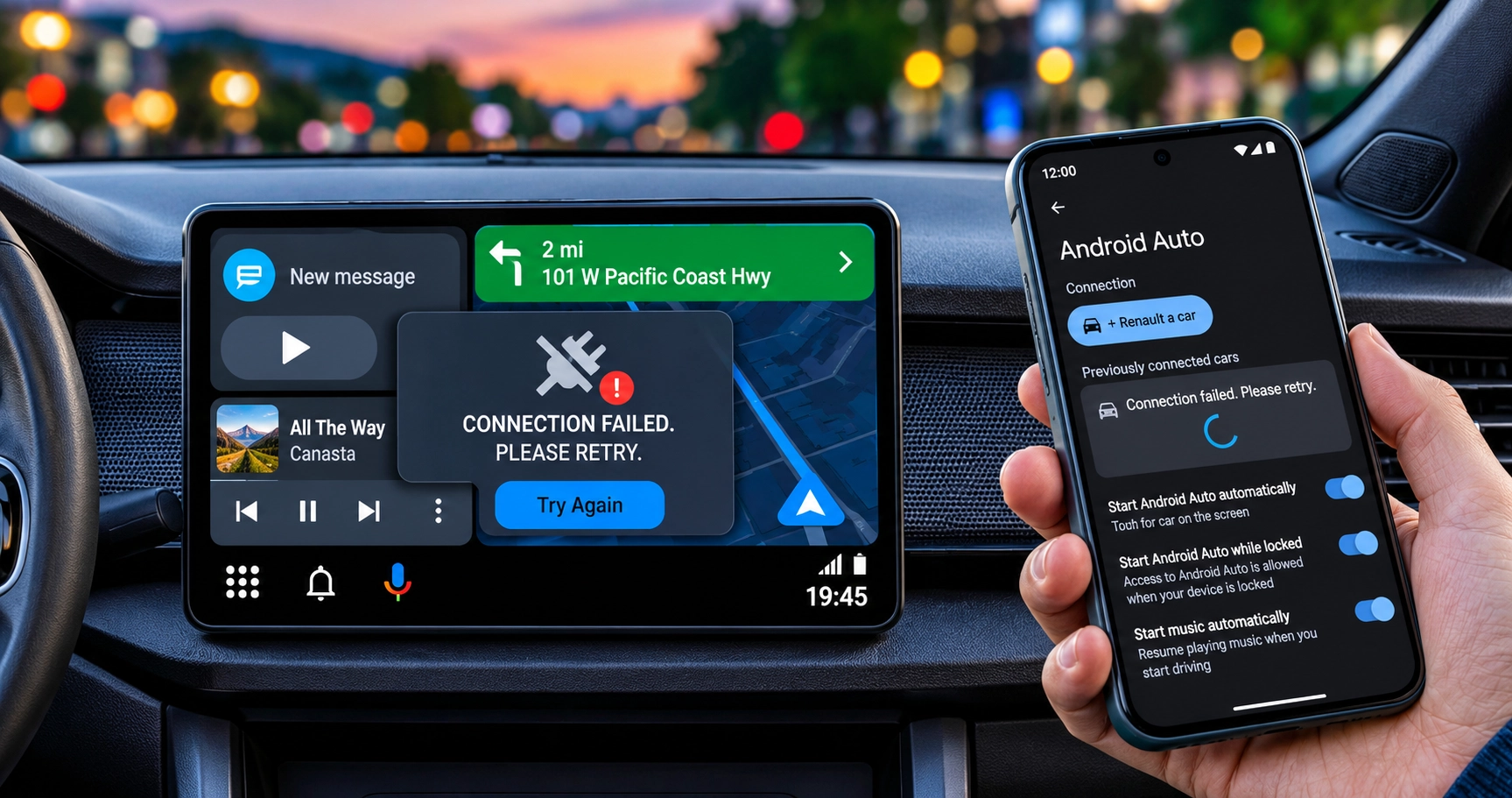
Your Samsung Galaxy phone was working perfectly with your car, but after installing One UI 9, Android Auto suddenly stopped connecting. In some cases, the connection fails completely. In others, Android Auto connects but keeps disconnecting or becomes slow and unresponsive.
Several Galaxy owners have reported these problems following the Android 17-based One UI 9 update. The complaints prompted Google to respond, and the company has confirmed that a fix has been rolled out.
However, the fix may not have reached every affected device yet. Google has not disclosed which software version delivers it or when the rollout will be complete.
If Android Auto is still not working on your Samsung phone, try the following steps. They cover the official troubleshooting recommendations from Samsung, along with additional checks for the phone, car and connection.
Why Is Android Auto Not Connecting After One UI 9?
The problem appeared after Samsung began rolling out One UI 9, which is based on Android 17.
Affected Galaxy owners have reported several symptoms:
- Android Auto fails to connect to the car.
- The connection drops unexpectedly.
- Android Auto becomes slow or starts stuttering.
- Switching between wireless and wired connections does not always help.
Reports have involved different Galaxy models, including the Galaxy S26, Galaxy S25 Edge, Galaxy S24 Ultra and Galaxy A55. However, this does not mean every owner of these devices is affected.
Google confirmed that it had rolled out a fix for the Android 17 and One UI 9 issue. The company also said that affected users should see the problem resolved soon.
Google has not publicly explained the exact cause or identified a specific update that users can install to obtain the correction.
This is why it is worth checking for available updates first, then working through the connection checks below.
How to Fix Android Auto Not Connecting on Samsung Galaxy Phones
Before starting, park your car somewhere safe. Do not troubleshoot your phone or car’s infotainment system while driving.
Try these steps in order and test Android Auto after each one.
1. Check for the Latest Android Auto and Software Updates
Google has confirmed that a fix has been rolled out, so checking for available updates is a sensible first step.
Start with Android Auto:
- Open the Google Play Store.
- Search for Android Auto.
- Open its app page.
- If an Update button is available, tap it.
- Wait for the update to finish.
Android Auto is built into supported Android phones, so you may not always see a separate installation option. If the Play Store does not offer an update, move on to the next check.
Now check your Samsung phone:
- Open Settings.
- Scroll down and tap Software update.
- Select Download and install.
- If an update is available, follow the instructions on screen.
- Restart your phone if required.
You can also check for Google Play services updates through the Play Store.
One important point: Google has not confirmed whether its Android Auto fix is being delivered through an Android Auto app update, Google Play services or Samsung firmware. Installing an available update is sensible, but do not assume that a particular update channel contains the fix.
2. Restart Your Samsung Phone and Car’s Infotainment System
If Android Auto still refuses to connect, restart both devices.
A restart can clear temporary software problems and refresh the connection between your phone and car.
Follow these steps:
- Disconnect your Galaxy phone from the car.
- Restart your phone using its Power menu.
- Turn your car’s infotainment system off.
- Start the vehicle again and allow the display to load.
- Reconnect your phone and open Android Auto.
Some vehicles allow you to restart their infotainment systems through a power button. Others require a different procedure, so check your vehicle’s manual.
If Android Auto starts working again, test the connection for a few minutes before assuming the problem is resolved.
3. Clear the Android Auto Cache
Samsung recommends clearing Android Auto’s cache when the application is not connecting or working correctly.
Temporary files can sometimes cause application problems. Clearing the cache is a straightforward check that does not require removing the application.
Here is how:
- Open Settings on your Samsung phone.
- Tap Apps.
- Find Android Auto and open it.
- Select Storage.
- Tap Clear cache.
Once the process is complete, reconnect your phone to the car.
Important: Select Clear cache, not Clear data. These options are different. Clearing the cache removes temporary files, while clearing data can remove additional application information and settings.
4. Check Your USB Cable and Connection
If you use wired Android Auto, check the USB cable before changing more settings.
A cable can charge your phone without reliably transferring data. Android Auto needs a working data connection to communicate with your car.
Try the following:
- Disconnect the existing USB cable.
- Check the phone’s USB port for dust or debris.
- Try another good-quality cable that supports data transfer.
- Connect directly to the car’s USB port.
- If your vehicle has another compatible USB port, try that as well.
Samsung recommends using a high-quality data-capable cable and checking the USB ports.
If a USB notification appears on your phone, open it and check the available USB connection options. Select the appropriate data-transfer option if prompted.
If the phone charges but Android Auto still does not start, that does not necessarily mean the cable is working correctly.
5. Check Bluetooth Settings on Your Galaxy Phone
For wireless Android Auto, Bluetooth and Wi-Fi are important parts of the initial connection and setup.
Samsung also recommends checking the Bluetooth settings associated with the paired vehicle.
Follow these steps:
- Open Settings.
- Tap Connections.
- Select Bluetooth.
- Find your car in the paired devices list.
- Tap the settings icon next to the vehicle.
- Check that Calls and Audio are enabled, if those options are available.
For wireless Android Auto, also make sure Wi-Fi and Location are switched on.
Google recommends keeping Bluetooth, Wi-Fi and Location Services enabled during wireless Android Auto setup.
If the Bluetooth connection is still behaving incorrectly, you can move on to the next step.
6. Remove the Old Car Connection and Pair Again
If Android Auto continues to disconnect or your phone cannot recognise the car, try creating a fresh connection.
Start by removing the existing Bluetooth pairing:
- Open Settings on your Galaxy phone.
- Select Connections.
- Tap Bluetooth.
- Find your vehicle.
- Open its settings and select Unpair.
Next, remove your phone from the vehicle’s infotainment system, following the car manufacturer’s instructions.
Restart both devices, then pair them again.
For wireless Android Auto, follow Google’s setup instructions. Keep Bluetooth, Wi-Fi and Location enabled and complete the pairing while the vehicle is parked.
This step can help when an existing pairing is causing connection difficulties. It is not a confirmed fix for the underlying One UI 9 issue.
7. Check Your Car’s Android Auto Settings
Sometimes the phone is not the only possible source of a connection problem.
Check that Android Auto is enabled in your vehicle’s infotainment settings.
Also consider the following:
- Make sure your vehicle supports Android Auto.
- Check that your car’s infotainment software is up to date.
- Make sure the correct USB port is being used.
- Check whether your vehicle requires a separate setup or permission.
If Android Auto previously worked with the same phone and car, compatibility is less likely to be the problem. However, an infotainment software issue or a connection fault can still prevent it from working.
If you cannot find the Android Auto setting, consult your vehicle’s manual or contact its manufacturer.
What If Android Auto Still Does Not Work?
If you have completed these checks and Android Auto still refuses to connect, avoid immediately performing a factory reset.
Google has already confirmed that a fix has been rolled out for the Android 17 and One UI 9 problem. However, it has not published a specific version number or confirmed when the rollout will reach every affected phone.
Keep your phone and Android Auto updated, then test the connection again.
If the problem continues, contact Samsung Support or use the Samsung Members app to report it.
When reporting the issue, include:
- Your Samsung Galaxy model.
- Your One UI and Android versions.
- Your Android Auto version, if available.
- Your vehicle’s make and model.
- Whether you use a wired or wireless connection.
- Whether Android Auto fails to connect or disconnects after starting.
This information will make it easier for support teams to investigate your particular setup.
Frequently Asked Questions
Quick answers to common Android Auto connection problems.
Why is Android Auto not connecting after One UI 9?
Has Google fixed the Android Auto problem?
Why does Android Auto keep disconnecting from my car?
Will clearing the Android Auto cache delete my data?
Can I use a USB cable if wireless Android Auto is not working?
Should I factory reset my Samsung phone?
How we checked this
We reviewed Google’s confirmation of the Android Auto fix, reports from Android Authority and 9to5Google, and Samsung’s official troubleshooting guidance. We separated Google’s confirmed update from general troubleshooting steps and have not presented unverified workarounds as guaranteed fixes.
Community discussion
Join the conversation
1 comment
Sign in to comment
Join the conversation with your Secritic account. Comments are available to signed-in readers.