
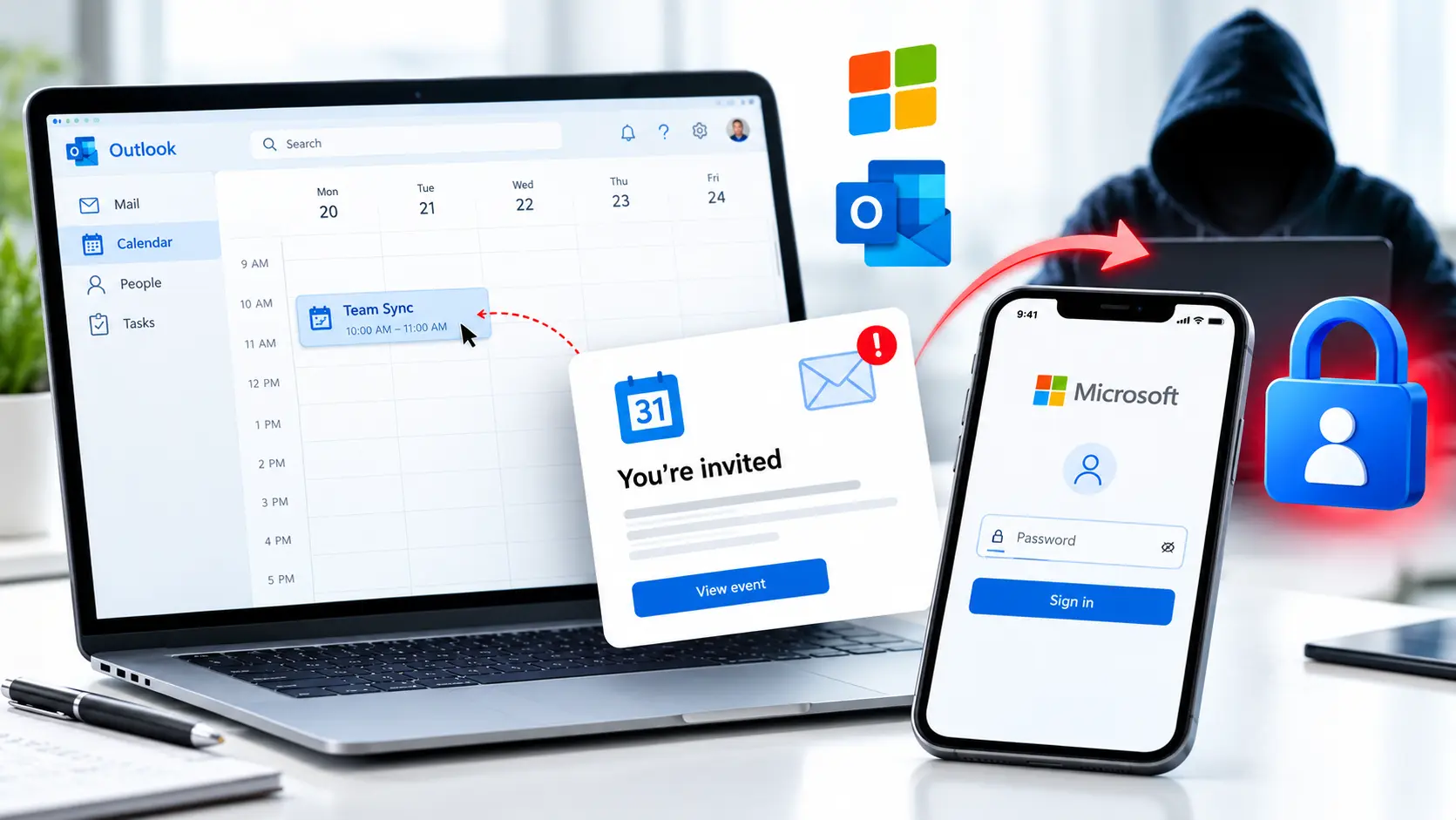
Imagine checking your calendar and finding a meeting you do not remember booking. It has a familiar-looking title, a time and a button inviting you to join. You click to see what it is about, and a page asks you to sign in to Microsoft.
That simple action could put your account at risk if the invitation is fake.
Cybersecurity researchers have uncovered large-scale phishing campaigns that use calendar invitations to trick people into revealing their Microsoft account passwords. The messages can look like ordinary meeting requests, making them easy to mistake for something legitimate.
On October 15, 2026, Check Point’s email research team reported that its detection system had flagged more than 302,386 unique phishing emails across customers in more than 40,000 organisations. The company also reported more than 740,000 calendar-phishing emails during the first two weeks of October. These figures measure detected activity, not confirmed victims or compromised accounts.
The concern is that attackers are using something people see every day, a calendar invitation, to lead them towards a fake sign-in page. Understanding how the trick works can help you recognise the warning signs before you hand over your password.
Source: Check Point’s original campaign analysis
How the campaign developed
Check Point said it began seeing a significant increase in this activity on September 25, 2026. Researchers identified invitations containing calendar attachments and messages with deceptive meeting links.
The company’s reporting shows how quickly the activity grew. It recorded more than 118,000 calendar-phishing emails in September and more than 740,000 during the first two weeks of October. October 8 was the busiest day in the reported period, with almost 200,000 emails.
Check Point also identified more than 33,890 sender domains and over 247,270 sender addresses associated with the activity.
These figures describe different measurements in Check Point’s reporting and should not be treated as interchangeable. The published findings do not establish how many people clicked the links, submitted passwords or suffered account takeovers.
What they do show is that calendar invitations have become a delivery method for large-scale phishing campaigns. The next question is how a routine appointment can lead someone to a fake login page.
How a fake calendar invitation can steal your password
Check Point described two main approaches. Both rely on making a deceptive request appear to be part of an ordinary meeting.
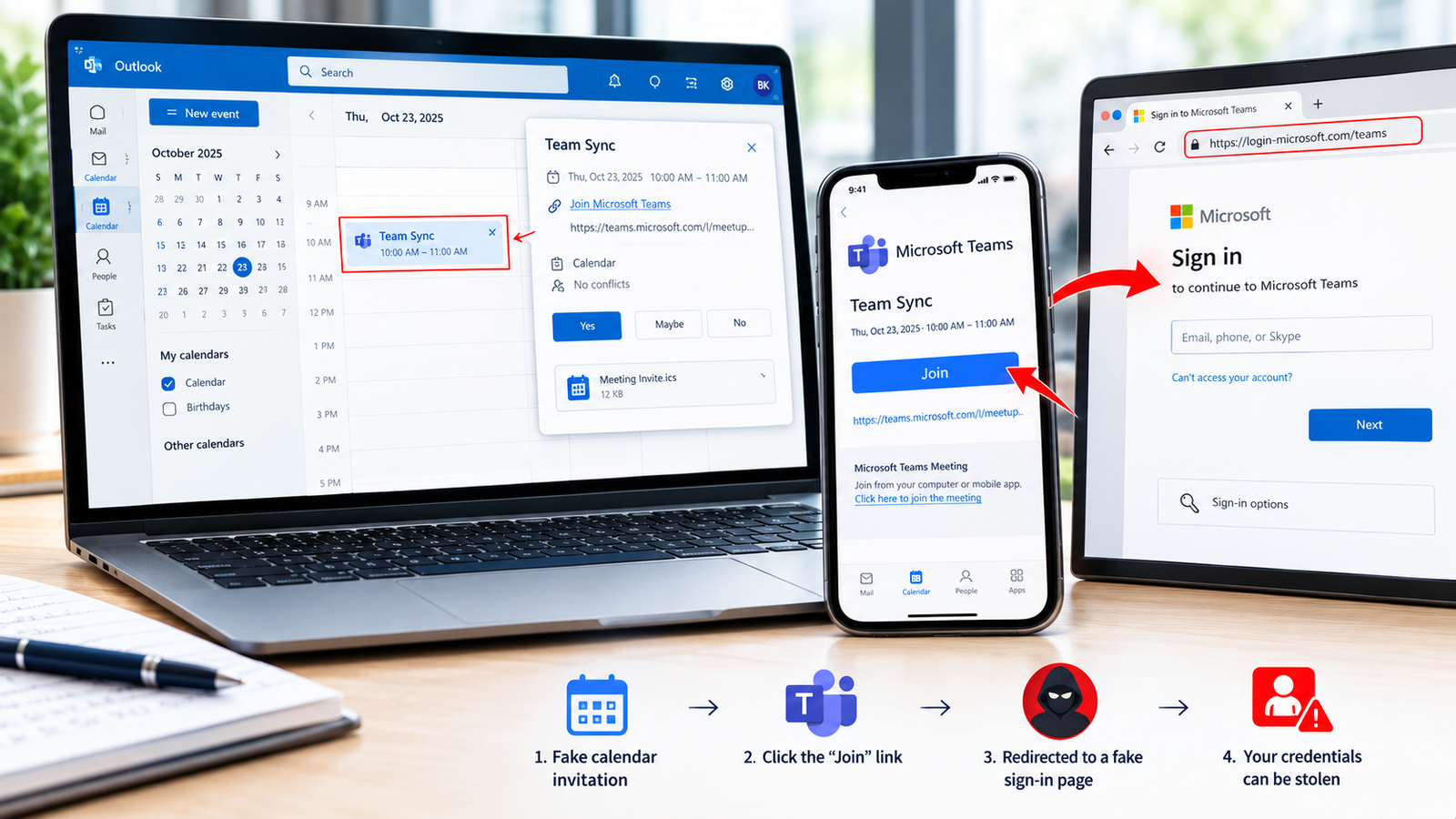
1. A calendar attachment hides a dangerous link
Some phishing messages arrive with an .ics attachment. This is a standard file format used to share calendar events, including their titles, dates, times and descriptions.
The format itself is not malicious. Attackers can use a valid calendar file to deliver an event containing a deceptive link or instructions that direct the recipient to a fraudulent website.
Check Point explained that the attack “abuses calendar features and user trust without exploiting a software vulnerability.”
That distinction matters. The reported campaign does not depend on a software flaw that users need to patch. Instead, it tries to persuade people to follow a link and reveal their account details.
Depending on their settings, some calendar services can also add invitations automatically. An unexpected event may therefore appear in a calendar even when the recipient has not deliberately accepted it.
An unfamiliar .ics attachment does not automatically mean a device is infected. The warning sign is an unexpected event containing a suspicious link or an unusual request for information.
2. A fake meeting link leads to a sign-in trap
In the second approach, the invitation contains a link that appears to be associated with a legitimate meeting or Microsoft Teams.
A recipient may see a button labelled “Join” and expect it to open the meeting. Instead, the link may lead to a website designed to imitate a Microsoft sign-in page.
The page asks the recipient to enter their email address and password. If they submit those details to the attacker, the credentials may be used in attempts to access the account.
Check Point published an example of a fake Teams invitation in which inspecting the meeting link revealed that its destination did not match what the recipient would expect. This illustrates why the text displayed on a button is not enough to establish that a link is safe.
What matters is where the link leads and whether the request makes sense.
Why these invitations can fool people
Calendar phishing takes advantage of a simple habit: people often trust their calendars as a record of appointments they need to attend.
An unexpected email may raise suspicion. But when a meeting appears alongside a work call or a regular reminder, someone may assume they simply forgot about it.
In an October 11 report, The Guardian described how calendar invitations can be added automatically, depending on the calendar service and its settings. The report quoted Luke Wescott, a threat detection engineer at Sublime Security, describing the credibility an invitation gains by appearing alongside legitimate appointments as “borrowed credibility.”
The same broad tactic can be used for fake voicemail notifications, payment warnings and subscription-renewal reminders. These lures try to persuade people to open a link, provide account details or contact a number supplied in the message. They are related examples, not all part of the specific Microsoft credential campaign described by Check Point.
The risk is not limited to a particular calendar brand. The examples and campaign figures discussed here come from specific investigations and do not prove that every calendar service or invitation is affected in the same way.
The important lesson is to judge an invitation by its source, its link and what it asks you to do, rather than by how ordinary it looks.
Additional reporting: The Guardian’s explanation of calendar phishing
Warning signs to check before joining a meeting
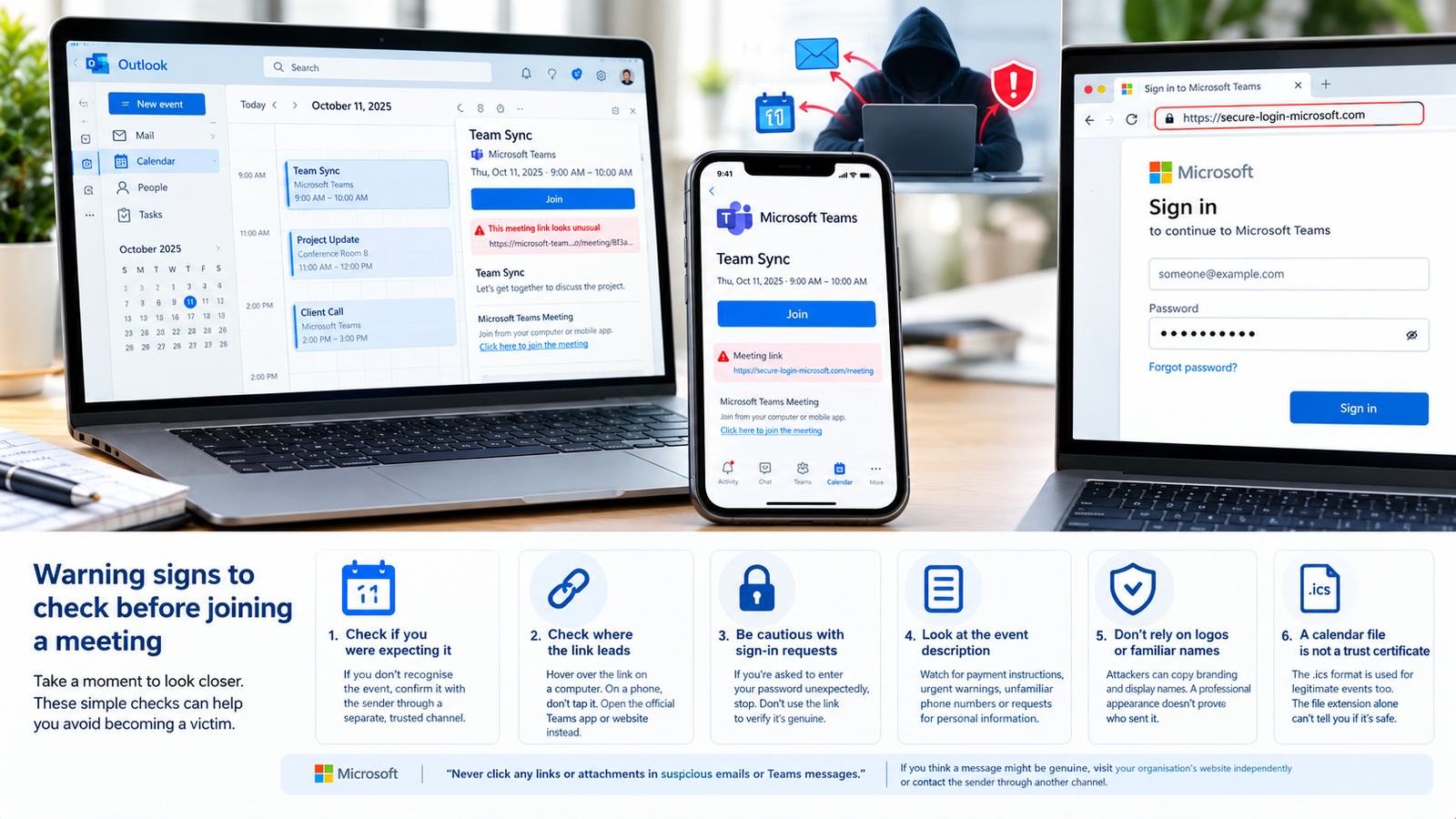
You do not need specialist security knowledge to spot some common warning signs. Before following an unexpected invitation, take a moment to check the details.
Check whether you were expecting the meeting. If you do not recognise the event, confirm it with the supposed sender through a separate, trusted channel.
Check where the link leads. On a computer, hover over the link without clicking to preview its destination when possible. On a phone, do not tap an unfamiliar link just to inspect it. If you are unsure, open the official Microsoft Teams app or website independently.
Be cautious if the invitation asks you to sign in unexpectedly. A request to enter your password through an unfamiliar meeting link deserves extra scrutiny. Do not use the link itself to verify that the request is genuine.
Look closely at the event description. Unexpected payment instructions, urgent account warnings, unfamiliar phone numbers and requests for personal information are reasons to stop and verify the message.
Do not rely on logos or familiar names. Attackers can copy branding and use display names that look legitimate. A professional appearance does not prove who sent an invitation.
Remember that a calendar file is not a trust certificate. The .ics format is used for legitimate events, too. The file extension alone cannot tell you whether the sender or the event’s links are safe.
Microsoft’s own phishing guidance warns: “Never click any links or attachments in suspicious emails or Teams messages.” If you think a message might be genuine, Microsoft recommends visiting the organisation’s website independently or contacting the sender through another channel.
Microsoft’s official phishing guidance
How to reduce unwanted calendar invitations
You can adjust some calendar settings to limit unexpected events. These controls can help, but they cannot identify every phishing attempt.
If you use Google Calendar
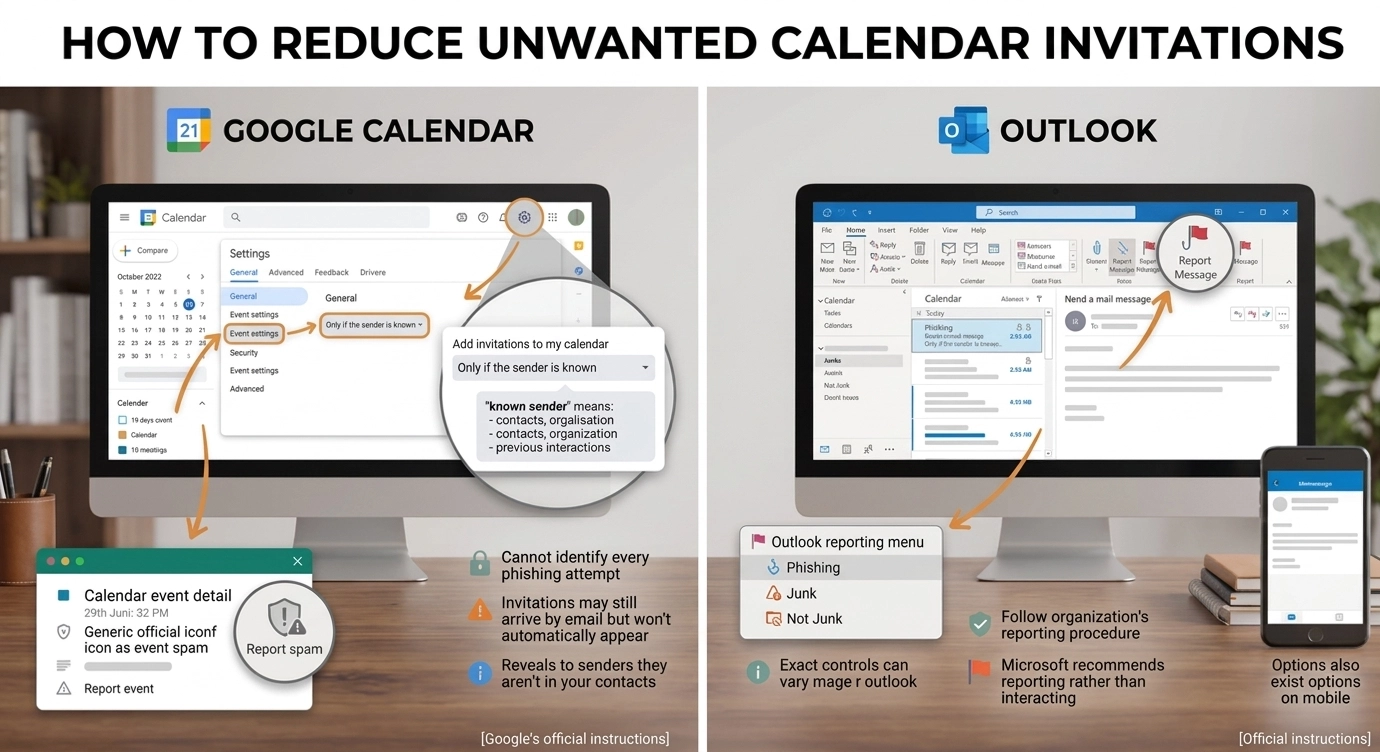
Google provides an option to add invitations to your calendar only when the sender is known. A known sender can be someone in your contacts, someone in your organisation or someone you have previously interacted with.
To review this setting on a computer:
- Open Google Calendar.
- Select Settings, then Settings again.
- Under General, choose Event settings.
- Find Add invitations to my calendar.
- Select Only if the sender is known, if that setting suits your needs.
With this setting, invitations from unknown senders may still arrive by email but will not automatically appear on your calendar. Google notes that this setting can reveal to senders that they are not in your contacts, and it applies to new invitations.
You can also report suspicious events as spam. Google says this removes the event from your calendar, including the whole series if it is recurring. The reporting option applies to events sent through Google Calendar, not events created by another provider or app.
Google’s official instructions for managing invitations and reporting suspicious calendar events
If you use Outlook
Use Outlook’s available reporting options to flag suspicious messages as phishing or junk. The exact controls can vary by device and version. Microsoft recommends reporting suspicious messages rather than interacting with their links.
If the invitation relates to a work account, follow your organisation’s reporting procedure so its security team can investigate it.
Microsoft’s official guidance on reporting phishing
What to do if you clicked the link
Your next step depends on what happened. Receiving an invitation, opening a webpage and entering your password are different situations.
If you only received the invitation: Do not follow its links or call numbers listed in it. Report or remove the event using the options available in your calendar service.
If you opened the link but entered nothing: Close the page and do not continue. Opening a page does not, by itself, prove that your account has been compromised. If the invitation came through a work account, report it to your IT or security team.
If you entered your Microsoft password: Go directly to Microsoft’s official website or app, rather than using the invitation link. Change your password and review your recent sign-in activity. If you reused the same password on other services, change it there as well.
Turn on two-step verification if it is not already enabled. Microsoft says this makes it harder for someone else to sign in, even if they know your password. It does not stop every type of phishing attack, so never share a verification code or approve a sign-in request you did not initiate.
If you entered a verification code or approved a sign-in request: Act promptly. Tell your IT or security team if it is a work or school account. Explain what information you entered and what you approved. A password change may not be enough to address every form of unauthorised access.
If the account belongs to your workplace: Your security team may need to review sign-in records, active sessions and unexpected account changes, particularly if the account provides access to company email, files or other services.
If you cannot access your personal Microsoft account, use Microsoft’s official recovery process rather than links sent in unexpected messages. If you downloaded or ran a file from the suspicious invitation, scan your device with up-to-date security software as well.
Official guidance: Microsoft account recovery and two-step verification.
What this campaign means for everyday users
Check Point’s investigation documents a large-scale effort to steal Microsoft account credentials through fake calendar invitations. The campaign uses familiar meeting requests, calendar attachments and deceptive links to encourage people to visit fraudulent sign-in pages.
The reported email volumes show the scale of the activity detected by the company. They do not tell us how many recipients entered their passwords or how many accounts were successfully compromised. That distinction matters when assessing the actual impact.
For everyday users, the practical response is straightforward: do not assume an invitation is genuine just because it appears in your calendar. Check whether you expected it, verify unusual requests independently and avoid entering your password through an unexpected link.
A calendar reminder should help you organise your day, not persuade you to hand over control of your account.
Sources & Editorial Note
The following sources provide reporting, campaign analysis, and official guidance relevant to this article.
-
Fake Calendar Invites Target Thousands of Organizations in Microsoft Credential-Phishing Campaign Check Point · Original campaign analysis
-
19 October Threat Intelligence Report Check Point Research · Threat intelligence
-
“You have a meeting”: The Calendar Phishing Scam Growing Exponentially The Guardian · Independent reporting
-
Quarantined, but Still on Your Calendar Help Net Security · Security reporting
-
Manage Invitations in Google Calendar Google Calendar Help · Official guidance
-
Report Inappropriate Calendar Invitations and Events Google Calendar Help · Official guidance
-
Protect Yourself from Phishing Microsoft Support · Security guidance
-
Report Phishing or Junk Email Microsoft Support · Reporting guidance
-
Recover a Hacked or Compromised Microsoft Account Microsoft Support · Account recovery
-
Use Two-Step Verification with Your Microsoft Account Microsoft Support · Account security


Community discussion
Join the conversation
0 comments
Be the first to join in
There are no comments yet. Sign in to start a thoughtful discussion.
Sign in to comment
Join the conversation with your Secritic account. Comments are available to signed-in readers.