
You open the Google Play Store, tap Install, and wait. But instead of downloading, the app stays on “Pending.” You try again, but nothing changes.
If your Google Play Store download is stuck on Pending, the problem could be your internet connection, low storage, a temporary Play Store issue, or a problem with the app you are trying to install.
The good news is that you can start troubleshooting without deleting your apps or resetting your phone. The key is to check the simplest causes first and avoid changing settings you do not need to touch.
This guide walks you through the fixes in order, explains when each one is useful, and shows you what to do if the download still will not start.
Quick Answer: How to Fix a Play Store Download Stuck on Pending
If you need a quick solution, try these checks in order:
- Check that your internet connection is working properly.
- Open the Play Store’s download queue and check whether another app is updating.
- Check your phone’s available storage.
- Close the Play Store, reopen it, and restart your phone if necessary.
- Check that your phone’s date and time are correct.
- Clear the Google Play Store cache.
- If the problem continues, consider clearing Play Store data or reinstalling its updates.
Start with the first five checks before clearing any data. If only one app is affected, check its compatibility before making wider changes to your phone.
These steps will not fix every possible cause, but they cover the main troubleshooting options recommended by Google. The sections below explain how to carry them out safely.
Why Is My Google Play Store Download Stuck on Pending?
The Pending message means the download has not started or progressed as expected. It does not tell you exactly what has gone wrong.
Common possibilities include:
- Internet problems: Your Wi-Fi or mobile data connection may be weak or unstable.
- A waiting download: Another app update or download may be delaying the one you want.
- Low storage: Your phone may not have enough free space to download or install the app.
- A temporary Play Store problem: Cached files or local settings may be contributing to the issue.
- Incorrect date or time: Your phone’s clock or time-zone settings may need correcting.
- An app-specific restriction: The app may not be available for your device or in your region.
The same Pending message can have different causes. Rather than trying every possible fix, use the steps below to narrow down the problem.
How to Fix Google Play Store Download Stuck on Pending
1. Check Your Internet Connection
Start by checking your connection. A phone can show that it is connected to Wi-Fi even when the connection is too unstable for a download to proceed reliably.
Try the following:
- Open your browser and visit a website.
- If the page does not load properly, reconnect to Wi-Fi or check your mobile data connection.
- If possible, try another reliable Wi-Fi network.
- If you are using mobile data, check your signal and remaining data allowance.
- Return to the Play Store and try the download again.
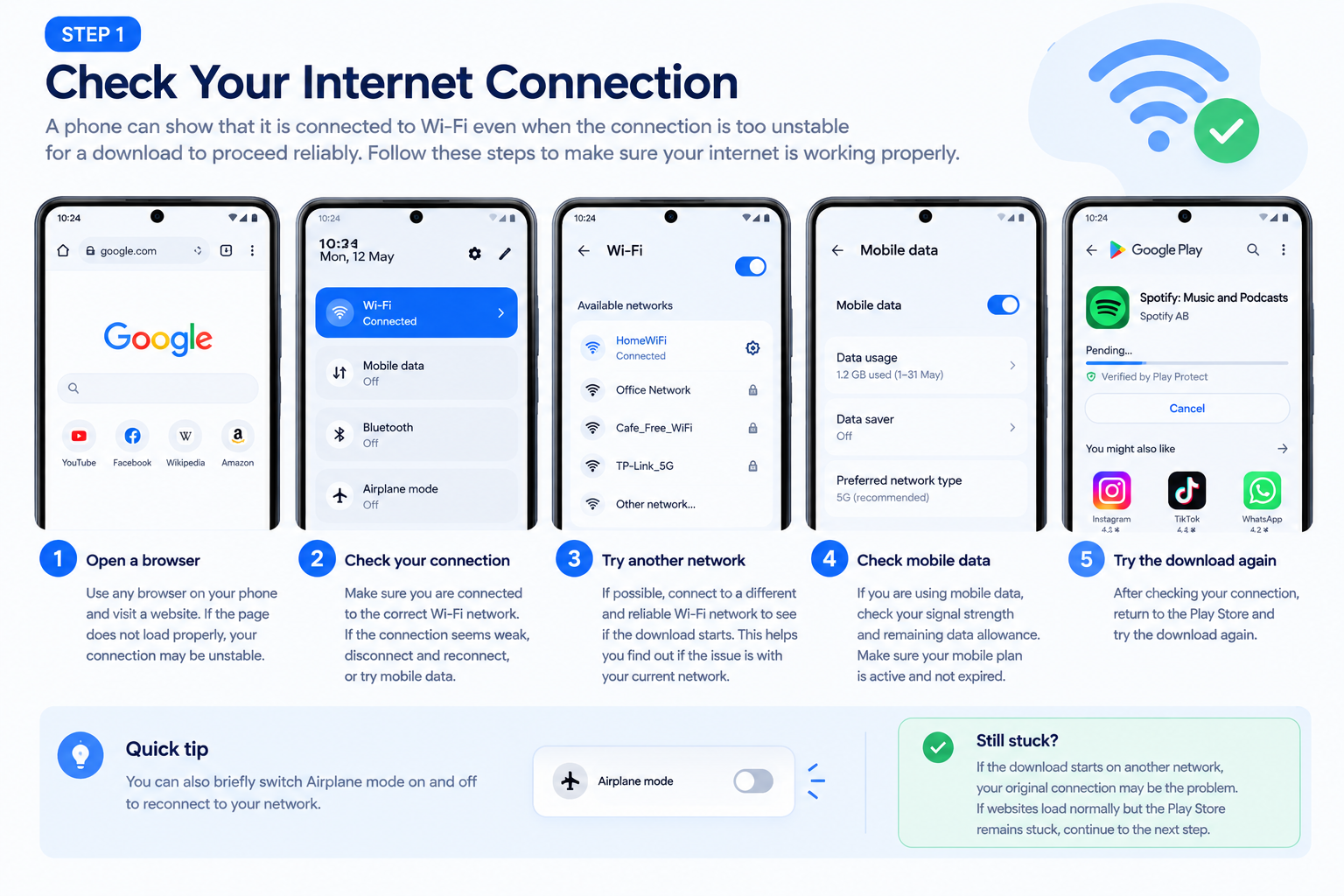
You can also briefly switch Airplane mode on and off to reconnect to your network.
If the download starts on another network, your original connection may be the problem. If websites load normally but the Play Store remains stuck, continue to the next step.
2. Check Whether Another App Is Waiting to Download
If you have several apps updating at once, check the Play Store before changing your phone’s settings.
- Open the Google Play Store.
- Tap your profile picture in the top-right corner.
- Select Manage apps & device.
- Review the available updates and any downloads or updates shown as in progress.
- If another download is clearly stuck and you no longer need it, cancel that specific download and try installing your chosen app again.
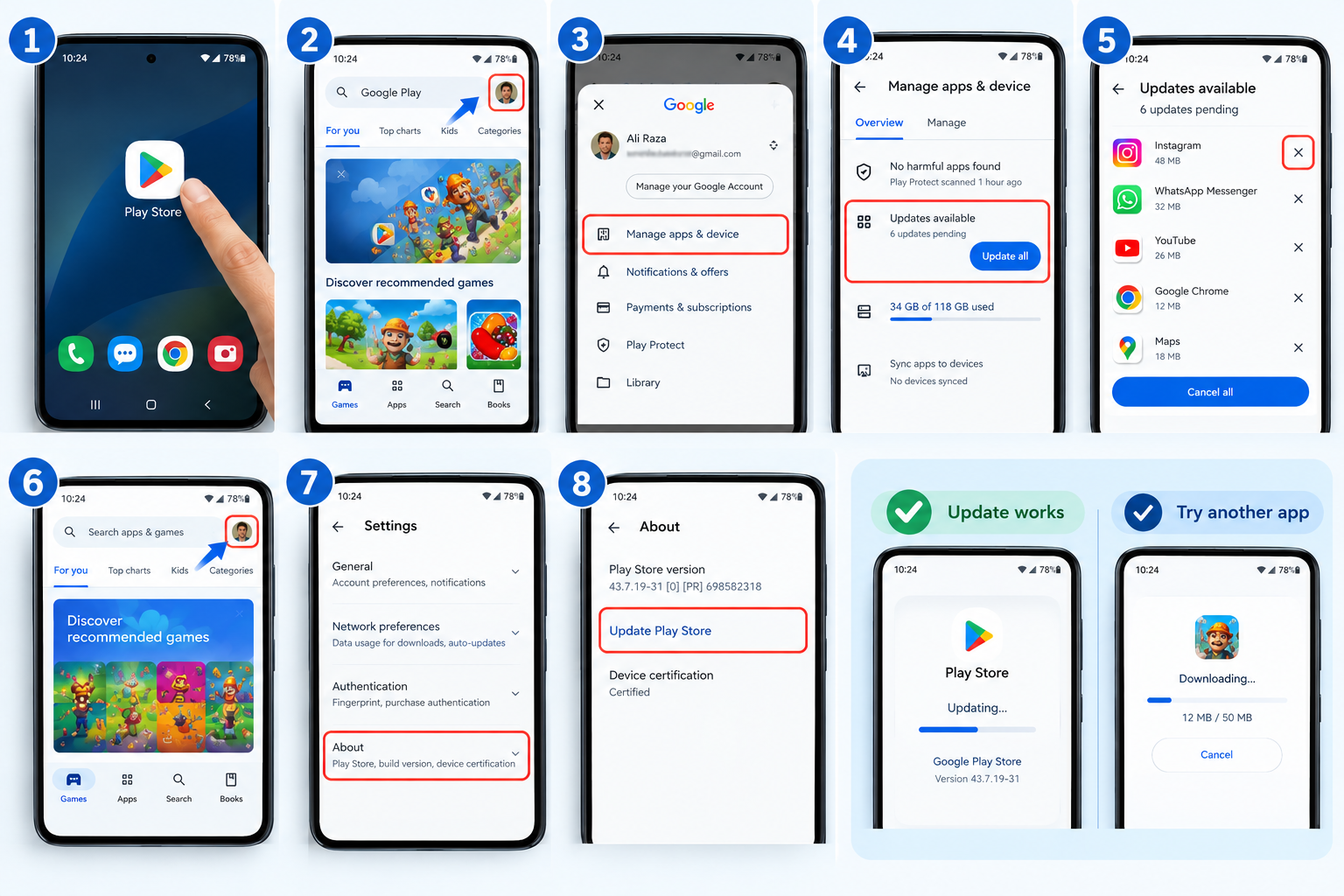
Do not cancel every update automatically. Check what is being downloaded first.
If the queue does not explain the problem, try downloading a different, small, free app.
- If the other app downloads successfully, the problem may be specific to the original app.
- If multiple apps remain stuck on Pending, continue with the device-level checks.
This simple test helps you avoid resetting Play Store settings when only one app is affected.
3. Check Your Phone’s Available Storage
Low storage can prevent Android apps from downloading or installing.
To check how much space you have left:
- Open Settings.
- Tap Storage.
- Check the available space.
- If storage is nearly full, remove files or apps you no longer need.
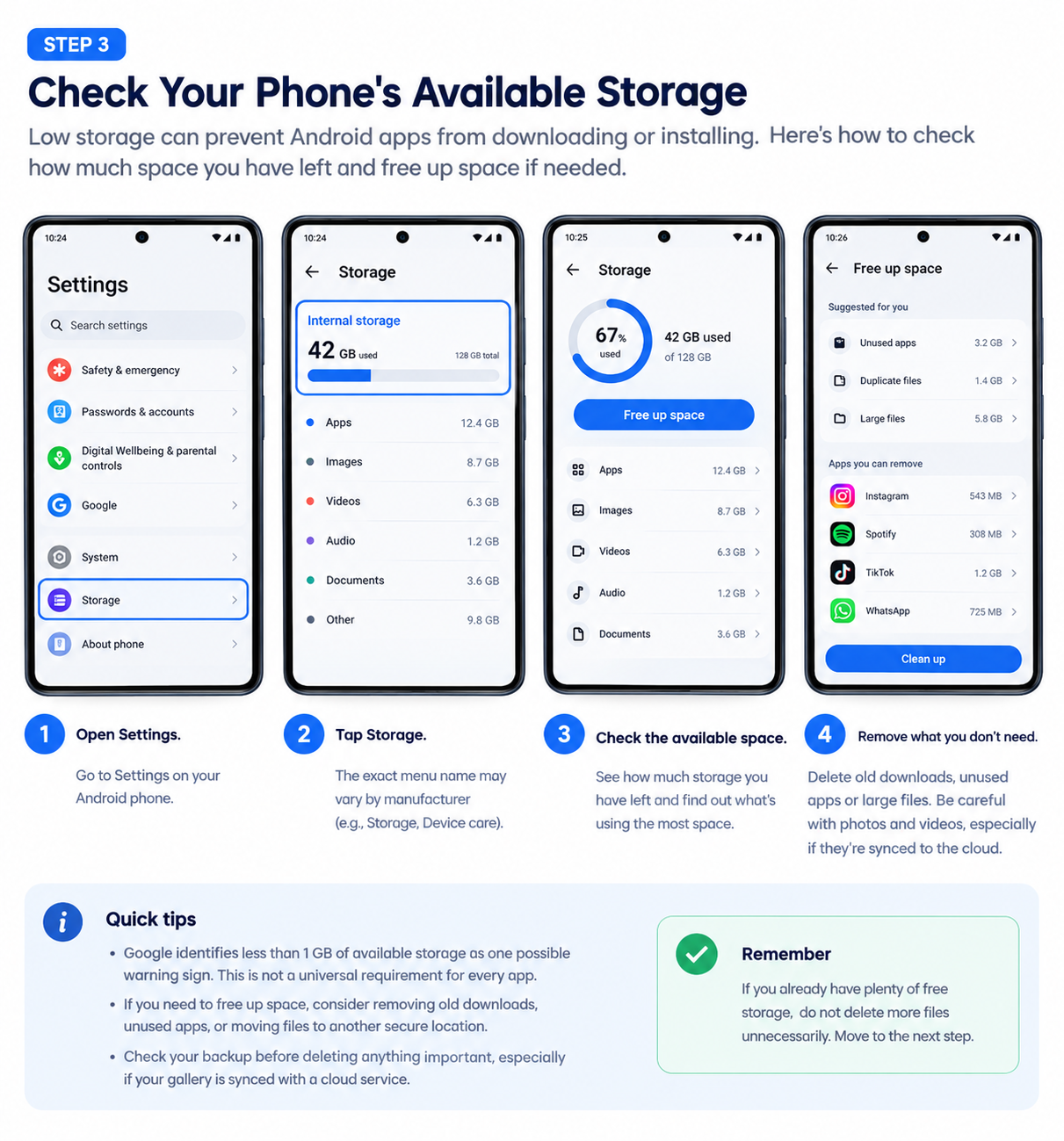
Google identifies less than 1 GB of available storage as one possible warning sign. This is not a universal requirement for every app, because installation and update needs vary.
If you need to free up space, consider deleting old downloads, removing unused apps, or moving suitable files to another secure location.
Be careful with photos and videos. If your gallery is synced with a cloud service, deleting an item may also remove it from other synced locations. Check your backup before deleting anything important.
Once you have freed up enough space, try the download again.
If you already have plenty of free storage, do not delete more files unnecessarily. Move to the next step.
4. Restart the Play Store and Your Phone
A temporary app or system problem may prevent the download from starting.
First, close and reopen the Play Store:
- Open your phone’s recent-apps screen.
- Find the Google Play Store and swipe it away to close it.
- Open the Play Store again.
- Try downloading the app.
If it remains stuck, restart your phone. Save any work in other apps first, then open the Play Store after the phone has restarted.
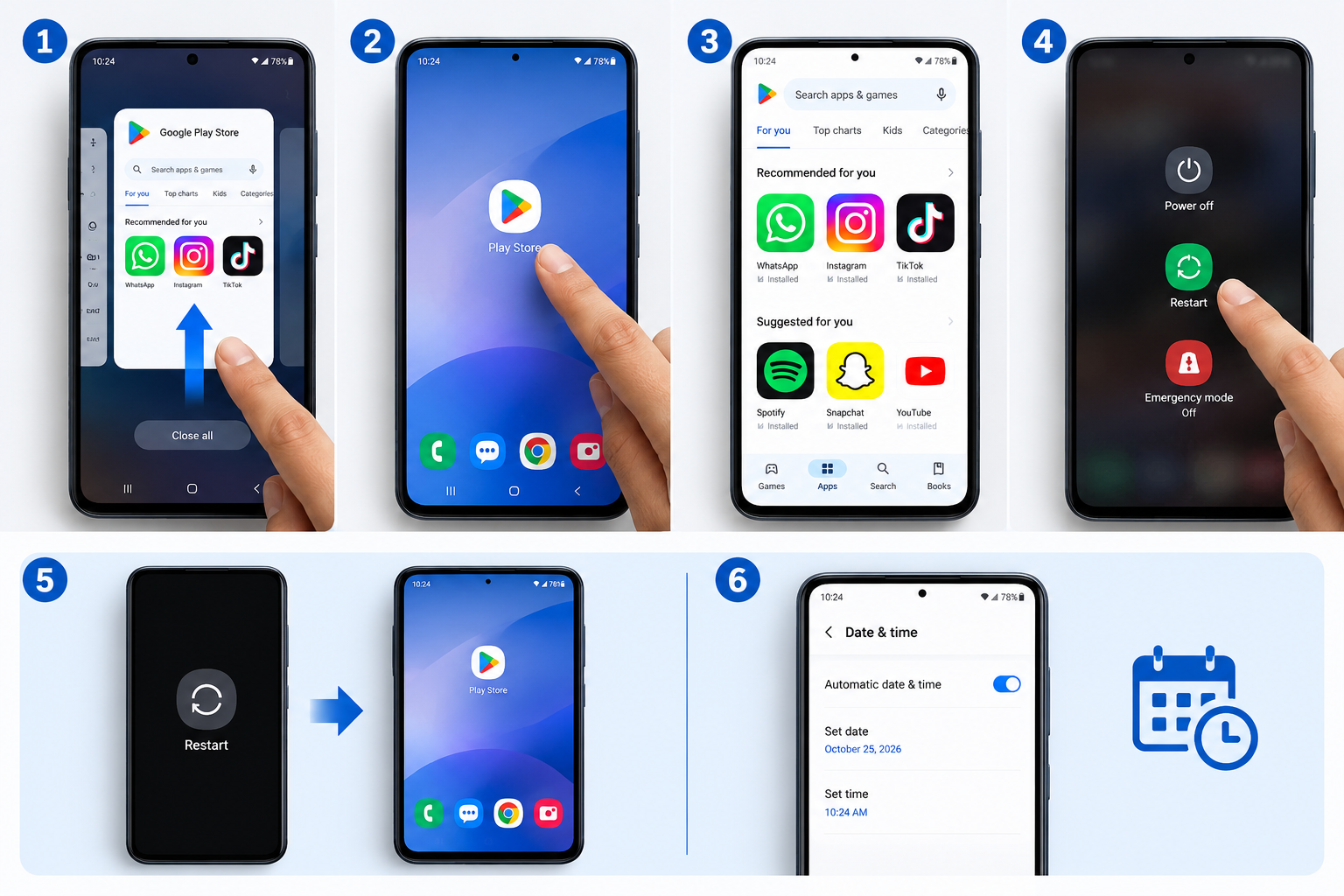
The exact gesture for closing apps varies by device. Some phones use navigation buttons, while others use swipe gestures.
If the download still does not start, check your date and time settings.
5. Set Your Date and Time Automatically
Incorrect date or time settings can sometimes interfere with connections to online services.
To check them:
- Open Settings.
- Look for Date & time, usually under System or a similar menu.
- Turn on Set time automatically.
- Turn on the automatic time-zone option if your phone provides one.
- Wait a few minutes and try the download again.
Menu names vary between Android versions and manufacturers.
If automatic date, time and time-zone settings are already enabled and your clock is correct, this is less likely to be the cause. Continue with the next step rather than repeatedly changing the settings.
Check for Android System Updates
If the download is still stuck, check whether your phone has an Android system update available. An update may address system-level issues, although installing one will not necessarily fix every Play Store download problem.
To check:
- Open your phone’s Settings.
- Look for System, Software update, or System update. The exact menu depends on your phone.
- Check whether an update is available.
- If one is available, follow the instructions on your device. Connect to Wi-Fi and make sure your phone has sufficient battery before starting.
- When the update finishes, reopen Google Play Store and try the download again.
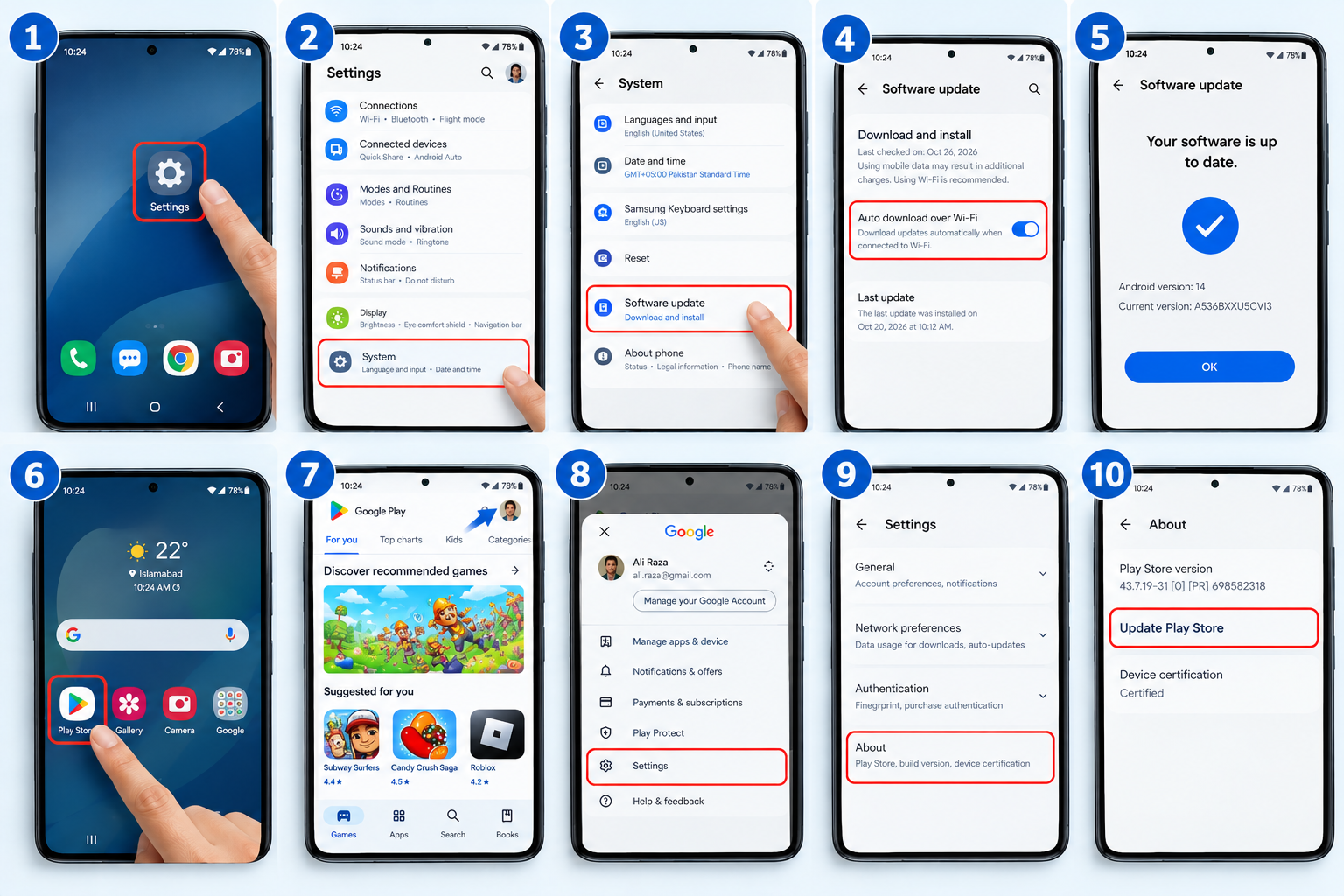
If your phone says it is up to date, or the download remains stuck afterward, continue to the next step.
Important: Do not interrupt an update once installation has started. If your phone is managed by your workplace or has limited update support, follow the instructions provided by its administrator or manufacturer.
6. Clear the Google Play Store Cache
If your connection and storage are fine, clearing the Play Store cache is a useful next step. Google identifies cache clearing as a common solution to download problems.
The cache contains temporary files. Clearing it is different from resetting the app’s stored data.
Follow these steps:
- Open Settings.
- Tap Apps or See all apps.
- Select Google Play Store.
- Tap Storage & cache or Storage.
- Select Clear cache.
- Reopen the Play Store and try the download again.
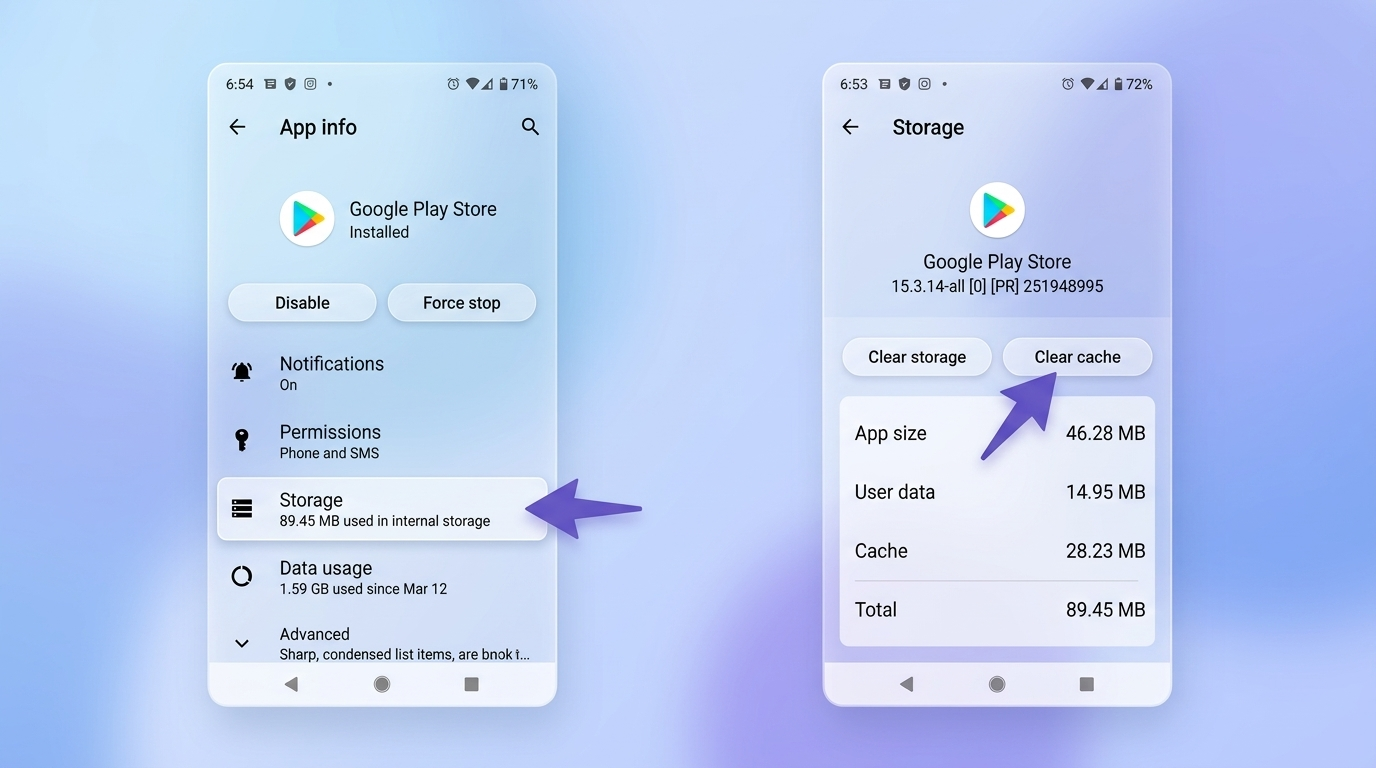
On some phones, you can reach the app information screen by pressing and holding the Play Store icon and selecting App info.
Choose Clear cache, not Clear storage or Clear data, at this stage.
Clearing the cache normally does not remove your installed apps, photos, videos or personal files. The app can rebuild its temporary files when needed.
If the download remains stuck, you can consider the next step.
7. Clear Play Store Data If the Problem Continues
If clearing the cache has not helped and several apps still cannot download, resetting the Play Store’s local data is an option recommended in Google’s advanced troubleshooting guidance.
However, this is more disruptive than clearing the cache.
Clearing Play Store data may reset settings such as parental controls and password protection. You may also need to accept the Play Store’s terms of service again.
To proceed:
- Open Settings.
- Go to Apps or See all apps.
- Select Google Play Store.
- Open Storage & cache or Storage.
- Select Clear storage or Clear data.
- Confirm the action if you understand its effects.
- Open the Play Store again and test the download.
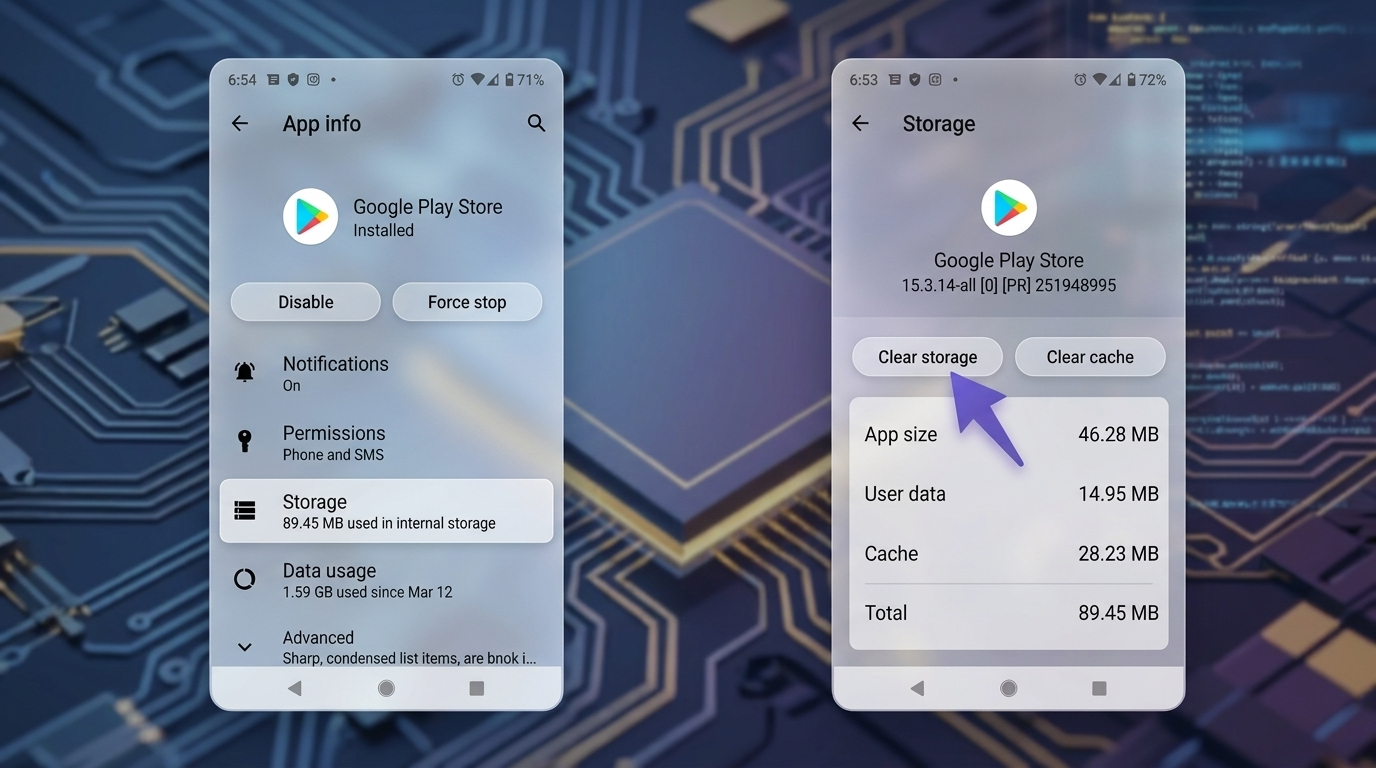
The wording and location of these options vary by device.
This action is not the same as factory-resetting your phone, and it does not ordinarily uninstall all your installed apps. Nevertheless, it resets local Play Store data and settings, so use it only after the simpler checks have failed.
If you rely on parental controls or password-protection settings, check them again afterward.
8. Check Whether the App Itself Is the Problem
If other apps download normally but one particular app remains stuck on Pending, focus on that app instead of resetting more settings.
Open its page in the Play Store and check whether it is available for your device.
Look for the following:
- The app requires a newer version of Android.
- The app is not supported on your particular device.
- The app is unavailable in your country or region.
- The developer has restricted which devices can install it.
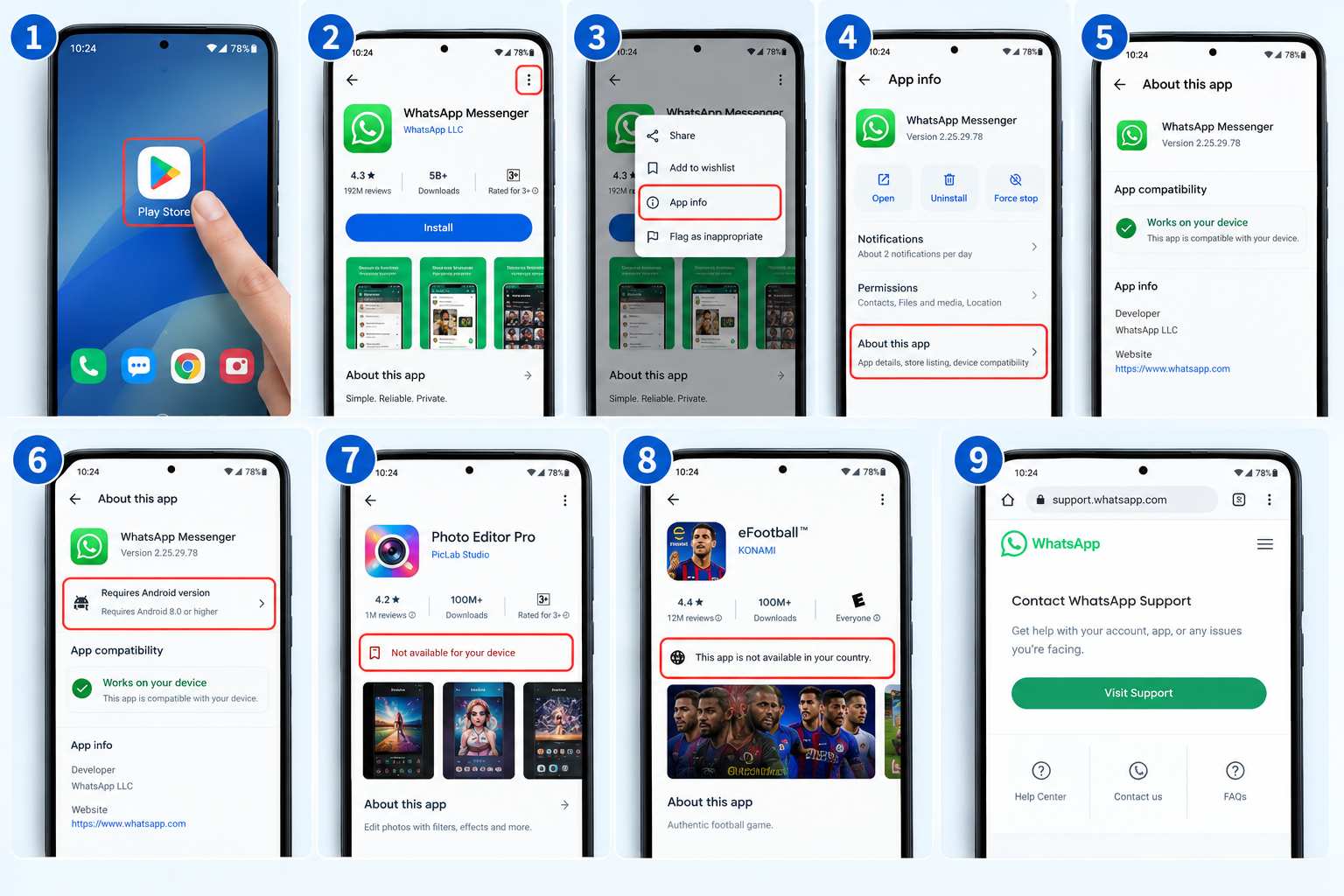
Google explains that if an app is not available for your device, you cannot download it through the Play Store.
If the app is listed as compatible but the download still fails, visit the developer’s official support page. The problem may be specific to that app rather than the Play Store as a whole.
9. Reinstall Google Play Store Updates
If multiple apps remain stuck after the basic checks and cache or data troubleshooting, try reinstalling the Play Store updates.
This does not mean uninstalling the Play Store itself.
- Find the Google Play Store icon on your home screen or in your app list.
- Press and hold the icon.
- Tap App info.
- If a three-dot menu is available, open it.
- Select Uninstall updates and confirm if prompted.
- Reopen the Play Store.
- Tap your profile picture and open Settings.
- Select About.
- Tap Update Play Store if that option is available.
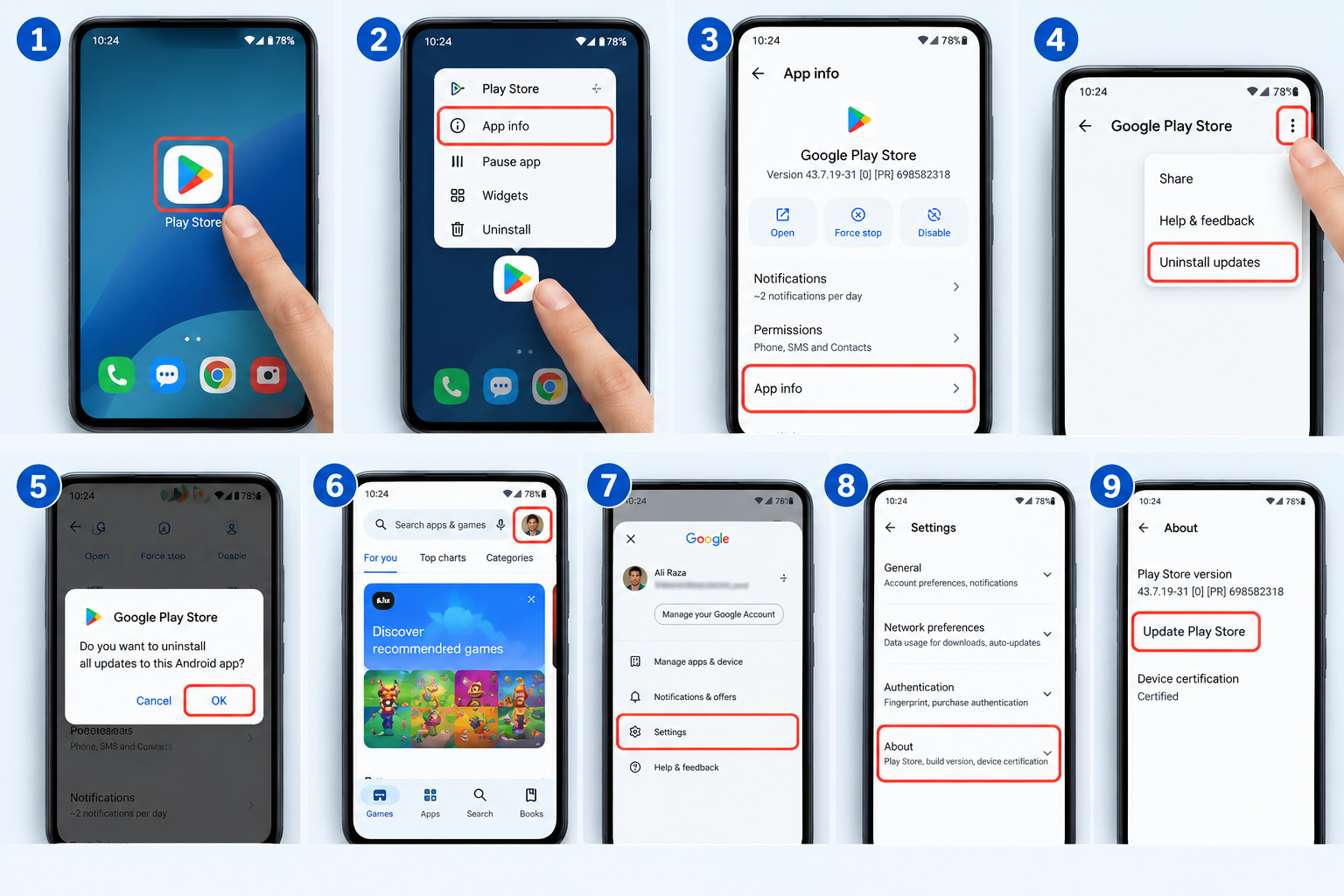
Google documents this procedure as an advanced troubleshooting step. Some phones may display different menu options.
After the Play Store has updated, try the download again.
10. Check Google Play Services Before Considering More Disruptive Fixes
Google Play services and the Google Play Store are different components. The Play Store is the app used to download apps, while Google Play services connects apps with other Google services.
If the earlier steps have failed, check whether Google Play services needs an update using the official update path available on your device.
Do not immediately clear its storage or all data. Google warns that doing so may remove certain information saved on the device, including passwords and transit or virtual payment cards, and may require you to sign in or reauthenticate payment methods again.
If you decide to troubleshoot Google Play services, clearing its cache is a less disruptive first step:
- Open Settings.
- Select Apps or See all apps.
- Open Google Play services.
- Tap Storage & cache.
- Select Clear cache, if available.
- Restart your phone and test the Play Store again.
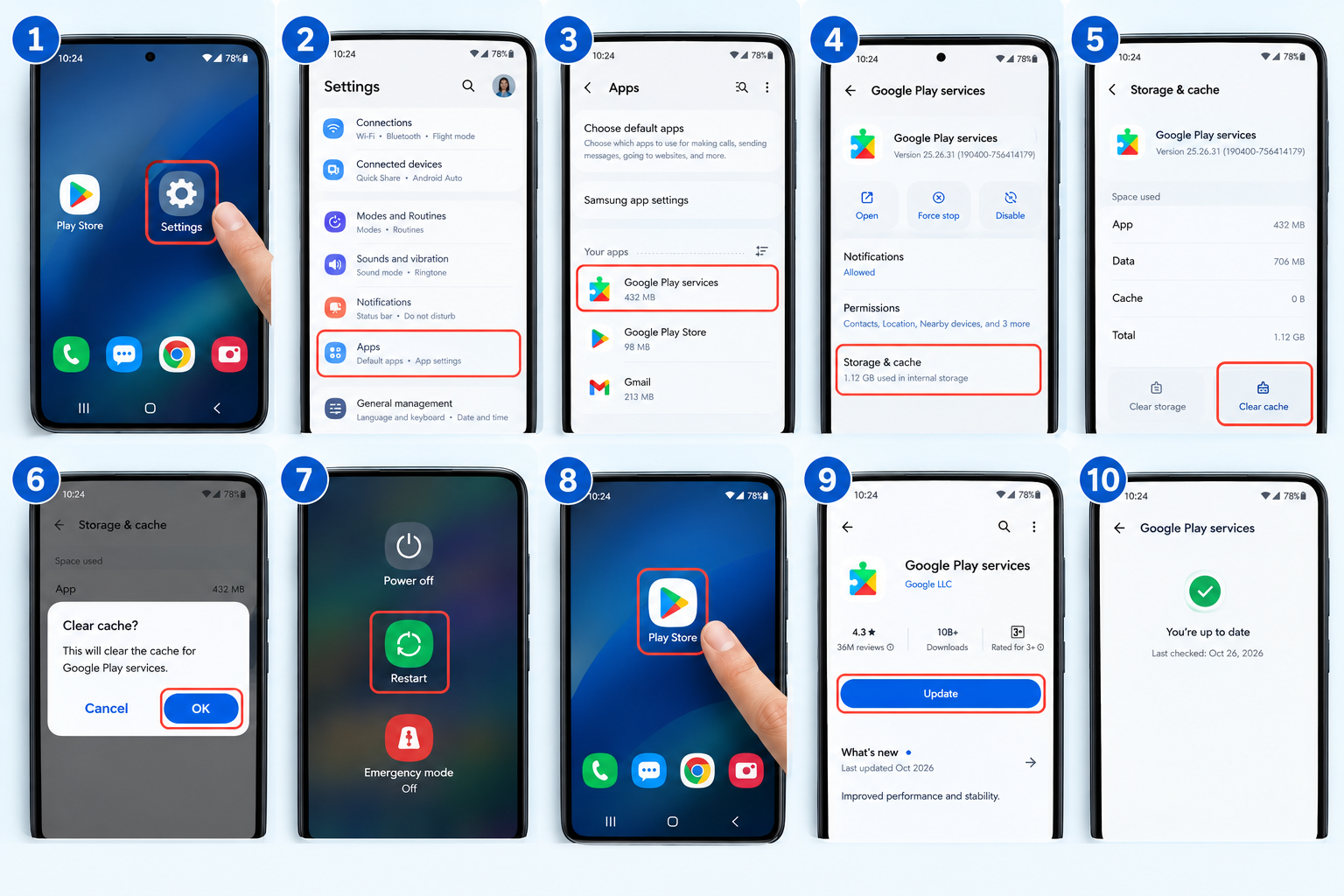
If that does not work, consult Google’s official guidance before considering a more extensive reset.
What If the Play Store Download Is Still Stuck on Pending?
Match your problem to the symptom below to find the next step. Work through the checks that fit your situation before trying more disruptive fixes.
-
No apps will download
Recheck your internet connection, available storage and Google Play Store settings.
-
Only one app will not download
Check whether the app supports your device and region. If needed, visit the app developer’s official support page.
-
Downloads work on Wi-Fi, not mobile data
Check your mobile data connection, remaining data allowance and Play Store download preferences.
-
The Play Store itself will not open
Follow Google’s Play Store troubleshooting guide for app-opening problems.
-
The problem continues after these steps
Contact Google Play support or your phone manufacturer, depending on whether the issue involves the store or device.
Frequently Asked Questions
Quick answers to common questions about Google Play downloads stuck on Pending.
Why is my Google Play Store download stuck on Pending even with Wi-Fi?
Your connection may still be unstable, another download may be waiting, or your phone may have a storage or Play Store problem. Check the download queue and available storage, then follow the troubleshooting steps above.
How do I fix a Play Store download stuck on Pending without losing data?
Start with the connection, download queue, storage, restart and date-and-time checks. If necessary, clear the Play Store cache. Only consider clearing its stored data after the safer steps have failed, and avoid factory resets or unnecessary deletion of personal files.
Does clearing the Google Play Store cache delete my apps?
No. Clearing the Play Store cache normally removes temporary files rather than uninstalling your apps or deleting personal photos and documents. Clearing the Play Store’s stored data is a separate action that can reset local settings.
Why is only one app stuck on Pending?
The app may not support your device or Android version, may be unavailable in your region, or may have an app-specific problem. Check the app’s Play Store page before making broader changes to your phone.
Should I clear Google Play services data?
Not as an early troubleshooting step. Google warns that clearing Google Play services data can affect certain saved information and require you to sign in or reauthenticate payment methods again. Try the safer steps first.
Will restarting my phone fix a Pending download?
Restarting can help resolve some temporary app or system problems, but it will not necessarily fix storage, compatibility or persistent Play Store issues.
Final Thoughts
When a Google Play Store download is stuck on Pending, the best solution is to identify the cause instead of trying every possible fix.
Check your connection, download queue and available storage first. Then restart the Play Store, verify your date and time, and clear its cache if needed. More disruptive steps should come later, with a clear understanding of what they change.
You do not need to reset your phone or delete personal files just to begin troubleshooting. Work through the steps in order, test the download after each meaningful change, and stop when it works.
How We Checked This Guide
We reviewed this guide against Google Play Help documentation covering basic download troubleshooting, problems affecting one or multiple apps, Play Store settings, and Google Play services. The instructions prioritise lower-risk checks before more disruptive changes and distinguish clearing cache from clearing stored data.
Android settings and menu names can vary by device, manufacturer, and software version. The steps are general troubleshooting guidance, not a guarantee that every fix will work on every phone.
This guide has been checked against the official documentation linked below. We do not claim hands-on testing on every Android device.
Official Sources
These Google Play Help resources provide additional troubleshooting guidance for download and app-related problems.
-
Fix problems downloading apps with basic troubleshooting steps Google Play Help
-
Fix problems downloading multiple apps Google Play Help
-
Fix problems downloading one app Google Play Help
-
Fix problems with the Google Play Store app Google Play Help
-
Keep your device and apps working with Google Play services Google Play Help
Menu names and available options can vary by Android version and device manufacturer. Follow the instructions shown on your own device if they differ from the general steps in this guide.
Community discussion
Join the conversation
0 comments
Be the first to join in
There are no comments yet. Sign in to start a thoughtful discussion.
Sign in to comment
Join the conversation with your Secritic account. Comments are available to signed-in readers.