

Windows 11 users running versions 25H2 and 26H2 can safely resolve KB5132057 installation failures by turning off optional preview updates in Windows Update, because KB5132057 is a non-security preview release whose fixes will automatically arrive in December’s mandatory Patch Tuesday update.
On November 19, 2026, Microsoft released KB5132057 as an optional cumulative preview update for Windows 11 versions 25H2 (OS Build 26200.10075) and 26H2 (OS Build 26300.10075). Microsoft confirmed in the release notes that this is the final non-security preview update of 2026. It bundles a redesigned Windows Search interface, a modernized Run dialog, and 28 reliability fixes, along with Servicing Stack Update KB5132056.
Within 24 hours of release, affected users began posting reports on Microsoft Learn Q&A showing that KB5132057 downloads, attempts to install, and fails near the end of setup. Users are seeing installation error codes 0x800f0989 and 0x800f0993 in Windows Update, alongside a 0xc000012f pop-up dialog on several machines. Multiple users also report that the built-in Windows Update Troubleshooter refuses to launch when this failure occurs.
As of November 24, 2026, Microsoft has not listed these installation failures on its Windows 11 Release Information dashboard or on the KB5132057 support page. The only known issue Microsoft currently documents for KB5132057 involves open SQL Server linked-server connections, plus a separate 0xc0430001 error that affects offline installation media missing an updated boot.stl file. Because KB5132057 contains no security patches, a failed installation does not leave your PC vulnerable to new exploits.
What the Error Codes Actually Mean
Although users often encounter these three codes during the same failed update cycle, they come from different parts of Windows and point to distinct failure stages.
- Error
0x800f0989(Component-Based Servicing applicability or state failure): This code comes from Windows Component-Based Servicing (CBS), the engine that installs updates. It means Windows downloaded the update files, but the servicing stack rejected the installation because an expected baseline state, prerequisite package, or component transition could not be verified. - Error
0x800f0993(Component-Based Servicing transaction commit failure): This is also a CBS error, indicating that Windows could not commit the updated files to the component store (WinSxS). On affected PCs, this error frequently appears alongside a non-responsive Windows Update Troubleshooter. - Error
0xc000012f(Bad Image loader error): Unlike the two0x800fservicing codes,0xc000012fis a Windows loader error meaning a.dllor.exebinary is corrupted or lacks a valid executable header. As noted in Microsoft Q&A guidance,0xc000012foften appears as a secondary pop-up when an update helper or post-restart program tries to load a damaged file, while the primary servicing error is logged inside Windows Update history.
What is confirmed versus what remains unconfirmed: Microsoft confirms that KB5132057 relies on checkpoint cumulative update architecture (KB5043080) and requires Windows 11 25H2 systems to have an update released on or after June 10, 2025 (such as KB5060842) already installed. Independent reporting from Neowin notes that 0x800f0989 and 0x800f0993 are the exact same error codes users hit during November’s earlier KB5132061 rollout, which Microsoft eventually resolved with a server-side fix. Whether KB5132057 suffers from a similar server-side metadata conflict or is triggering local component-store damage on specific update histories has not been confirmed by Microsoft.
How to Fix KB5132057 Installation Failures
Start with the first two steps below. Do not jump straight to aggressive system resets or registry edits, which can cause unnecessary data loss or break Windows Update policies.
1. Check if KB5132057 already installed or applies to your PC
Before changing any settings, verify your current build number:
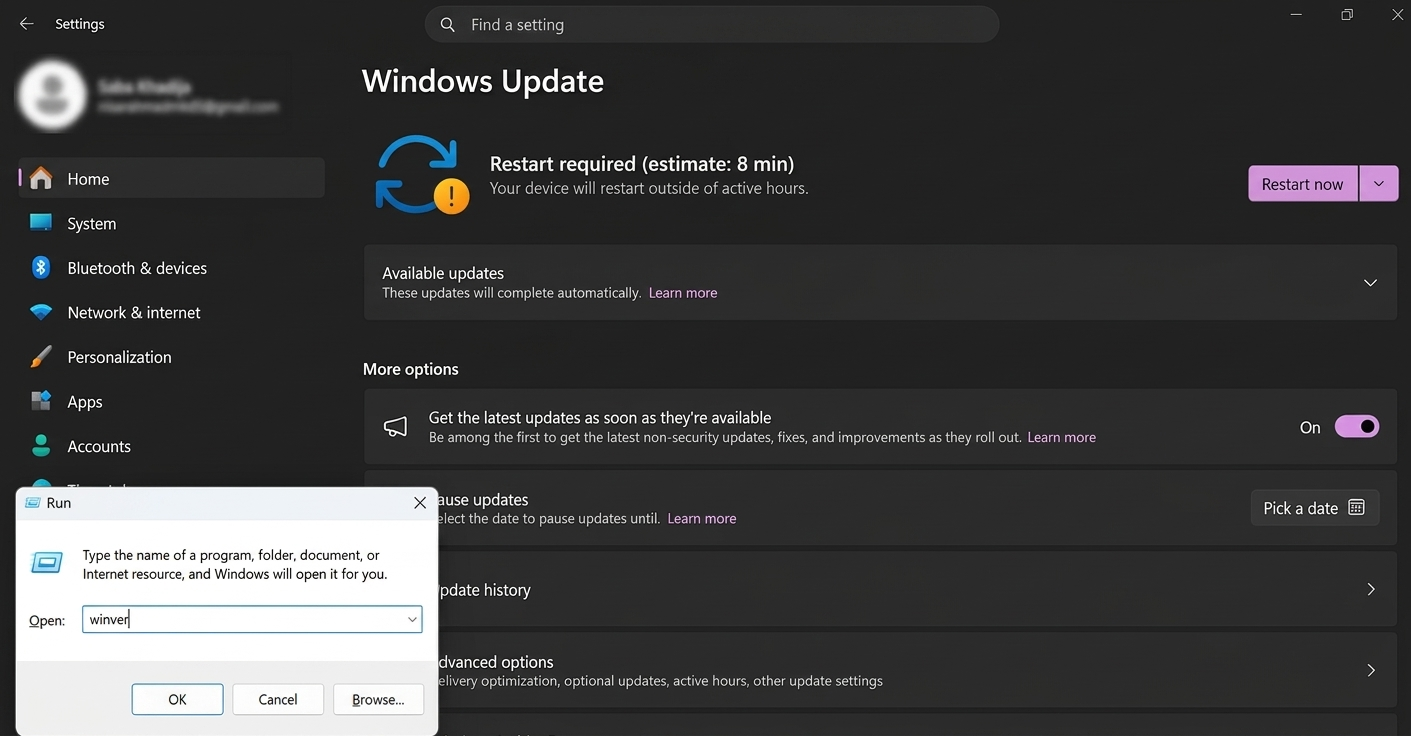
- Press
Win + Ron your keyboard, typewinver, and press Enter. - Check the OS Build line in the About Windows dialog.
- If your build already reads 26200.10075 (version 25H2) or 26300.10075 (version 26H2), KB5132057 is already installed and no further action is needed. If you are running version 24H2 or earlier, KB5132057 does not apply to your PC.
2. Stop the repeated installation loop (Recommended for most users)
If KB5132057 keeps failing, the safest solution is to opt out of optional preview updates and wait for December’s tested Patch Tuesday release:
- Open Settings and select Windows Update.
- Switch Get the latest updates as soon as they’re available to Off.
- Restart your computer.
- Return to Settings > Windows Update and select Check for updates. Windows will stop trying to install optional preview releases while continuing to install security and Microsoft Defender updates normally.
3. Verify prerequisites and check your exact Update History error
Only continue with Steps 3 through 6 if you specifically want KB5132057’s new features or bug fixes right now:
- Open Settings > Windows Update > Update history.
- Click the failed 2026-11 Cumulative Update Preview (KB5132057) entry and write down the exact error code listed there. If you saw a
0xc000012fpop-up earlier, this screen shows the underlying0x800fservicing error. - Check that your PC has at least 15 GB to 20 GB of free space on drive
C:, temporarily disconnect any third-party VPN, and install any pending cumulative or servicing updates already waiting in Windows Update. - On Windows 11 version 25H2, confirm in Update history that a cumulative update released on or after June 10, 2025 (such as
KB5060842) is present.
4. Repair the Windows component store and system files
If corrupted system files or a damaged WinSxS store are blocking installation, repair them using Microsoft’s documented Deployment Image Servicing and Management (DISM) and System File Checker (SFC) sequence:
- Click Start, type
cmd, right-click Command Prompt, and choose Run as administrator. - Run the component-store repair command first and wait for it to reach 100% (this typically takes 10 to 20 minutes):
cmd
DISM.exe /Online /Cleanup-Image /RestoreHealth
- After DISM reports that the restore operation completed successfully, run System File Checker to repair any damaged protected system binaries:
cmd
sfc /scannow
- Restart your computer once
sfc /scannowfinishes, then try installing KB5132057 again.
If Windows Update remains stuck on a corrupted download cache after restarting, open Command Prompt as administrator again and reset the local update cache folders safely:
cmd
net stop wuauserv
net stop cryptSvc
net stop bits
ren C:\Windows\SoftwareDistribution SoftwareDistribution.old
ren C:\Windows\System32\catroot2 catroot2.old
net start wuauserv
net start cryptSvc
net start bits
(Side effect note: Renaming SoftwareDistribution clears the visual list of past updates in Windows Update history, though all installed updates remain intact on your system.)
5. Install KB5132057 manually with its required checkpoint package
If automatic Windows Update still fails, you can install the standalone .msu packages from the Microsoft Update Catalog. Because Windows 11 uses checkpoint cumulative updates, Microsoft specifies installing the checkpoint package (KB5043080) first:
- Open Settings > System > About and check System type to confirm whether your PC uses an
x64-based processoror anARM-based processor. Do not mix architectures. - Create a new, empty folder at
C:\Packages. - Visit the Microsoft Update Catalog page for KB5132057 and click Download next to the exact match for your version (
25H2or26H2) and processor architecture (x64orarm64). - In the download pop-up window, save every
.msufile listed intoC:\Packages. The catalog includes both theKB5043080checkpoint file (roughly 5 GB) and theKB5132057preview package. - Open Command Prompt as administrator and run DISM against the folder so Windows evaluates dependencies and installs the packages in the right order:
cmd
DISM /Online /Add-Package /PackagePath:C:\Packages
(Alternatively, you can double-click the KB5043080 .msu file first, accept the prompt if Windows says it is already installed, and then double-click the KB5132057 .msu file second.)
- Restart your PC when prompted and confirm your build number using
winver.
6. Run a non-destructive Windows 11 repair install (Last resort)
If you still encounter 0xc000012f Bad Image dialogs or persistent 0x800f0993 failures and need KB5132057 immediately, Windows 11 includes a built-in recovery option that reinstalls core system files without deleting your apps, settings, or personal files:
- Open Settings > System > Recovery.
- Next to Fix problems using Windows Update, click Reinstall now.
- Keep your PC plugged into power and connected to the internet until the repair installation completes.
How to Investigate Your Own Update Logs
Generic troubleshooting guides tell readers to run sfc /scannow without showing whether local file corruption is actually causing the failure. In our step-by-step walkthrough below, we show how to inspect two built-in Windows logs so you can see exactly where KB5132057 failed on your machine before running repair commands.
Step 1: Convert and search WindowsUpdate.log
Windows stores update telemetry in binary .etl trace files. To read them in plain text, click Start, search for PowerShell, right-click Windows PowerShell, and select Run as administrator.
Run the following command to generate a readable log file on your Desktop:
powershell
Get-WindowsUpdateLog -LogPath "$env:USERPROFILE\Desktop\WindowsUpdate.log"
Next, filter the generated log for KB5132057 and your error codes:
powershell
Select-String -Path "$env:USERPROFILE\Desktop\WindowsUpdate.log" -Pattern "KB5132057|0x800f0989|0x800f0993|0xc000012f|Download|Install" | Select-Object -Last 40
How to read the output: Look at the timestamps near the bottom of the output. If download verification succeeds (Download succeeded) and the failure occurs only after the handler hands off to Component-Based Servicing, your network connection and download cache are not the problem.
Step 2: Inspect CBS.log for the exact failing component
To see why Component-Based Servicing rejected the update, run this query in the same administrator PowerShell window:
powershell
Select-String -Path "$env:windir\Logs\CBS\CBS.log" -Pattern "0x800f0989|0x800f0993|0xc000012f|KB5132057|KB5132056|Failed|Error" | Select-Object -Last 30
You can also check whether Windows recognizes the KB5043080 checkpoint package and whether System File Checker found any unrepairable system binaries:
powershell
Get-HotFix -Id KB5043080, KB5132061 -ErrorAction SilentlyContinue
Select-String -Path "$env:windir\Logs\CBS\CBS.log" -Pattern "\[SR\] Cannot repair member file"
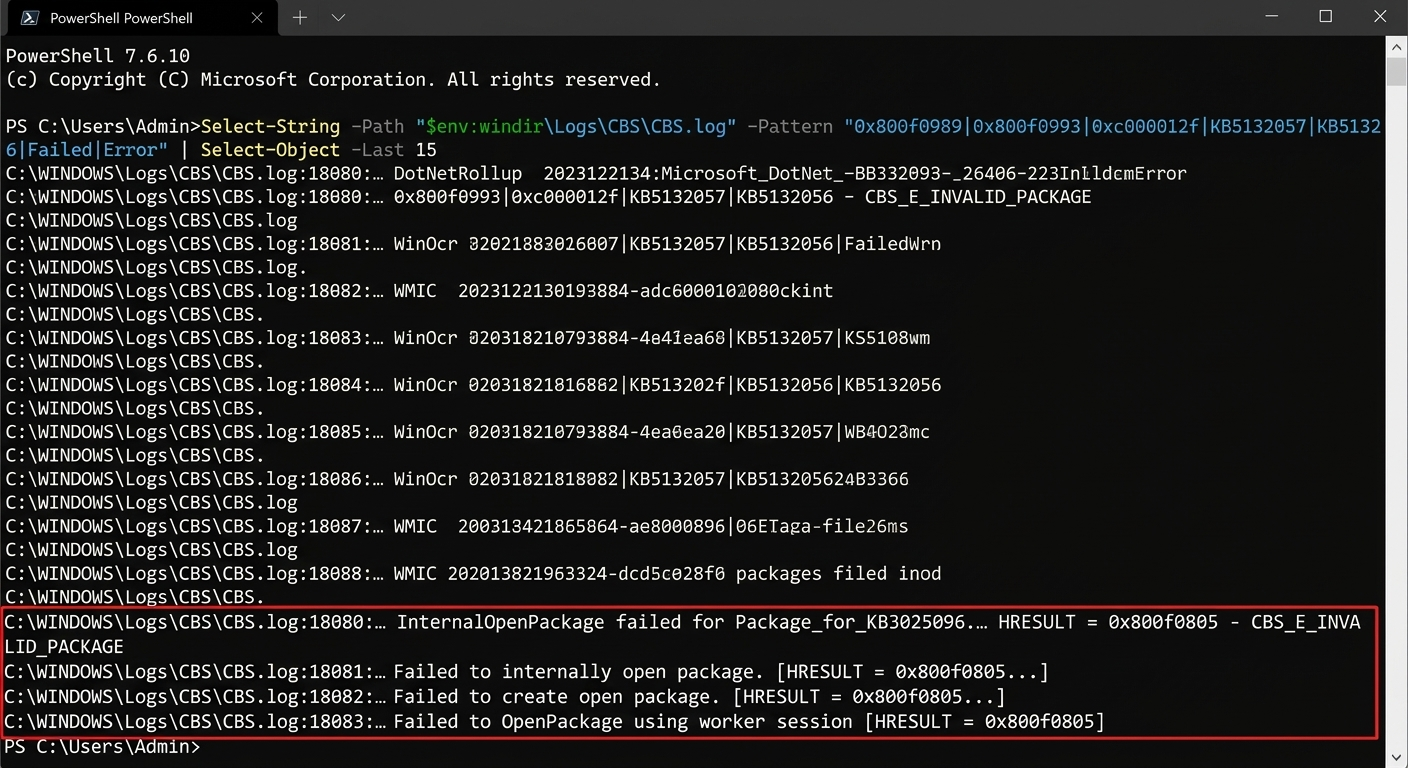
What these logs prove and what they cannot prove
- When
CBS.logshowsApplicableorParentpackage rejection with0x800f0989: Your system files are likely intact, and the servicing stack is refusing the package due to a missing baseline prerequisite or an update metadata mismatch. Skipping the optional update (Step 2) or using the offlineC:\Packagesfolder method (Step 5) is the right move. - When
CBS.logshows hash mismatches (0x80091007) or[SR] Cannot repair member file: Local files insideWinSxSare damaged, which justifies runningDISM /RestoreHealthandsfc /scannow(Step 4) or the in-place Windows Update repair (Step 6). - What local logs cannot prove: Examining
WindowsUpdate.logandCBS.logon a single PC confirms why your installation aborted, but local logs cannot establish whether Microsoft’s update servers are misrouting metadata across all Windows 11 25H2 and 26H2 devices. Only an official advisory from Microsoft’s Windows Release Health team can confirm a service-wide rollout bug.

Community discussion
Join the conversation
0 comments
Be the first to join in
There are no comments yet. Sign in to start a thoughtful discussion.
Sign in to comment
Join the conversation with your Secritic account. Comments are available to signed-in readers.