
If your PC is running Windows 11 version 24H2 Home or Pro, it has reached the end of regular updates. Microsoft ended support for these editions on 13 October 2026, making the October 2026 monthly security update the last one available.
Your computer will continue to start and work, and your files will not be deleted because support has ended. However, Windows 11 24H2 Home and Pro will no longer receive the regular monthly security and non-security preview updates that include protection against newer security threats.
To continue receiving monthly security and quality updates, Microsoft recommends moving to Windows 11 version 25H2 or 26H2. The right upgrade depends on what Windows Update offers for your device and whether it meets the relevant compatibility requirements.
Here is how to check your Windows version, upgrade through the normal update process and understand what to do if the upgrade is not available.
Does Windows 11 24H2 still receive security updates?
No, not on the Home and Pro editions.
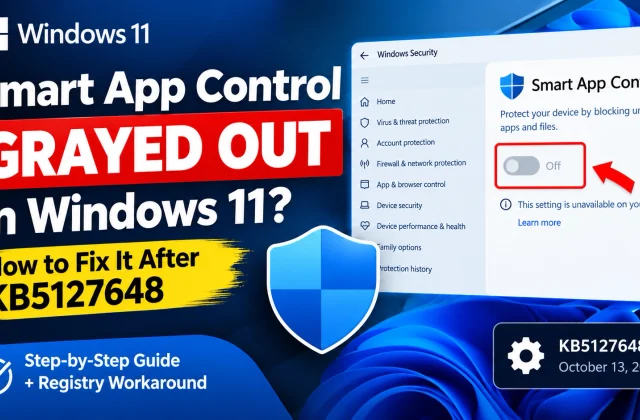
Microsoft confirmed the end of updates in its 13 October 2026 security update notice, KB5127648. It states that Windows 11 24H2 Home and Pro have reached the end of updates and that the October release is their last monthly security update.
Microsoft’s 24H2 release-health page repeats this position and recommends upgrading to Windows 11 25H2 or 26H2 to continue receiving monthly security and quality updates.
This change does not mean Windows 11 as a whole has stopped receiving updates. It applies to specific editions of version 24H2. Enterprise and Education editions have a different support schedule and remain supported until 12 October 2027.
Which Windows 11 versions are still supported?
The following dates apply to the regular Windows 11 Home and Pro editions. They are useful when checking whether your installed version is still within its support period.
Windows support guide
Windows 11 Support Dates
End-of-updates dates for Windows 11 Home and Pro editions.
| Windows version | End of updates |
|---|---|
| Version 26H2 | 9 October 2028 |
| Version 25H2 | 12 October 2027 |
| Version 24H2 | 13 October 2026 Ended |
| Version 23H2 | 11 November 2025 Ended |
Note: These dates apply to Windows 11 Home and Pro. Enterprise and Education editions follow different support schedules.
Source: Microsoft’s Windows 11 release information and lifecycle information. Support dates can be displayed differently across Microsoft’s regional pages because lifecycle dates are based on Pacific Time.
If your PC is still on 24H2 Home or Pro, moving to a supported release is the next step. Microsoft specifically recommends 25H2 or 26H2. You do not need to assume that 26H2 is the only valid upgrade.
How to check whether your PC is running Windows 11 24H2
Before installing anything, confirm the version and edition currently on your computer. This helps you establish whether the end-of-updates notice applies to your device.
- Press Windows + R on your keyboard.
- Type
winverin the Run box. - Press Enter.
- Check the Windows version displayed in the About Windows window.
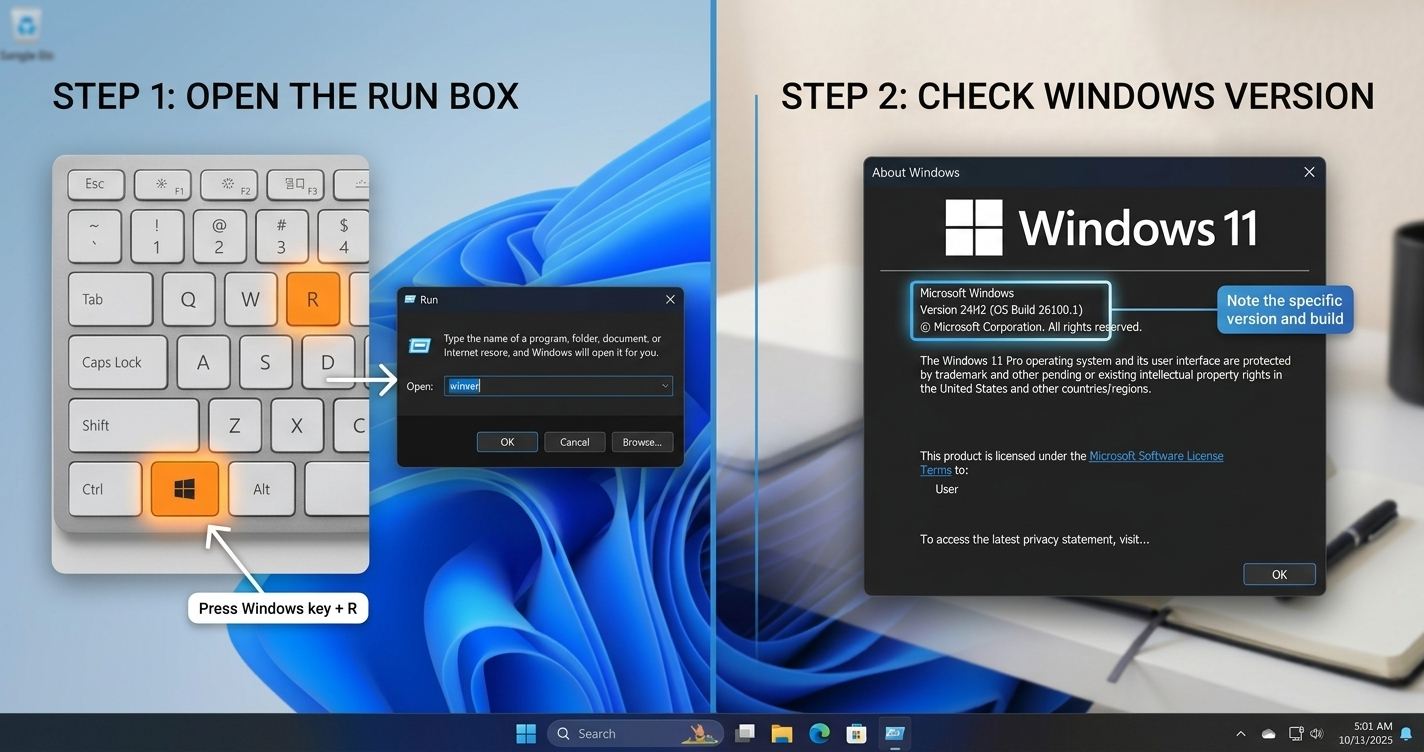
If it shows Version 24H2, check which edition you have:
- Open Settings.
- Select System.
- Scroll down and select About.
- Look under Windows specifications for the edition.
If the edition is Home or Pro and the version is 24H2, it has reached the end of regular updates. If you use Enterprise or Education, check the separate support period before deciding what to do.
How to upgrade Windows 11 24H2 to a supported version
The simplest route is to use Windows Update. Microsoft recommends moving eligible 24H2 Home and Pro devices to Windows 11 25H2 or 26H2.
Before starting, save your work and make sure important files are backed up. A feature update normally keeps personal files and installed applications, but having a backup is a sensible precaution before a major system change.
Follow these steps:
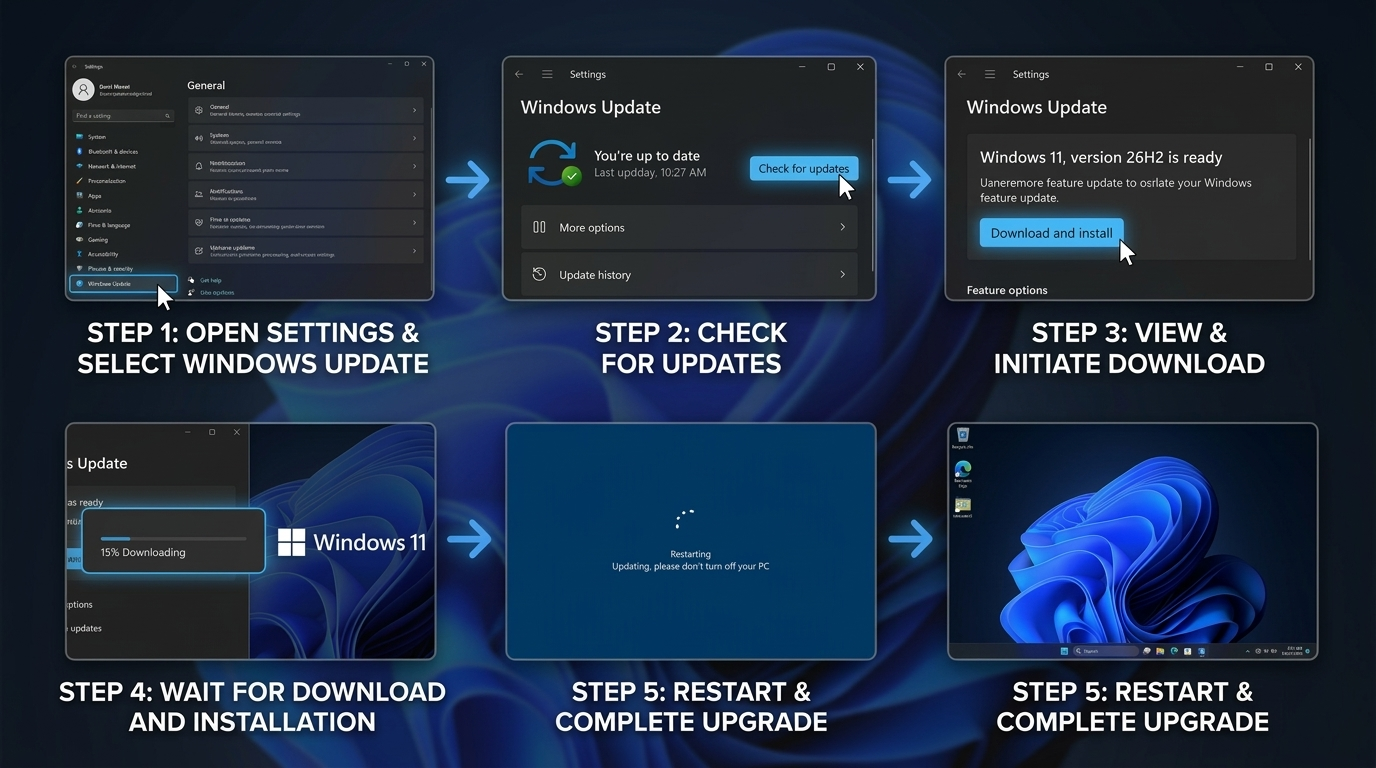
- Open Settings.
- Select Windows Update.
- Select Check for updates.
- Wait for Windows to check which updates are available for your PC.
- If Windows offers Windows 11 version 26H2 or 25H2, review the update details.
- Select Download and install if you are ready to proceed.
- Allow the installation to finish and restart your PC when prompted.
Microsoft says Windows 11 26H2 is available for eligible devices. However, availability can depend on device compatibility and Microsoft’s rollout safeguards. The version offered to one PC may not be offered to another.
You can read Microsoft’s current Windows 11 26H2 release-health information for the latest availability and known-issue guidance.
What if Windows Update does not show 25H2 or 26H2?
A missing feature update does not automatically mean that your PC is incompatible. It may be an ordinary update problem, a pending restart or a temporary compatibility restriction.
Start with these checks:
1. Restart your PC
If Windows has a pending restart, complete it before checking for the feature update again. Then return to Settings > Windows Update and select Check for updates.
2. Check whether updates are paused
Open Settings > Windows Update and check whether updates are paused. If they are, resume them before checking again.
3. Check available storage
A feature update needs sufficient free space to download and install. Open Settings > System > Storage to see how much space is available. If storage is low, use Windows’ storage recommendations or remove files you no longer need. Avoid deleting unfamiliar system files to make room.
4. Run the Windows Update troubleshooter
Open Settings and go to System > Troubleshoot > Other troubleshooters. Find Windows Update and select Run. Follow the instructions, then restart your PC and check for updates again.
These checks can help with ordinary update problems, but they will not remove a compatibility restriction imposed by Microsoft.
5. Check for a compatibility hold
If Windows displays a message saying that the update is not ready for your device, or that a known issue is preventing installation, do not try to force the upgrade.
Microsoft sometimes uses a safeguard hold to temporarily prevent devices with a particular hardware or software configuration from receiving a feature update. This is intended to reduce the risk of installation problems or other known issues.
Check the relevant Microsoft release-health page for information about known issues and upgrade restrictions. If a compatibility hold applies, wait for Microsoft to resolve it and make the update available through Windows Update.
Do not bypass a safeguard hold or use an unofficial installation method simply to install the newest version sooner.
How to confirm that the upgrade worked
After Windows has completed the installation and restarted, check the installed version rather than assuming the upgrade succeeded.
- Press Windows + R.
- Type
winverand press Enter. - Check the version number in the About Windows window.
It should now show the supported version you installed, such as 25H2 or 26H2.
You can also open Settings > System > About and check the Windows specifications. Compare the version with Microsoft’s Windows 11 release information to confirm its support period.
If the PC still shows 24H2, the feature update has not completed successfully. Return to Windows Update and check its status before attempting another installation.
What happens if you continue using Windows 11 24H2?
Your PC will not suddenly stop working when its version reaches the end of updates. You can still sign in, open applications and access your files.
The important change is that Windows 11 24H2 Home and Pro no longer receive the regular monthly security and non-security preview updates. That means newly discovered security issues and other problems may not receive the same ongoing fixes for that version.
For a computer used for browsing, email, online accounts, work or banking, staying on a supported Windows release is the sensible choice. Upgrading through Windows Update, when offered for your device, is the recommended next step.
How we checked this
We reviewed Microsoft’s October 2026 security update notice, its Windows 11 24H2 release-health guidance, the 26H2 availability information and the official Windows 11 release and lifecycle tables. These sources were used to verify the affected editions, support dates and recommended upgrade versions.
This guide reflects Microsoft’s published guidance as of 1 November 2026. Feature-update availability can vary by device, and a temporary compatibility hold may delay an upgrade.
Community discussion
Join the conversation
0 comments
Be the first to join in
There are no comments yet. Sign in to start a thoughtful discussion.
Sign in to comment
Join the conversation with your Secritic account. Comments are available to signed-in readers.