
Have you ever created a Gmail account and later forgotten its address? Or used the same phone number or recovery email for several Google accounts?
You are not alone. Many people create extra accounts over time and eventually lose track of which phone number or recovery email they used.
The good news is that you can check how your phone number is used, review your Google Account settings, and try to recover forgotten email addresses. There is one limitation, though. Google does not offer one screen that always lists every account ever created with your number.
Here is how to check what you can, what to do if you find an account you no longer use, and how to avoid locking yourself out.
1. Check which Google Account is using your phone number
Start with your Android phone. You do not need to install another app.
- Open Settings on your phone.
- Tap Google.
- Select your account, if asked, and tap Manage your Google Account.
- Open Personal info.
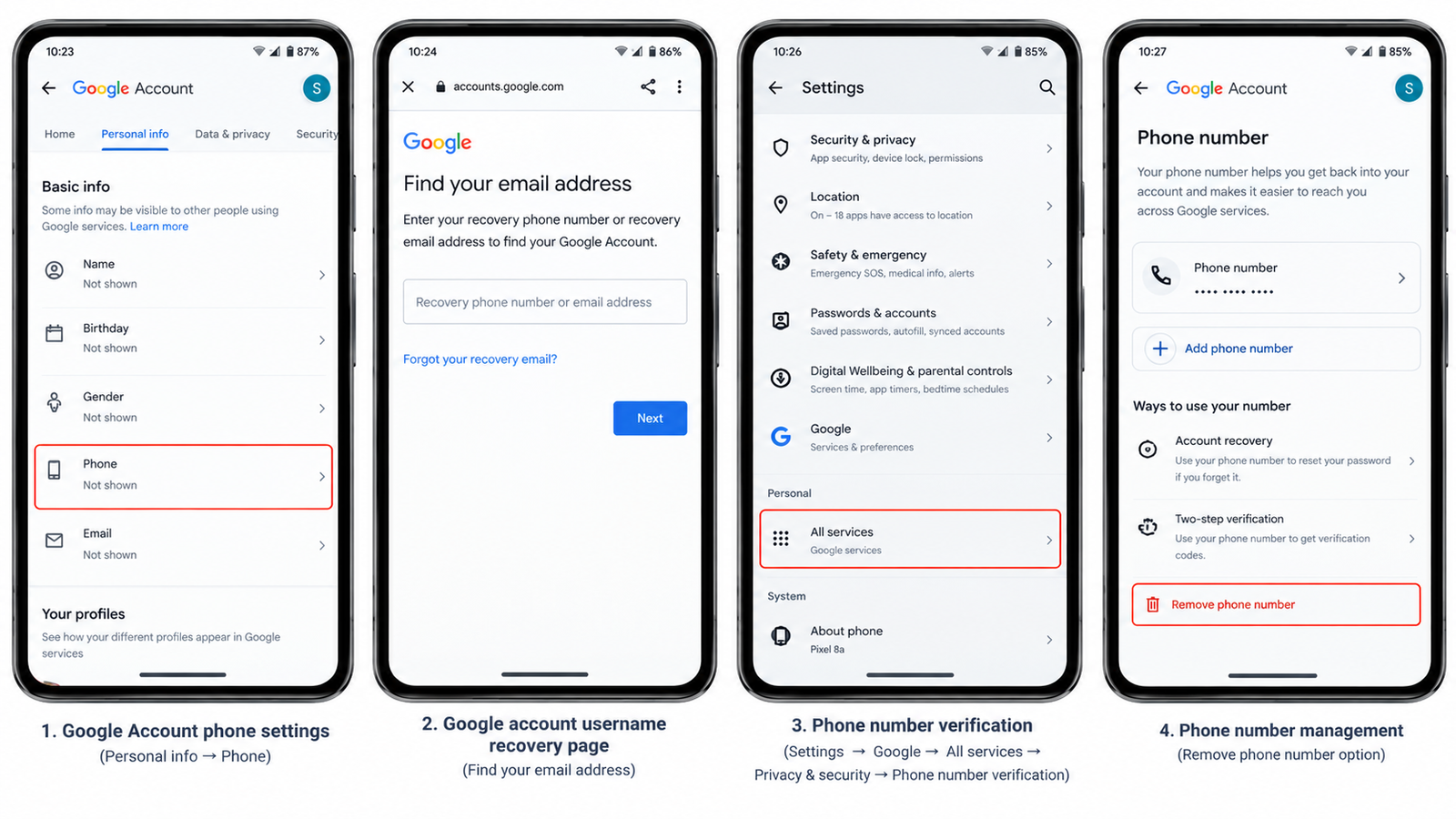
- Under Contact info, tap Phone.
- Select the number shown on the screen.
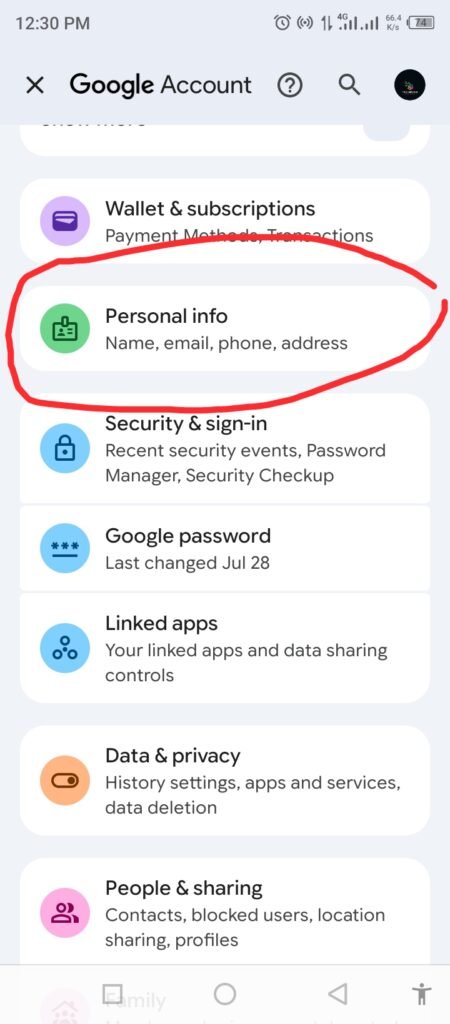
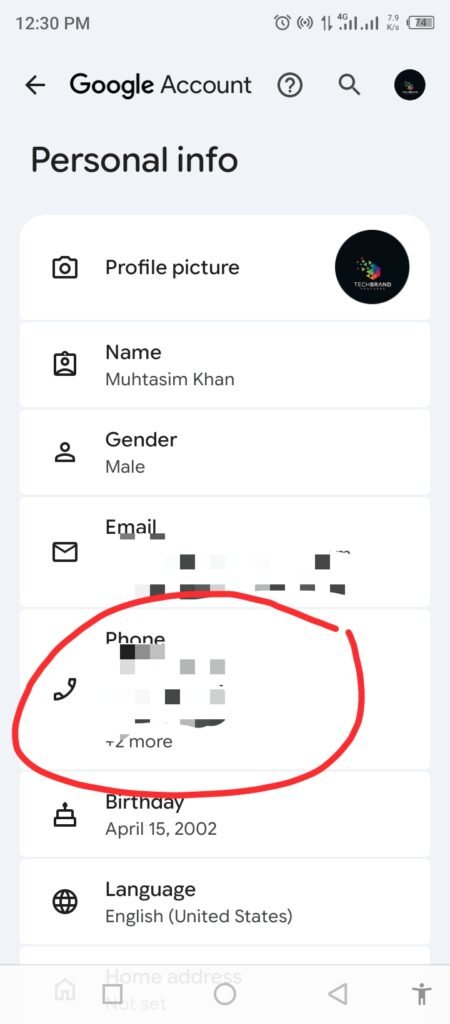
You can review the number and see some of the Google services that use it. Depending on your settings, you may also see how it is being used across Google services.
You can open the same settings in a browser at Google Account.
Important: This page shows information for the account you are currently checking. It is not a complete list of every Google Account associated with your phone number.
2. Find Gmail addresses you have forgotten
If you cannot remember an old Gmail address, Google has an account recovery option that may help you find it.
- Open Google’s Find your email page.
- Enter the phone number or recovery email requested on the page.
- Google may ask for the full name saved on the account and will require you to verify that you own it before showing matching usernames.
- Follow the verification steps.
- Enter the name associated with the account if asked.
- Review the account information Google provides.
This method depends on having the correct recovery details and being able to complete verification. If you used different names when creating accounts, or no longer have access to the recovery method, some accounts may not appear.
Check any other phone numbers or recovery email addresses you may have used. You can also search your inbox for old Google welcome messages and check saved sign-ins in your browser.
3. Check whether Android is verifying your number across accounts
There is another setting worth knowing about, particularly if several Google Accounts are signed in on the same phone.
Google says phone number verification is enabled by default on Android. When it is enabled, verified phone numbers on the device can be added to Google Accounts signed in on it, including accounts added later.
To review this setting:
- Open your phone’s Settings.
- Tap Google.
- Open All services.
- Look under Privacy & security.
- Tap Phone number verification.
- Review the option and decide whether you want phone number verification enabled.
- This setting controls phone number verification on the device. Turning it off does not automatically remove numbers already saved in individual Google Accounts.
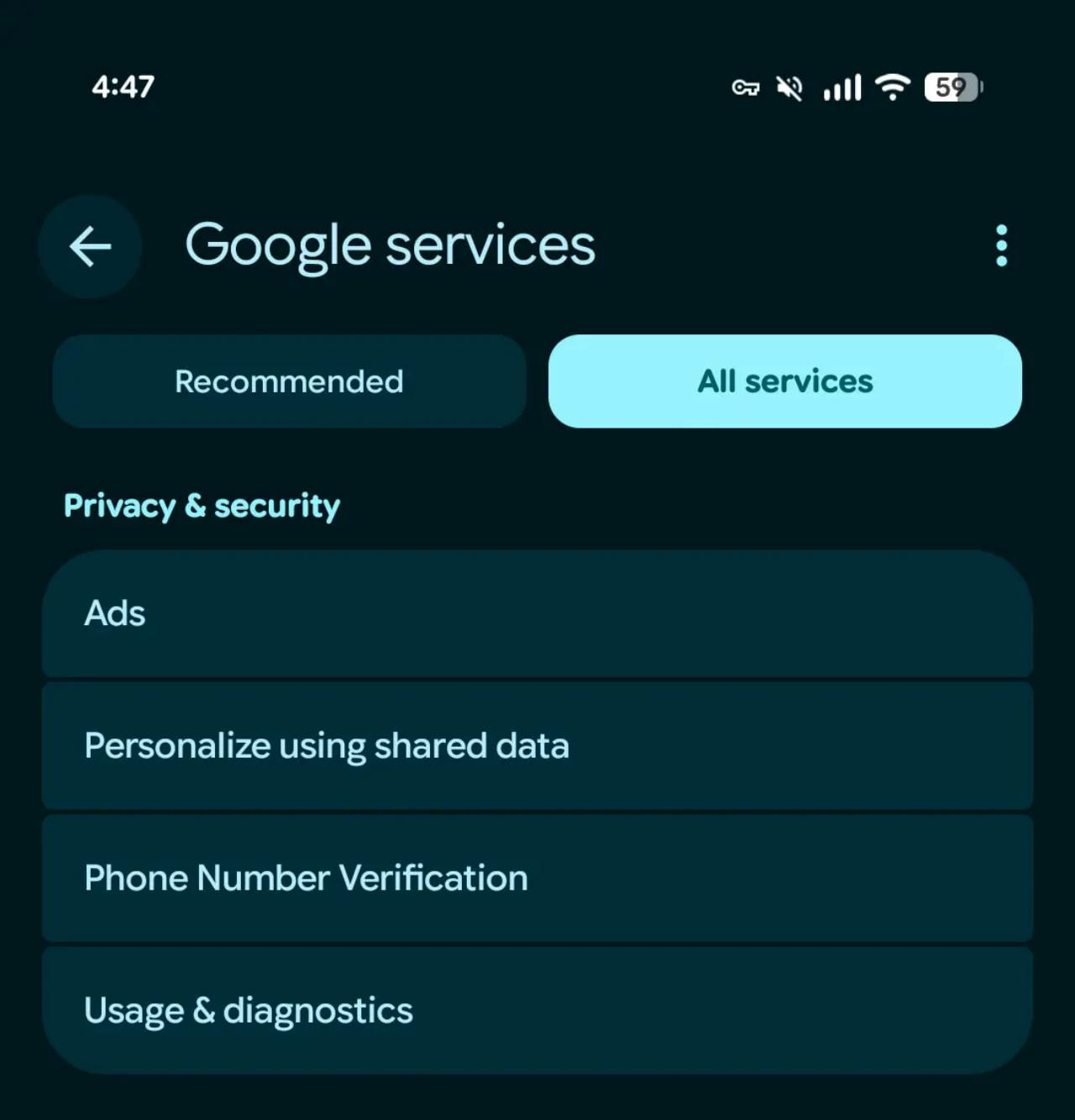
The exact menu names may differ by Android version and phone manufacturer. If you cannot find the option, search for “Phone number verification” in your phone’s Settings.
Turning this setting off can stop this device level verification process. It does not automatically remove a phone number that is already saved in your Google Accounts.
4. What are the risks of linking one number to several accounts?
Using one phone number across multiple accounts is not automatically dangerous. It can help with account recovery and certain Google services.
The concern is that you may lose track of where the number is being used. If you lose access to that number, you may have trouble receiving recovery codes for accounts that depend on it. A phone number may also be used for sign in or other Google services, depending on your settings.
Linking a number does not, by itself, mean your accounts have been hacked or that your email address is publicly visible.
For this reason, it is worth reviewing old accounts and checking that your recovery details are still under your control.
5. How to remove your phone number safely
Before removing a number, make sure you can still sign in and recover the account.
- Open Google Account settings.
- Select Personal info, then Phone.
- Choose the number you want to remove and follow the on screen instructions.
- Open Security and check your recovery phone and other sign in methods.
- If needed, add and verify another recovery method before removing the old one.
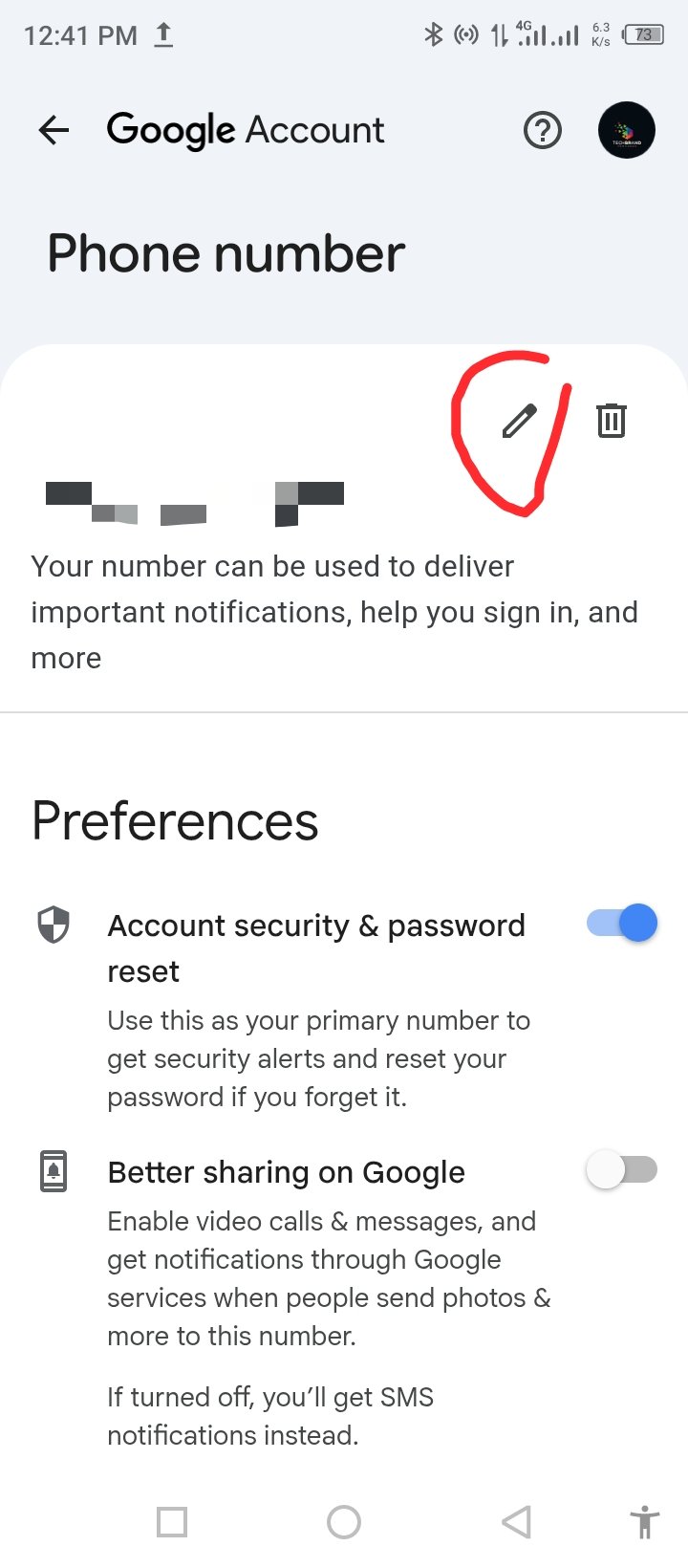
Google notes that removing a number from one place may not remove it from every Google service. Some services have their own phone number settings, so check those separately.
Do not remove your only working recovery method until you have confirmed that you can access the account another way.
Can you see every Gmail account linked to your number?
Not always. Google’s recovery process can help you identify some forgotten usernames, and your account settings show how your number is used in the account you are checking. But there is no guaranteed single list of every account ever created using that number or recovery email.
The safest approach is to check the accounts you can access, use Google’s account recovery page for forgotten addresses, review phone number verification on Android, and keep recovery information up to date.
A few minutes of checking now can save a lot of trouble if you ever lose access to an account.



Community discussion
Join the conversation
0 comments
Be the first to join in
There are no comments yet. Sign in to start a thoughtful discussion.
Sign in to comment
Join the conversation with your Secritic account. Comments are available to signed-in readers.