
Microsoft has released security updates for a Windows vulnerability rated 8.8 out of 10 (High severity), and the flaw has been reported as actively exploited. If you use an affected version of Windows, checking whether the correct fix is installed should be a priority.
The vulnerability, tracked as CVE-2026-96951, affects Windows Shell, a component of Windows. Microsoft’s description identifies a command-injection flaw that could allow an unauthorized attacker to bypass a security feature over a network. The official CVE record also identifies the potential impact on confidentiality, integrity and availability.
That does not mean every Windows computer is compromised. It does mean that users should not assume they are protected simply because Windows Update ran recently.
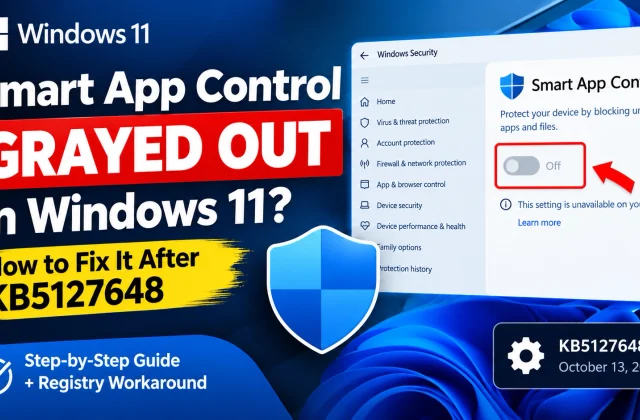
Microsoft’s October 2026 updates use different package numbers for different Windows releases. For example, KB5127648 applies to Windows 11 versions 24H2, 25H2 and 26H2. Other Windows versions have their own update requirements, and some older editions need a specific support entitlement to receive security fixes.
This guide explains how to identify your Windows version, check the correct update, verify the installed build and deal with problems if the fix is missing.
The quickest way to start: Press Windows + R, type winver and press Enter. Keep the version and OS build information available while following the steps below.
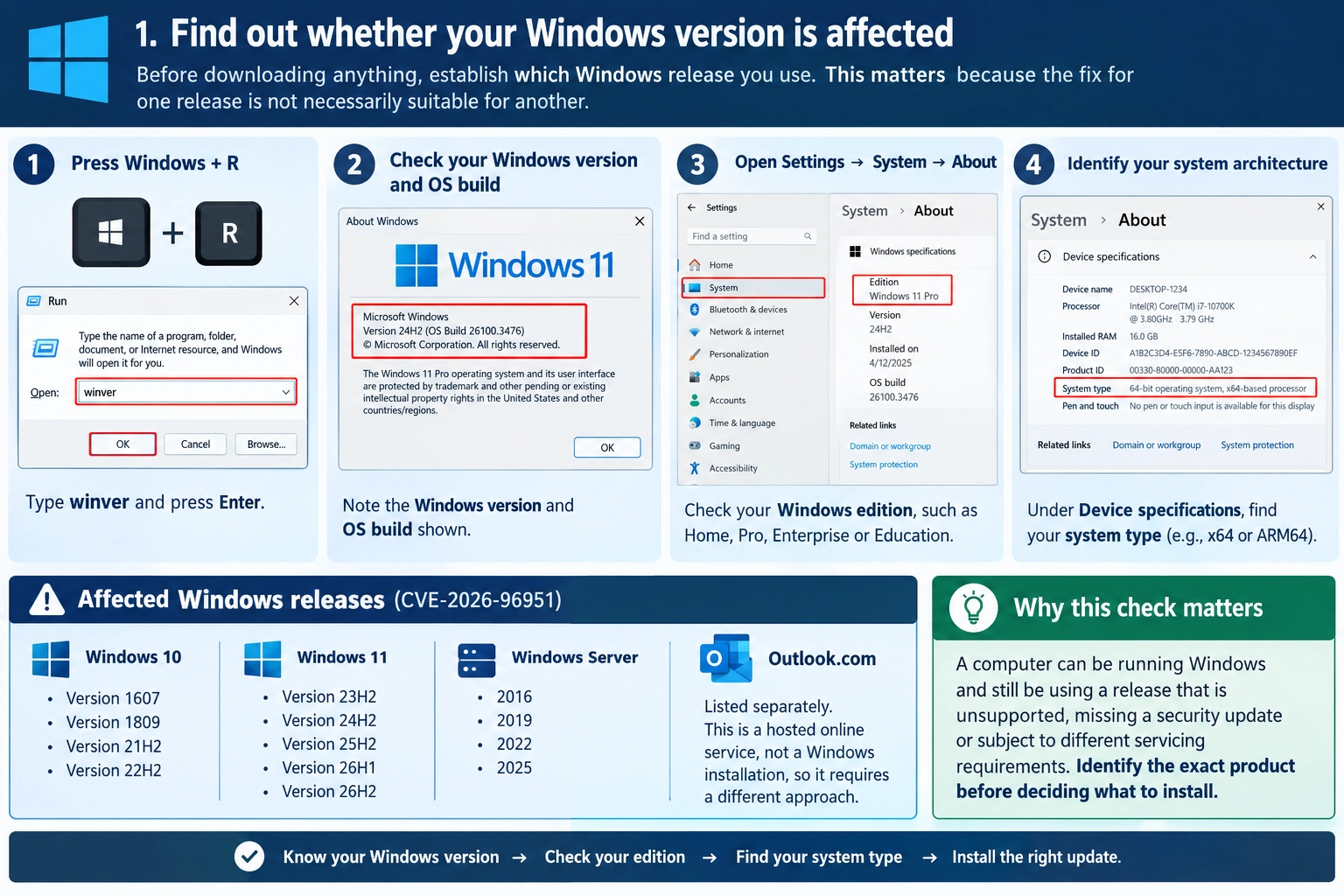
1. Find out whether your Windows version is affected
Before downloading anything, establish which Windows release you use. This matters because the fix for one release is not necessarily suitable for another.
- Press Windows + R.
- Type
winverand press Enter. - Note the Windows version and OS build shown.
- Open Settings → System → About to check your Windows edition, such as Home, Pro, Enterprise or Education.
If you plan to download an update manually, also identify your system architecture. Most modern Windows PCs use x64 processors, while some devices use ARM64. You can usually find the device type under Settings → System → About → Device specifications.
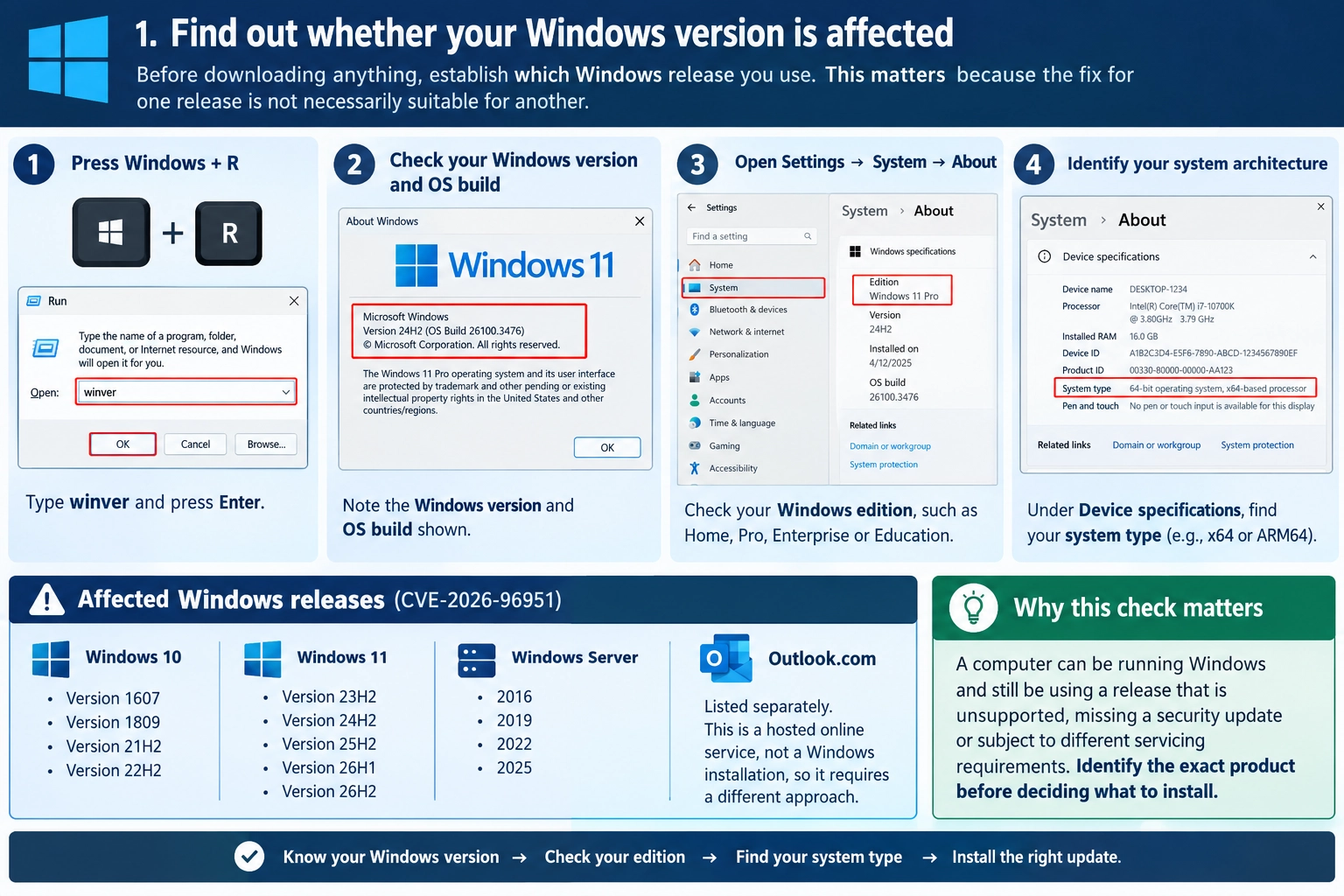
The official CVE-2026-96951 record lists affected Windows releases including Windows 10 versions 1607, 1809, 21H2 and 22H2; Windows 11 versions 23H2, 24H2, 25H2, 26H1 and 26H2; and several Windows Server releases.
The record also lists Outlook.com separately. That is a hosted online service, not a Windows installation, so it requires a different approach.
Why this check matters: A computer can be running Windows and still be using a release that is unsupported, missing a security update or subject to different servicing requirements. Identify the exact product before deciding what to install.
2. Install available updates through Windows Update
For a supported personal computer, Windows Update is the best place to begin. It selects updates appropriate to the device and avoids much of the guesswork involved in manual downloads.
- Open Start and select Settings.
- Select Windows Update.
- Choose Check for updates.
- Let Windows search for available updates.
- Install applicable updates and restart if prompted.
- Once the restart is complete, return to Windows Update and check again.
Save your work before restarting and keep the device connected to power while updates are being installed.
If Windows reports that it is up to date, do not stop there. You still need to check whether your version is supported and whether its installed build meets the relevant fixed version.
If the update fails, note the error code rather than repeatedly trying different packages. The code can help identify the cause.
Official guidance: Get the latest Windows updates.
3. Identify the security update for your exact Windows release
Microsoft’s October 2026 security updates use different KB numbers and build numbers. The table below provides a reference for checking the releases listed in the CVE record.
Which Windows security fix do you need?
Find your Windows version using Windows + R → winver, then match it to the relevant update below.
Do not install a package based on its number alone. Check your exact Windows release, edition, architecture and support eligibility before downloading an update manually.
| Windows release | October 2026 fix | Fixed build reference |
|---|---|---|
| Windows 11 24H2 | KB5127648 ↗ | 26100.9711 |
| Windows 11 25H2 | KB5127648 ↗ | 26200.9711 |
| Windows 11 26H2 | KB5127648 ↗ | 26300.9711 |
| Windows 11 23H2 | KB5126653 ↗ | 22631.7652 |
| Windows 11 26H1 | KB5127646 ↗ | 28000.3231 |
| Windows 10 21H2 / 22H2 | KB5126657 ↗ | 19044.7807 / 19045.7807 |
| Windows 10 1809 / Server 2019 | KB5126651 ↗ | 17763.9376 |
| Windows 10 1607 / Server 2016 | KB5126868 ↗ | 14393.9612 |
| Windows Server 2022 | KB5126655 ↗ | 20348.5761 |
| Windows Server 2025 | KB5126646 ↗ | 26100.33650 |
| Windows Server 2012 R2* | KB5126836 ↗ | 6.3.9600.23470 |
Check Microsoft’s Security Update Guide
and search for CVE-2026-96951.
*Older Windows releases may require a specific servicing entitlement, such as Extended Security Updates (ESU). These are October 2026 reference builds, not a guarantee that every installation is eligible for the update. A later cumulative update may supersede the listed package.
Important: This table is a checking reference, not a list of packages that everyone should install. Some Windows 10 releases and older server editions receive updates only through specific enterprise servicing arrangements or Extended Security Updates (ESU). A listed build does not guarantee that every installation of that release is eligible to receive the update.
Check the official release notes for your exact product, edition and servicing status before installing a package manually.
4. Check whether the fix is already installed
Use two checks: the OS build and Windows Update history. Together, they give you a clearer picture than relying on either one alone.
Check the OS build
- Press Windows + R.
- Enter
winverand press Enter. - Compare the displayed build with the fixed build for your exact release in the table above.
For example, Windows 11 24H2 has an October fixed-build reference of 26100.9711. Windows 11 25H2 uses 26200.9711, while 26H2 uses 26300.9711.
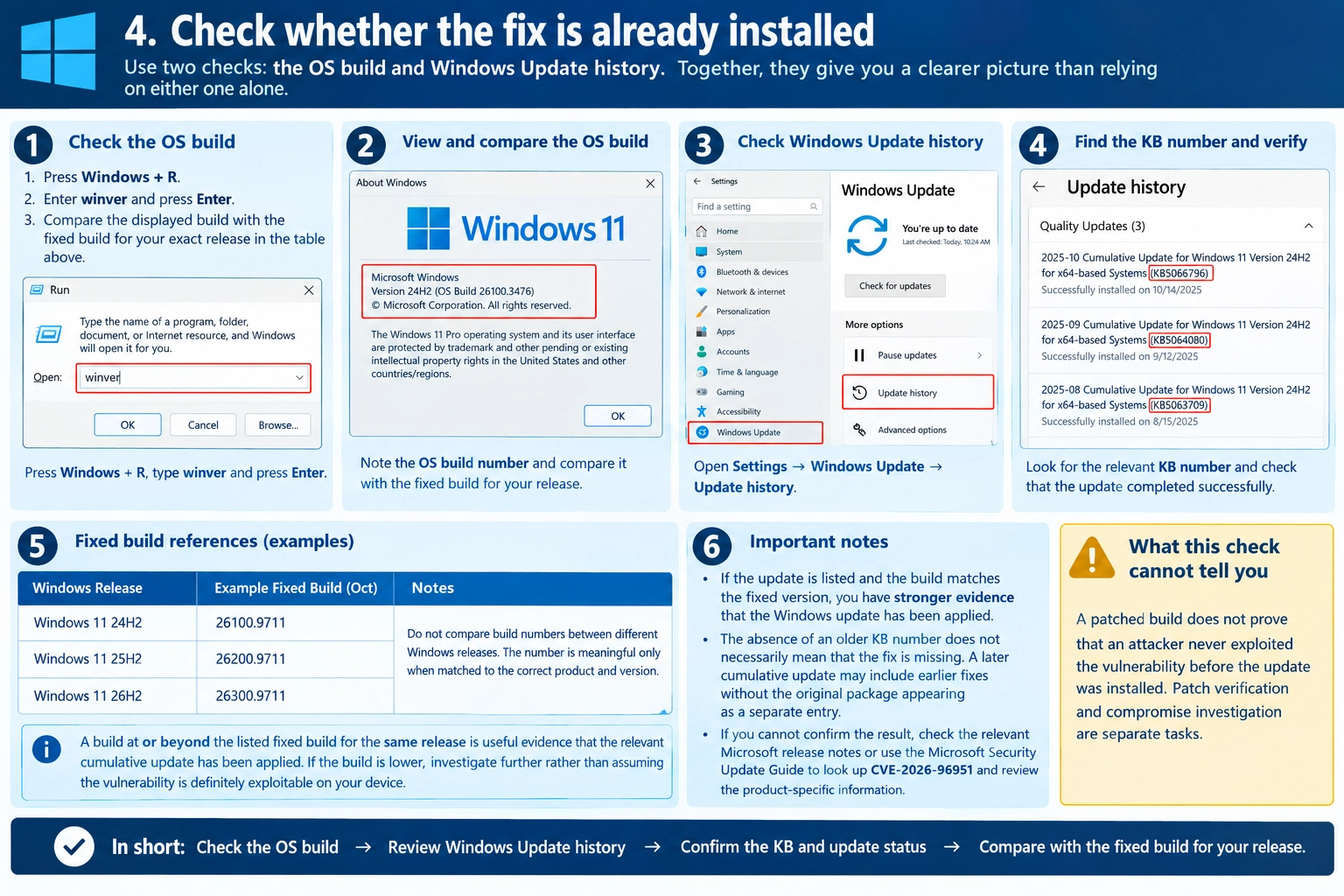
Do not compare build numbers between different Windows releases. The number is meaningful only when matched to the correct product and version.
A build at or beyond the listed fixed build for the same release is useful evidence that the relevant cumulative update has been applied. If the build is lower, investigate further rather than assuming that the vulnerability is definitely exploitable on your device.
Check Windows Update history
- Open Settings.
- Select Windows Update.
- Open Update history.
- Find the applicable KB number, if it is listed.
- Check that the update completed successfully.
If the update is listed and the build matches the fixed version, you have stronger evidence that the Windows update has been applied.
However, the absence of an older KB number does not necessarily mean that the fix is missing. A later cumulative update may include earlier fixes without the original package appearing as a separate entry.
If you cannot confirm the result, check the relevant Microsoft release notes or use the Microsoft Security Update Guide to look up CVE-2026-96951 and review the product-specific information.
What this check cannot tell you: A patched build does not prove that an attacker never exploited the vulnerability before the update was installed. Patch verification and compromise investigation are separate tasks.
5. What if Windows Update says your PC is up to date, but the fix is unclear?
There are several possible explanations. Work through these checks in order.
Check your version and edition again
Return to Settings → System → About and run winver. Make sure you have identified the correct release and edition.
If your computer is running a different Windows version from the one covered by KB5127648, that package may not apply. Use the relevant Microsoft release page instead.
Check whether your Windows edition still receives security updates
A computer can be up to date with the updates available to it and still be using an edition that no longer receives regular security fixes.
Is Your Windows Edition Still Receiving Security Updates?
Installing every available update does not always mean your computer is still supported. Microsoft’s security updates depend on your Windows version, edition and servicing eligibility.

An update can be the latest one available for an older installation without guaranteeing that the installation will continue receiving future security fixes.
 01
01
Home and Pro
Standard support for Windows 10 Home and Pro ended on 14 October 2025. The October 2026 update KB5126657 is not a universal fix for every standard Windows 10 installation. It applies to eligible ESU and specified Enterprise LTSC installations.
Check whether your device is enrolled in an applicable Extended Security Updates (ESU) programme or runs an edition with its own support lifecycle.
Check Windows 10 lifecycle 02
02
Home and Pro
Microsoft says Windows 11 version 24H2 Home and Pro reached the end of updates on 13 October 2026. The October security update was the final monthly update for these editions under that servicing lifecycle.
Check your exact edition and version. Do not assume that installing the October update means version 24H2 Home or Pro will continue receiving future monthly security fixes.
Check Windows 11 24H2 status 03
03
Edition matters
Windows 11 version 23H2 Home and Pro reached the end of updates on 11 November 2025. Enterprise and Education follow a different servicing schedule, with their listed end-of-updates date in November 2026.
Check the exact edition and version against Microsoft’s lifecycle information before deciding whether your device remains eligible for security updates.
Check Enterprise and Education lifecycle 04
04
Check the exact release
Server products have their own support dates and servicing arrangements. Older versions may require an applicable Extended Security Updates programme or another eligible support arrangement.
Verify the specific Windows Server release, edition and update entitlement rather than applying the lifecycle dates of a desktop version of Windows.
Search Microsoft’s product lifecycleImages are illustrative photographs, not official Windows screenshots. Support status can differ by edition, release, region and applicable servicing programme. Check Microsoft’s current documentation before making an upgrade or security decision.
Run the Windows Update troubleshooter
If your version is supported but updates keep failing:
- Open Settings.
- Select System → Troubleshoot → Other troubleshooters.
- Find Windows Update and select Run.
- Follow the suggested steps.
- Restart if instructed, then check for updates again.
On Windows 11, the Get Help app may also offer Microsoft’s automated Windows Update troubleshooter.
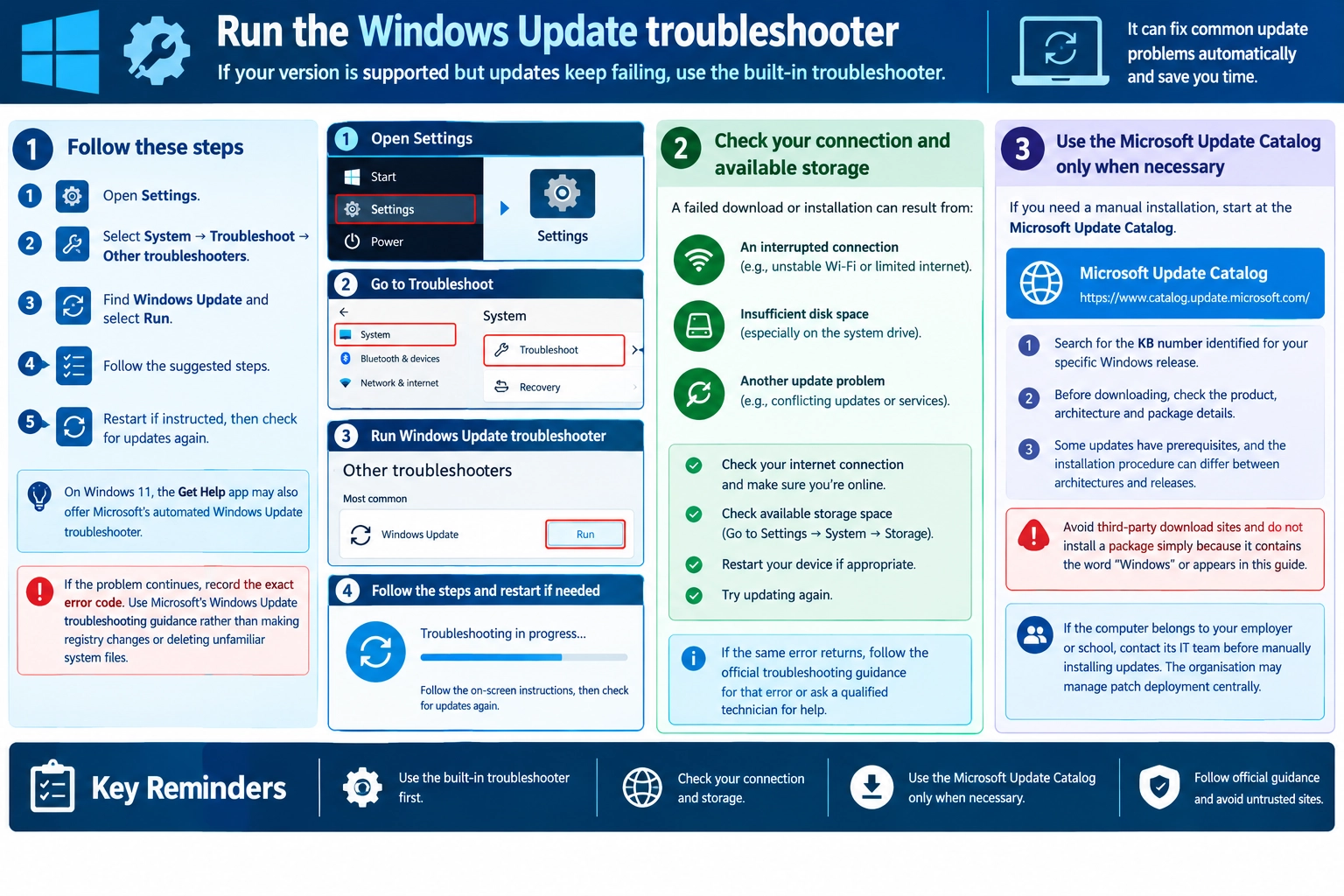
Record the exact error code if the problem continues. Use Microsoft’s Windows Update troubleshooting guidance rather than making registry changes or deleting unfamiliar system files.
Check your connection and available storage
A failed download or installation can result from an interrupted connection, insufficient disk space or another update problem. Check your connection and available storage, restart if appropriate, and try again.
If the same error returns, follow the official troubleshooting guidance for that error or ask a qualified technician for help.
Use the Microsoft Update Catalog only when necessary
If you need a manual installation, start at the Microsoft Update Catalog.
Search for the KB number identified for your specific Windows release. Before downloading, check the product, architecture and package details. Some updates have prerequisites, and the installation procedure can differ between architectures and releases.
Avoid third-party download sites and do not install a package simply because it contains the word “Windows” or appears in this guide.
If the computer belongs to your employer or school, contact its IT team before manually installing updates. The organisation may manage patch deployment centrally.
6. What if you use Windows 10 or an older Windows Server release?
This is particularly important for older devices. The existence of a security update does not mean that every computer running an older release can still receive it.
For Windows 10 Home and Pro, standard support has ended. Microsoft offers an Extended Security Updates programme for eligible devices, while certain Enterprise LTSC editions have their own servicing arrangements.
For Windows Server, the applicable update depends on the server version, edition and support status. Organisations should check the relevant Microsoft lifecycle page and confirm their servicing entitlement.
If the device is no longer supported and no applicable security-update programme is available, the safer long-term option is to migrate to a supported operating system. Continuing to use an unsupported system can leave it without fixes for newly discovered vulnerabilities.
Do not attempt to bypass support restrictions by installing a package intended for another version. If you manage business systems, test updates through your organisation’s change-management process and confirm the installation requirements before deploying them widely.
7. What should you do if you suspect an attack has already occurred?
Installing the update is important, but it does not establish whether a previous attack took place. Likewise, ordinary computer problems are not proof that this vulnerability has been exploited.

Important: Unusual behaviour alone does not prove that CVE-2026-96951 was exploited. Use the steps below if you have specific reasons to suspect unauthorised access.
-
01
Run a security scan
Use Microsoft Defender or another reputable security product. Review the findings and follow the recommended actions.
Microsoft support ↗ -
02
Review account activity
If an account may have been accessed, check its official sign-in activity page for unfamiliar events.
Check Microsoft account activity ↗ -
03
Secure exposed passwords
If you have evidence that a password was exposed, change it from a device you trust. Also change reused passwords elsewhere.
-
04
Get specialist help if needed
Contact your organisation’s IT team for a work device. If a serious compromise is suspected, seek advice before wiping the device because useful investigation evidence may be lost.
If you have specific evidence of suspicious activity, take sensible steps:
- Run a security scan. Use Microsoft Defender or another reputable security product. Review its findings and follow the recommended actions.
- Review relevant account activity. If an account may have been accessed, check the provider’s official sign-in activity page for unfamiliar events.
- Secure exposed credentials. If there is evidence that a password has been exposed, change it from a device you trust. Change reused passwords on other accounts as well.
- Get help if the signs persist. Contact your organisation’s IT or security team if this is a work device. For a serious suspected compromise, seek professional advice before wiping the device, because doing so could destroy evidence needed for an investigation.
Microsoft explains how to review account sign-ins in its Recent activity guidance.
These are general incident-response precautions. They are not a list of symptoms specific to CVE-2026-96951, and the vulnerability does not mean that every affected computer has been attacked.
8. What if your concern is Outlook.com?
Concerned about Outlook.com?
A Windows security update and an online email service are two different things. Installing a Windows patch does not establish the security status of your Outlook.com account.
 Illustrative image · Not an Outlook.com account screenshot
The CVE record lists Outlook.com separately as an affected product. Follow Microsoft’s service-specific guidance rather than trying to install a Windows operating-system patch for a hosted service.
If you are worried about your email account
Look for unfamiliar sign-ins or account events.
Follow Microsoft’s guidance if you find suspicious activity.
Do not assume the vulnerability means your email account has been compromised. These account checks are sensible precautions, not proof that CVE-2026-96951 has affected a particular account.
The official CVE record lists Outlook.com separately from Windows operating-system releases. A Windows update on your PC is not a way to install a fix for a hosted Microsoft service.
If you are concerned about your Outlook.com account, use Microsoft’s official service and account-security guidance. Review recent account activity if you see unfamiliar sign-ins or messages you did not send, and follow Microsoft’s recommendations if you find evidence of unauthorised access.
Do not assume that the CVE means your email account has been compromised. Equally, a Windows build number cannot establish the security status of an online service or account.
For this reason, this guide focuses on checking Windows updates. Outlook.com users should follow the relevant Microsoft service guidance rather than attempting to install a Windows patch for the hosted service.
What you should do now
If you use Windows, take these steps:
- Identify your version: Run
winverand check your edition in Settings. - Check for updates: Open Windows Update and install applicable security updates.
- Verify the result: Compare the OS build with the fixed build for your exact release and review Update history.
- Resolve any uncertainty: Use Microsoft’s official release notes and troubleshooting guidance.
- Check support status: If your edition no longer receives security updates, plan a move to a supported release or confirm whether an applicable servicing programme is available.
CVE-2026-96951 is a serious security issue, but there is no reason to assume your computer has been compromised simply because you use Windows. The practical priority is to confirm that your system is eligible for updates and has received the correct fix.
For the technical background, severity assessment and reported exploitation of this vulnerability, read our companion article: [CVE-2026-96951 Explained: What Windows Users Need to Know]. Replace this placeholder with the published Secritic article URL.
Official sources
Official sources and further help
Check the original vulnerability record and Microsoft’s documentation before choosing an update or troubleshooting a device.
Source links were selected for the guidance covered in this article. Microsoft can revise update notes, support dates and troubleshooting instructions, so check the current page for your exact product.

Community discussion
Join the conversation
2 comments
Sign in to comment
Join the conversation with your Secritic account. Comments are available to signed-in readers.