
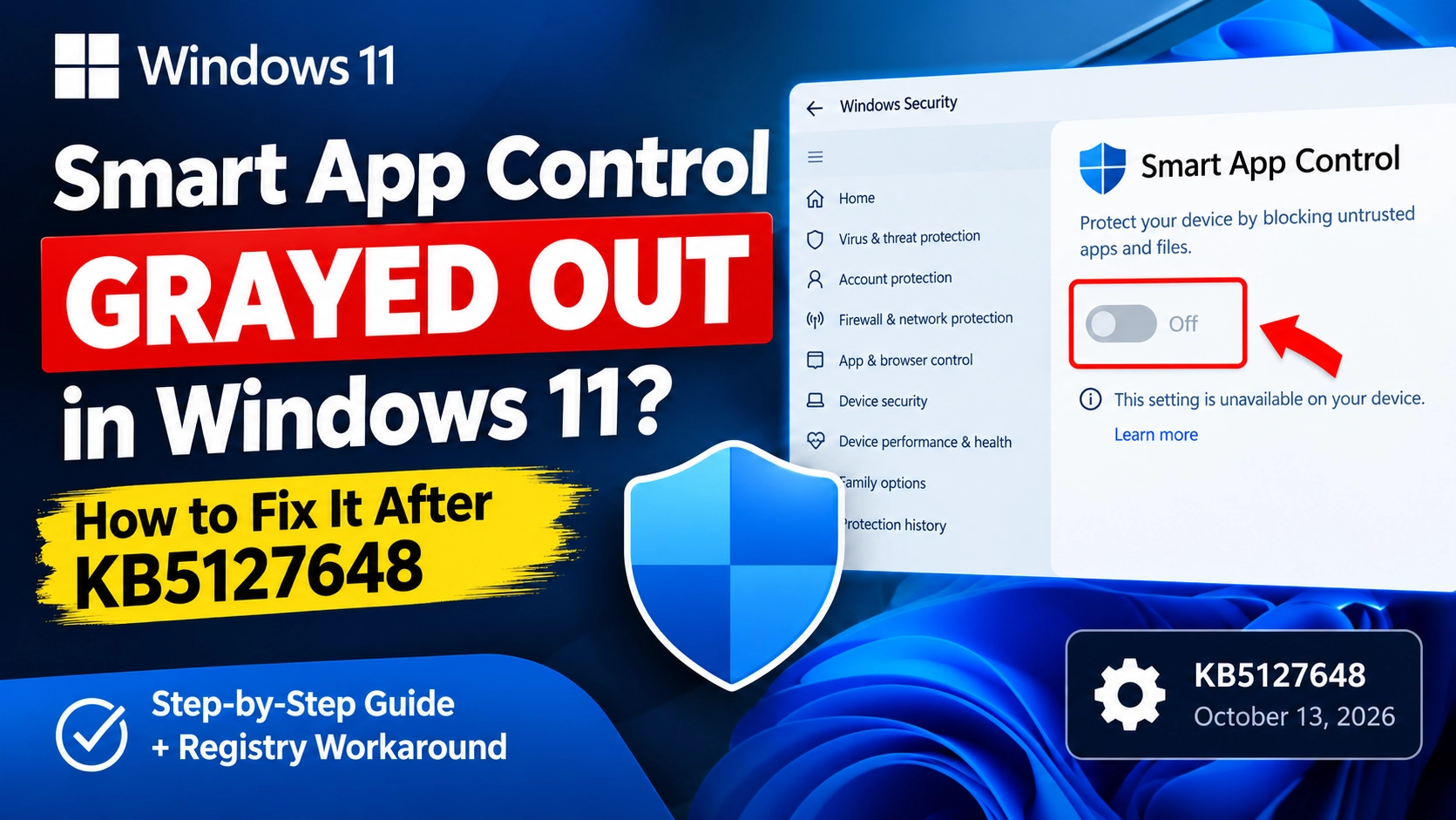
You open Windows Security, navigate to Smart App Control, and find that the option to turn it on is grayed out. Clicking it does nothing, and restarting your computer may not help.
If this started after installing the October 2026 Windows 11 security update, there is a specific issue worth checking before you attempt more drastic repairs.
Microsoft has acknowledged a problem associated with update KB5127648, released on October 13, 2026. On some affected computers, users cannot turn Smart App Control back on after it has been disabled. Microsoft has published a temporary workaround involving two Windows Registry values.
This guide explains how to identify the affected update, apply Microsoft’s documented workaround, check whether the fix worked, and troubleshoot the problem if the setting remains unavailable.
Important: The workaround is intended for the specific issue Microsoft describes. If your computer does not match the symptoms, check the other possible causes before modifying the Registry.
Why Is Smart App Control Grayed Out?
Smart App Control is a Windows 11 security feature designed to help prevent untrusted or potentially dangerous applications from running. It uses Microsoft’s application intelligence services and Windows code-integrity capabilities to evaluate software.
It works alongside Microsoft Defender and other antivirus software rather than replacing them.
Microsoft lists an issue affecting some devices after the October 13, 2026, update, KB5127648. On affected computers, the option to turn Smart App Control on may appear grayed out if the feature was previously disabled.
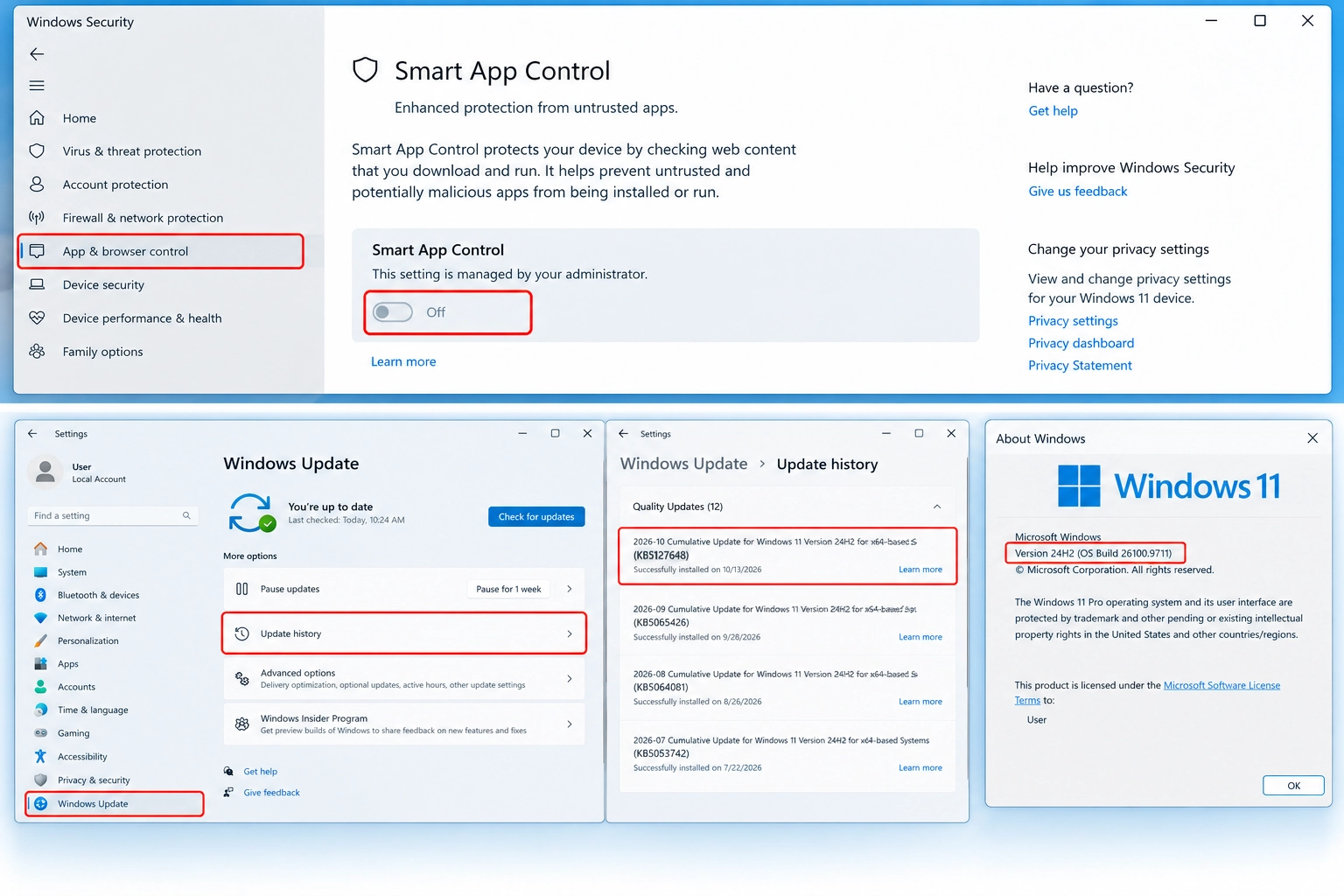
The issue affects the following Windows 11 releases covered by that update:
- Windows 11 version 24H2
- Windows 11 version 25H2
- Windows 11 version 26H2
Microsoft states that devices where Smart App Control was already enabled are not affected by this particular issue and remain protected by the feature.
You can read the full details in Microsoft’s official KB5127648 release notes.
Step 1: Check Whether You Installed KB5127648
Before changing any system settings, check your Windows update history. This helps determine whether your computer may be affected by the documented bug.
- Press Windows + I to open Settings.
- Select Windows Update.
- Open Update history.
- Look through the installed updates for KB5127648.
If you find the update, note its installation date.
Next, check your Windows version:
- Press Windows + R.
- Type
winver. - Press Enter.
- Note the Windows version and OS build displayed in the window.
The October update lists builds 26100.9711, 26200.9711, and 26300.9711 for versions 24H2, 25H2, and 26H2, respectively. Subsequent updates may have installed newer builds, so a higher build number does not automatically rule out the issue.
If the update is installed and Smart App Control became unavailable after it was installed, the symptoms are consistent with Microsoft’s documented problem. However, the timing alone does not prove the update caused it.
If KB5127648 is absent, skip the Registry workaround for now and review the alternative causes later in this guide.
Step 2: Back Up the Windows Registry
Microsoft’s workaround involves creating two registry values. Although the commands are documented by Microsoft, changing the Registry incorrectly can cause system problems.
Before proceeding, make sure you have administrator access and a way to recover from an unwanted change.
To export a Registry backup:
- Press Windows + R.
- Type
regeditand press Enter. - Approve the User Account Control prompt if necessary.
- In Registry Editor, select the key you intend to change, if it already exists.
- Choose File > Export.
- Save the backup to a location you can easily find.
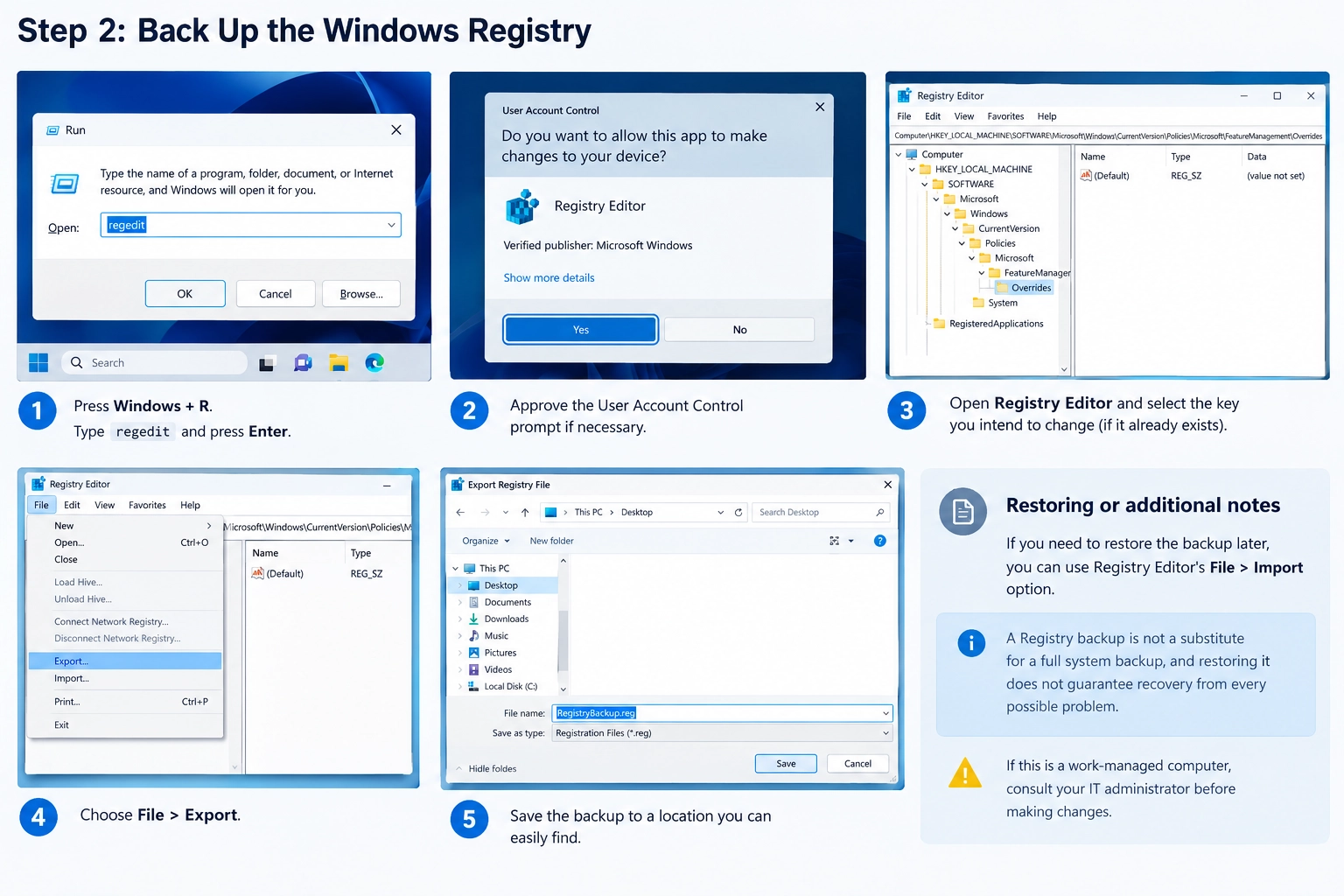
If you need to restore the backup later, you can use Registry Editor’s File > Import option. A Registry backup is not a substitute for a full system backup, and restoring it does not guarantee recovery from every possible problem.
If this is a work-managed computer, consult your IT administrator before making changes.
Step 3: Run Microsoft’s Official Registry Commands
Microsoft provides two commands for restoring the ability to turn Smart App Control on after the affected update.
You can enter them individually in an elevated Command Prompt.
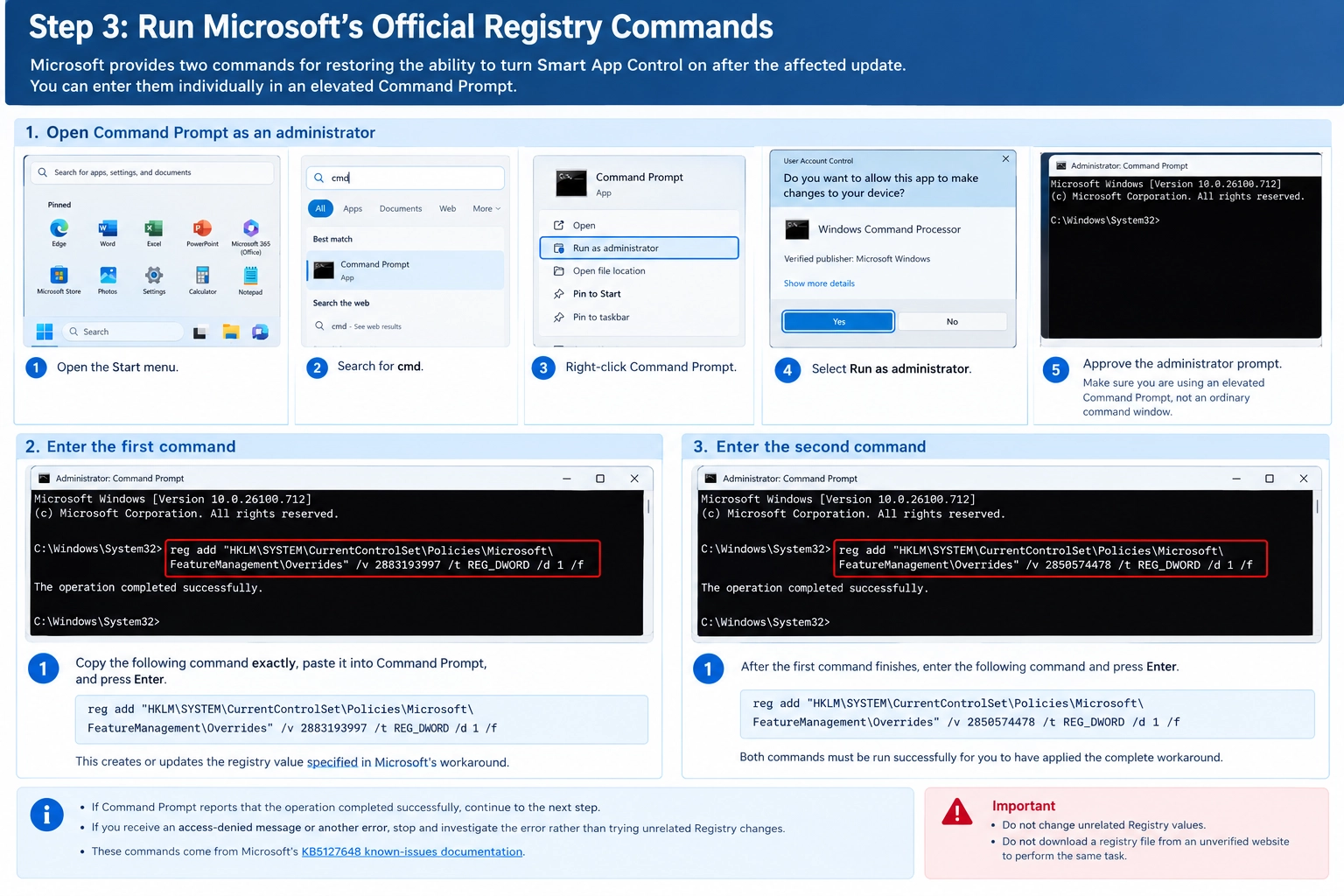
Open Command Prompt as an administrator
- Open the Start menu.
- Search for
cmd. - Right-click Command Prompt.
- Select Run as administrator.
- Approve the administrator prompt.
Make sure you are using an elevated Command Prompt, not an ordinary command window.
Enter the first command
Copy the following command exactly, paste it into Command Prompt, and press Enter.
reg add "HKLM\SYSTEM\CurrentControlSet\Policies\Microsoft\FeatureManagement\Overrides" /v 2883193997 /t REG_DWORD /d 1 /fThis creates or updates the registry value specified in Microsoft’s workaround.
Enter the second command
After the first command finishes, enter the following:
reg add "HKLM\SYSTEM\CurrentControlSet\Policies\Microsoft\FeatureManagement\Overrides" /v 2850574478 /t REG_DWORD /d 1 /fPress Enter.
Both commands must be run successfully for you to have applied the complete workaround as documented.
If Command Prompt reports that the operation completed successfully, continue to the next step. If you receive an access-denied message or another error, stop and investigate the error rather than trying unrelated Registry changes.
These commands come from Microsoft’s KB5127648 known-issues documentation.
Do not change unrelated Registry values or download a registry file from an unverified website to perform the same task.
Step 4: Restart Your PC and Check Smart App Control
Once both commands have completed successfully, save your work and restart your computer.
After signing in:
- Open the Start menu.
- Search for Windows Security and open it.
- Select App & browser control.
- Open Smart App Control settings.
- Check whether the option to turn Smart App Control on is now available.
If the setting is available, follow the on-screen instructions to enable it.
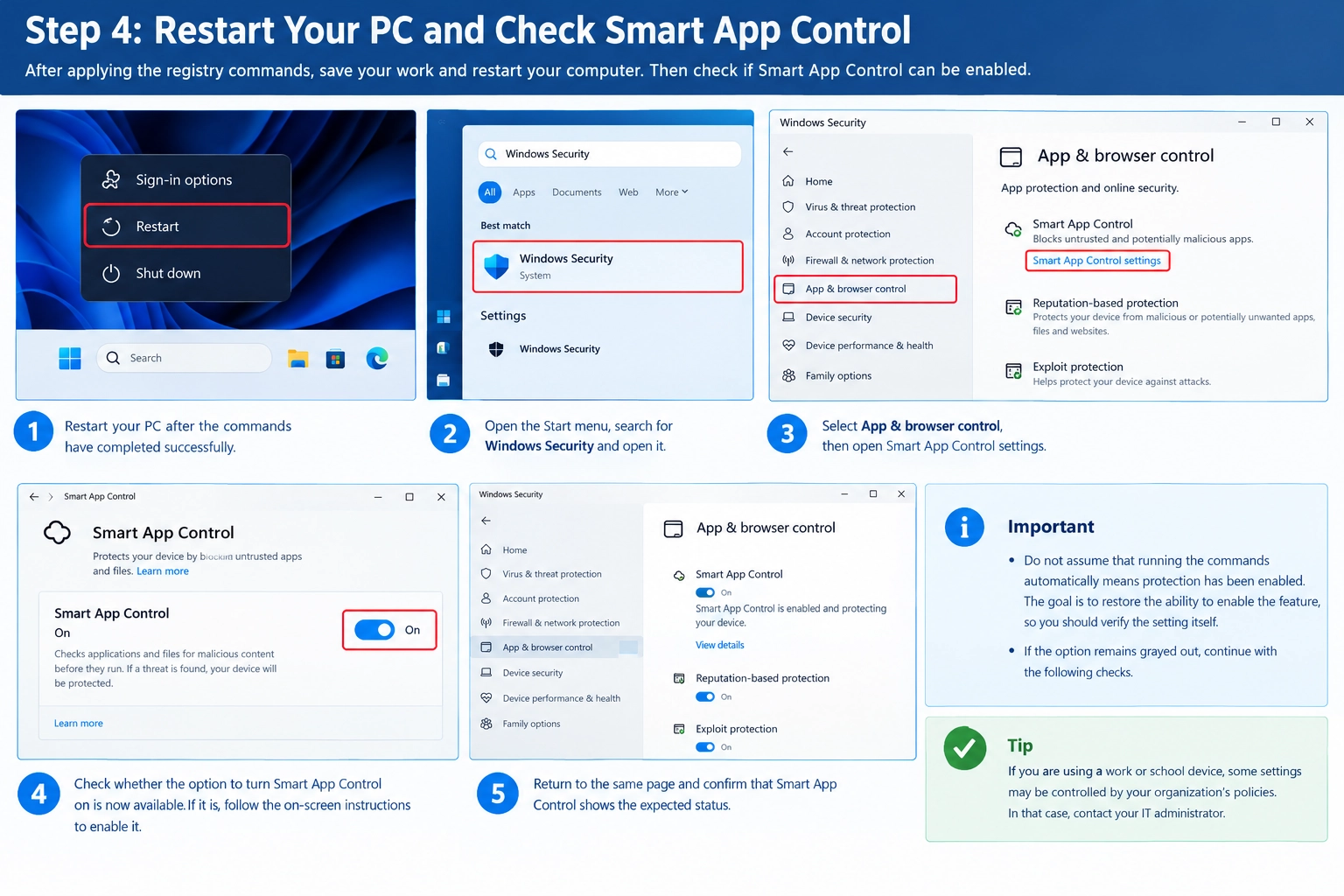
Then return to the same page and confirm that Smart App Control displays the expected status.
Do not assume that running the commands automatically means protection has been enabled. The goal is to restore the ability to enable the feature, so you should verify the setting itself.
If the option remains grayed out, continue with the following checks.
Step 5: What If Smart App Control Is Still Grayed Out?
The October update is not the only possible explanation for an unavailable Smart App Control setting. Microsoft documents other eligibility and configuration conditions that can affect the feature.
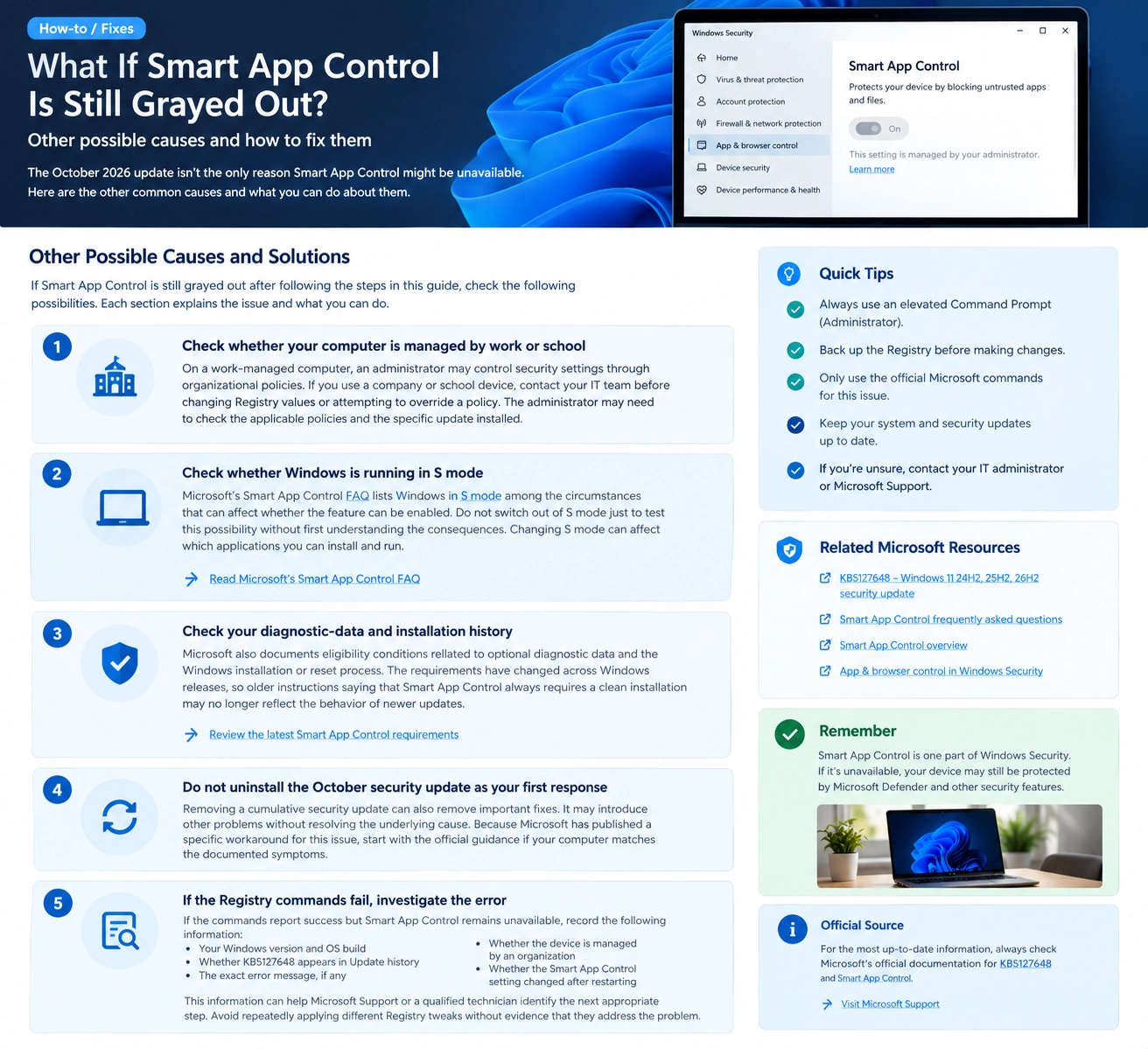
Check whether your computer is managed by work or school
On a work-managed computer, an administrator may control security settings through organizational policies.
If you use a company or school device, contact the IT team before changing Registry values or attempting to override a security policy. The administrator may need to check the applicable policies and the specific update installed.
Check whether Windows is running in S mode
Microsoft’s Smart App Control FAQ lists Windows in S mode among the circumstances that can affect whether the feature can be enabled.
Do not switch out of S mode just to test this possibility without first understanding the consequences. Changing S mode can affect which applications you can install and run.
See Microsoft’s Smart App Control FAQ for the applicable requirements.
Check your diagnostic-data and installation history
Microsoft also documents eligibility conditions related to optional diagnostic data and the Windows installation or reset process.
The requirements have changed across Windows releases, so older instructions saying that Smart App Control always requires a clean installation may no longer reflect the behavior of newer updates.
Review Microsoft’s current FAQ and check the actual status of your device before considering a Windows reset or reinstall.
Do not uninstall the October security update as your first response
Removing a cumulative security update can also remove important fixes. It may introduce other problems without resolving the underlying cause.
Because Microsoft has published a specific workaround for this issue, start with the official guidance if your computer matches the documented symptoms.
If the Registry commands fail, investigate the error
If the commands report success but Smart App Control remains unavailable, record the following information:
- Your Windows version and OS build
- Whether KB5127648 appears in Update history
- The exact error message, if any
- Whether the device is managed by an organization
- Whether the Smart App Control setting changed after restarting
This information can help Microsoft Support or a qualified technician identify the next appropriate step. Avoid repeatedly applying different Registry tweaks without evidence that they address the problem.
Step 6: What Should IT Administrators Do?
Microsoft provides a separate Group Policy mitigation for enterprise-managed devices.
What Should IT Administrators Do?
Enterprise-managed Windows 11 devices require a separate Group Policy mitigation. Follow Microsoft’s documented procedure before applying policy changes.
What the mitigation involves
Policy 1 — Smart App Control
Install and configure the Group Policy that addresses the ability to enable Smart App Control, following Microsoft’s instructions for your Windows version.
Policy 2 — Diagnostic Logging
Install and configure the separate policy that enables logging to help administrators troubleshoot the mitigation and investigate relevant behavior.
Windows versions listed in Microsoft’s guidance
Administrator action checklist
The official instructions identify two special Group Policy downloads for Windows 11 versions 24H2, 25H2, and 26H2. Both policies must be installed and configured: one addresses the ability to enable Smart App Control, while the other enables logging to help with troubleshooting.
Administrators should follow the download, installation, configuration, and restart instructions in Microsoft’s KB5127648 documentation.
These instructions are intended for managed environments. Home users should not download or configure enterprise policies as a substitute for the documented Registry workaround.
Is Microsoft Releasing a Permanent Fix?
Is Microsoft Releasing a Permanent Fix?
Microsoft has documented the Smart App Control issue associated with Windows 11 update KB5127648. According to the release notes available when this guide was prepared, Microsoft was working on a resolution and planned to provide an update in a future release.
How to interpret the current status
The Registry commands described in this guide are a documented workaround. They should not be described as a permanent fix unless Microsoft confirms that they resolve the issue permanently.
What should you do next?
-
1
Check Microsoft’s latest release notes
Look for a revised issue description, a new resolution notice, or updated instructions for KB5127648.
-
2
Follow the current official guidance
If Microsoft publishes a permanent fix, use the updated instructions rather than automatically repeating the earlier workaround.
-
3
Verify the setting after making changes
Open Windows Security and check Smart App Control’s actual status. Running a Registry command does not, by itself, prove that the feature is enabled.
Important: Do not assume the workaround is still necessary after a future Windows update. Check Microsoft’s current documentation before making additional Registry changes.
Frequently Asked Questions
Quick answers to common questions about Smart App Control, the KB5127648 update, and the available troubleshooting options.
Why is Smart App Control grayed out in Windows 11?
If you installed KB5127648 and had previously turned Smart App Control off, you may be experiencing the issue Microsoft documented in October 2026. Other configuration and eligibility conditions can also affect whether the feature is available.
Does KB5127648 disable Smart App Control on every computer?
No. Microsoft describes the issue as affecting some devices where users cannot turn Smart App Control back on after disabling it. Devices where the feature was already enabled are not affected by this particular bug.
Can I fix Smart App Control without reinstalling Windows?
For the specific KB5127648 issue, Microsoft provides a Registry workaround intended to restore the ability to turn Smart App Control on. Reinstalling Windows should not be your first troubleshooting step for this particular problem.
Other eligibility conditions may require different action, so verify that your device matches the documented issue first.
Does a grayed-out setting mean Windows Security has stopped working?
No. An unavailable Smart App Control setting does not mean every Windows security feature has stopped working. Check Smart App Control’s status separately from Microsoft Defender Antivirus and other security protections.
Should I turn off Microsoft Defender while troubleshooting?
No. Disabling Microsoft Defender or other security protections is not a recommended solution to this issue. Follow Microsoft’s documented troubleshooting guidance and keep your other security protections enabled.
Is the Registry workaround safe?
Microsoft documents the commands as a workaround for this particular issue, but Registry changes can cause problems when applied incorrectly. Back up the relevant Registry key, verify each command against Microsoft’s current instructions, and seek help from a qualified technician if you are unsure.
Final Thoughts
If Smart App Control is grayed out after the October 2026 Windows 11 update, start by checking whether KB5127648 is installed and whether your symptoms match Microsoft’s known issue.
For affected devices, Microsoft documents two Registry commands that can restore the ability to enable the feature. Back up the Registry first, run the commands in an elevated Command Prompt, restart, and verify the setting afterward.
If the workaround does not help, investigate other eligibility or management restrictions rather than experimenting with unrelated security settings.
Finally, check Microsoft’s release notes for any permanent fix. This is a documented issue with an official workaround, but the exact cause and appropriate solution still depend on your device’s configuration and update history.
Official Microsoft References
Use these Microsoft resources to verify the reported issue, understand Smart App Control requirements, and find the appropriate troubleshooting guidance.
Windows 11 KB5127648 Release Notes
Check Microsoft’s description of the October 13, 2026, update, affected Windows releases, known issues, and any published mitigation or resolution.
Read the official release notesSmart App Control Frequently Asked Questions
Review Microsoft’s explanations of how Smart App Control works, its requirements, and circumstances that can affect its availability.
Read the Smart App Control FAQSmart App Control Overview
Explore Microsoft’s technical overview of Smart App Control and how the feature helps protect Windows devices against untrusted applications.
Read the technical overviewApp & Browser Control in Windows Security
Learn about the App & browser control area in Windows Security and the security settings available through the Windows interface.
Open Microsoft’s Windows Security guideSecritic is an independent technology publication and is not affiliated with or endorsed by Microsoft. Windows and Smart App Control are Microsoft products.
Community discussion
Join the conversation
0 comments
Be the first to join in
There are no comments yet. Sign in to start a thoughtful discussion.
Sign in to comment
Join the conversation with your Secritic account. Comments are available to signed-in readers.