
If Gmail has stopped receiving emails, your internet connection might be working perfectly. The problem could be your Google Account’s storage limit.
Google shares storage across Gmail, Google Drive and Google Photos. Most personal Google Accounts include 15 GB of storage, although the allowance can vary by account or subscription. When an account reaches its limit, Gmail can stop sending and receiving messages. Emails sent to you may be returned to the sender instead of being delivered later.
This can be particularly inconvenient if you are waiting for a password-reset link, a work document, a booking confirmation or an important account notification.
The first step is not to delete everything in your inbox. It is to confirm whether storage is actually the problem, identify what is using your space and free up only what you no longer need.
This guide explains how to diagnose the issue, recover storage safely, test Gmail afterwards and keep communicating if your original address is temporarily unavailable.
1. Check whether your Google Account has run out of storage
Before deleting messages or photographs, check your actual storage usage.
- Open Google One storage.
- Sign in with the Google Account connected to the affected Gmail address.
- Check how much storage is used and how much remains.
- Review the breakdown to identify whether Gmail, Drive or Photos is consuming the most space.
Your inbox is only one part of the picture. Large attachments, backed-up videos, photographs and Drive files can all contribute to the same storage allowance.
What the result means:
- Storage is full: Freeing up space is the appropriate first step.
- Storage is nearly full: Review what is consuming space before it reaches the limit.
- Storage is available: Do not delete files just because Gmail is malfunctioning. Continue to the troubleshooting section to investigate other causes.
The key point is that Gmail, Drive and Photos do not each receive a separate copy of your standard 15 GB allowance. They draw from the same account-level storage pool.
Official guidance: How Google storage works.
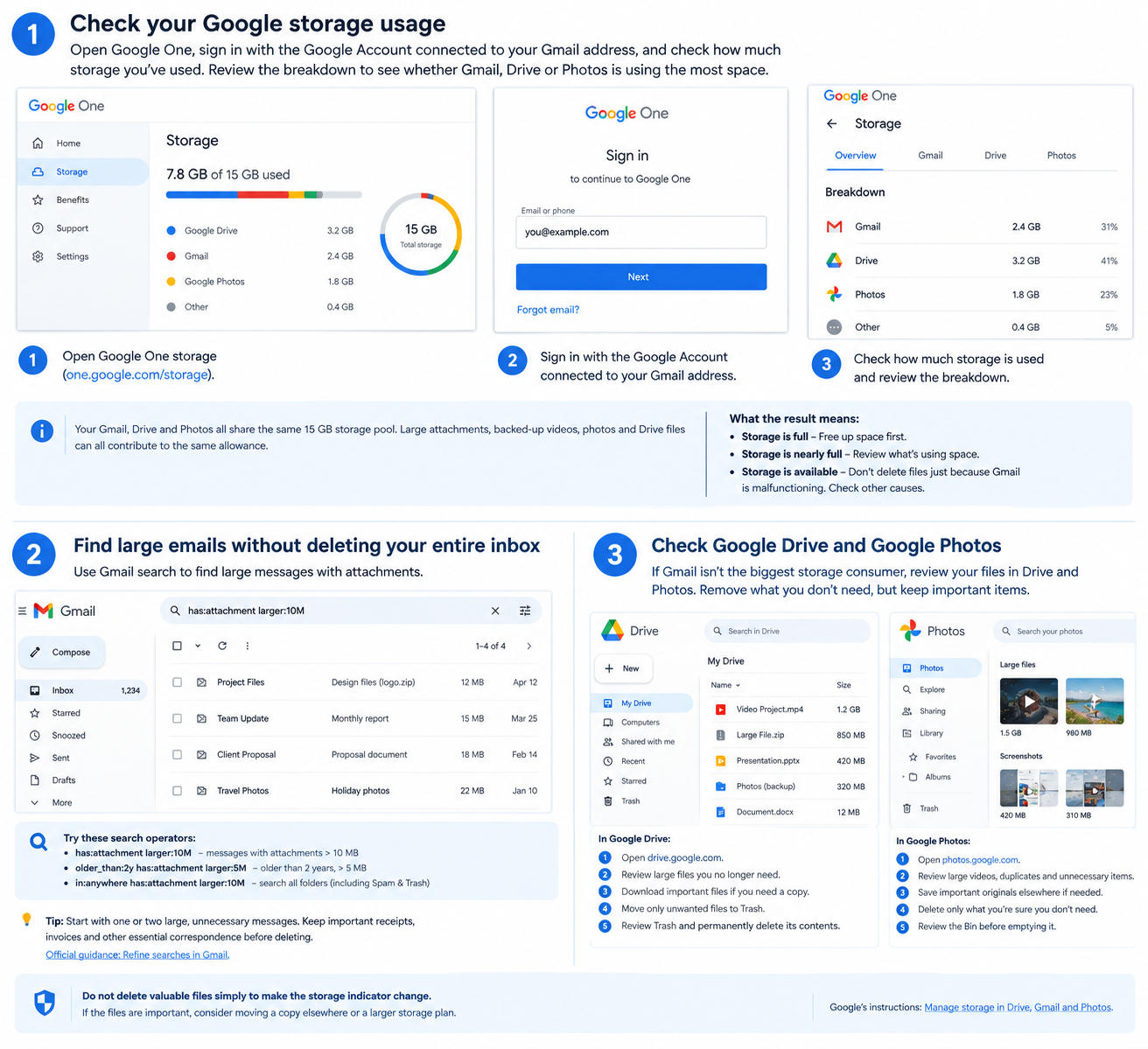
Step) 1. Check whether your Google Account has run out of storage, Step) 2. Find large emails without deleting your entire inbox,
& Step) 3. Check Google Drive and Google Photos
2. Find large emails without deleting your entire inbox
If Gmail is consuming a substantial amount of space, searching for large messages is a more controlled approach than deleting hundreds of emails at random.
On a computer, open Gmail and enter:
has:attachment larger:10M
Press Enter. Gmail will return messages with attachments and a message size greater than 10 MB.
You can narrow the search further with:
older_than:2y has:attachment larger:5M
This searches for messages older than two years with attachments and a message size greater than 5 MB.
Review the results and identify messages you genuinely no longer need. Old newsletters, duplicate documents and unnecessary attachments may be suitable candidates, but the search itself cannot determine whether a message is important.
A useful tip: Start with one or two large, unnecessary messages. This follows Google’s own suggested approach and makes it easier to check what you are deleting.
Keep important receipts, legal records, invoices, account-recovery information and other correspondence you may need later. If a document matters, save a copy somewhere appropriate before deleting its email.
Remember that Gmail’s normal search does not include every message in Spam and Trash. If you are specifically looking for messages across all folders, Gmail supports the in:anywhere search operator. For example:
in:anywhere has:attachment larger:10M
Review the results carefully before deleting anything.
Official guidance: Refine searches in Gmail.
3. Check Google Drive and Google Photos
If Gmail is not the biggest storage consumer, you may be able to recover more space elsewhere without sacrificing important correspondence.
In Google Drive
- Open Google Drive.
- Review your files and identify large items you no longer need.
- Download important files to a safe location if you need to keep a copy.
- Move only unwanted files to Trash.
- Review Trash before permanently deleting its contents.
Files in Drive’s Trash can continue to count towards your storage until they are permanently deleted. Emptying it is not a reversible cleanup step through the normal interface, so check its contents first.
In Google Photos
- Open Google Photos.
- Review large videos, unnecessary copies and other items you can safely remove.
- Save important originals elsewhere if you need to retain them.
- Delete only items you are certain you no longer need.
- Review the Bin before emptying it.
Be especially careful with family photographs, work material and irreplaceable recordings. Deleting backed-up items can affect which copies remain available in your Google Account.
Do not delete valuable files simply to make the storage indicator change. If the files are important, consider whether you can safely move a copy elsewhere or whether a larger storage plan is more appropriate.
Google’s instructions: Manage storage in Drive, Gmail and Photos.
4. Empty Gmail’s Trash and Spam folders carefully
This is an important step because deleting an email does not necessarily free its storage immediately.
Messages in Gmail’s Trash and Spam continue to count towards storage until they are permanently deleted. The same general principle applies to deleted files in Drive and Photos.
To review Gmail’s folders:
- Open Gmail.
- Select Trash from the left-hand menu. You may need to select More first.
- Restore any messages you want to keep.
- Empty Trash only after reviewing its contents.
- Open Spam and check for legitimate messages before emptying it.
If Drive or Photos contains deleted files, review their Trash or Bin folders as well.
Important: Permanently emptying these folders can destroy items you may not be able to recover. Do not empty every folder automatically. Check for legitimate emails, documents and photographs first.
The safest sequence is to identify the problem, remove unnecessary items, permanently delete only what you have reviewed, and then verify the result.
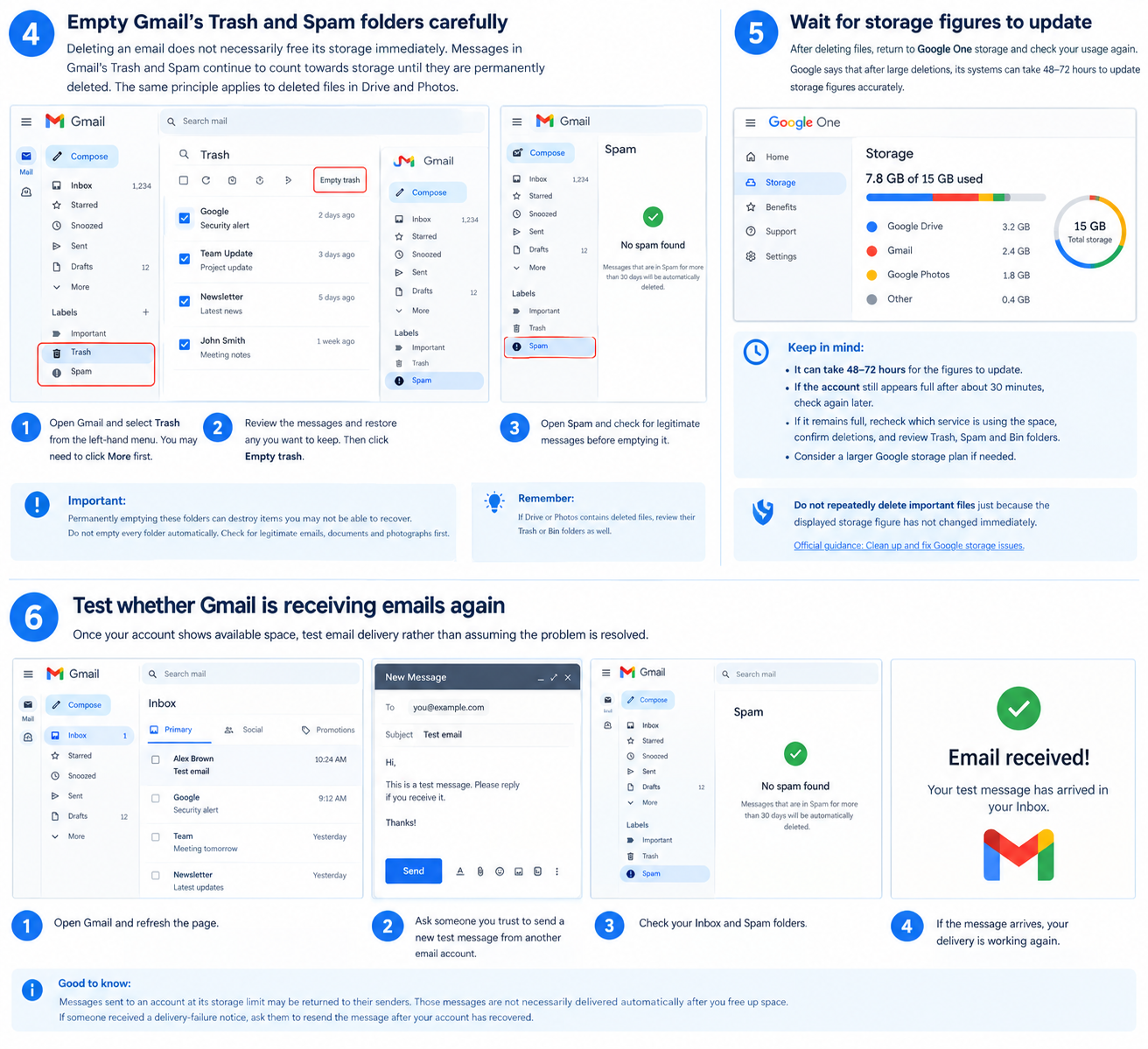
& Step) 6. Test whether Gmail is receiving emails again
5. Wait for storage figures to update
After deleting files, return to Google One storage and check your usage again.
Google says that after large deletions, its systems can take 48–72 hours to update storage figures accurately. This means the displayed figure may not immediately reflect all the space you have recovered.
Google’s cleanup guidance also recommends checking again after a short period. If the account still appears full after about 30 minutes, you can investigate further rather than assuming the deletion failed. Large deletions may still take longer to be reflected accurately.
If the account remains full:
- Recheck which service is consuming the space.
- Confirm that the files you intended to remove were actually deleted.
- Review the relevant Trash, Spam and Bin folders.
- Check whether other files or backups are still using storage.
- Consider a larger Google storage plan if you cannot safely remove enough material.
Do not repeatedly delete important files just because the displayed storage figure has not changed immediately.
Official guidance: Clean up and fix Google storage issues.
6. Test whether Gmail is receiving emails again
Once your account shows available space, test email delivery rather than assuming the problem is resolved.
- Open Gmail and refresh the page.
- Ask someone you trust to send a new test message from another email account.
- Check your Inbox and Spam folders.
- Confirm whether the new message arrives.
- If it does not, continue with the checks below.
If the test email arrives, that is evidence that delivery is working again, although it does not prove storage was the only cause.
There is also an important distinction between new and previously missed messages. Google warns that messages sent to an account at its storage limit may be returned to their senders. Those messages are not necessarily delivered automatically after you free up space.
If someone received a delivery-failure notice, ask them to resend the message after your account has recovered.
7. Gmail still is not receiving emails? Check these other causes
If storage is available but messages are still missing, do not keep deleting files. Investigate the other possible causes.
Search for missing messages
A message may have been archived, moved to Spam or affected by a filter.
Search Gmail for the sender’s address, subject line or a distinctive phrase. Check Spam and Trash as well. Gmail’s normal search does not include those folders by default.
Review your filters
On a computer:
- Open Gmail.
- Select Settings, then See all settings.
- Open Filters and Blocked Addresses.
- Look for filters that delete messages or skip the Inbox.
- Edit or remove a filter only if you have identified it as incorrect.
Do not remove filters that you deliberately use to organise your email.
Check forwarding settings
In Gmail settings, review Forwarding and POP/IMAP. Check whether messages are being forwarded or handled in a way you did not expect.
Do not disable a legitimate work or personal forwarding arrangement without understanding its purpose.
Check the Gmail app and your device
If you use Gmail on a phone, a synchronisation problem may make new messages appear to be missing.
Try opening Gmail in a supported browser or checking the same account on another device. If messages are visible on the web but not in the app, investigate app synchronisation rather than deleting more cloud files.
Also distinguish Google Account storage from your phone’s local storage. A phone running out of device storage can cause app problems, but clearing phone storage does not automatically free space in your Google Account.
If the problem persists, follow Google’s official Gmail missing-message troubleshooting guide.
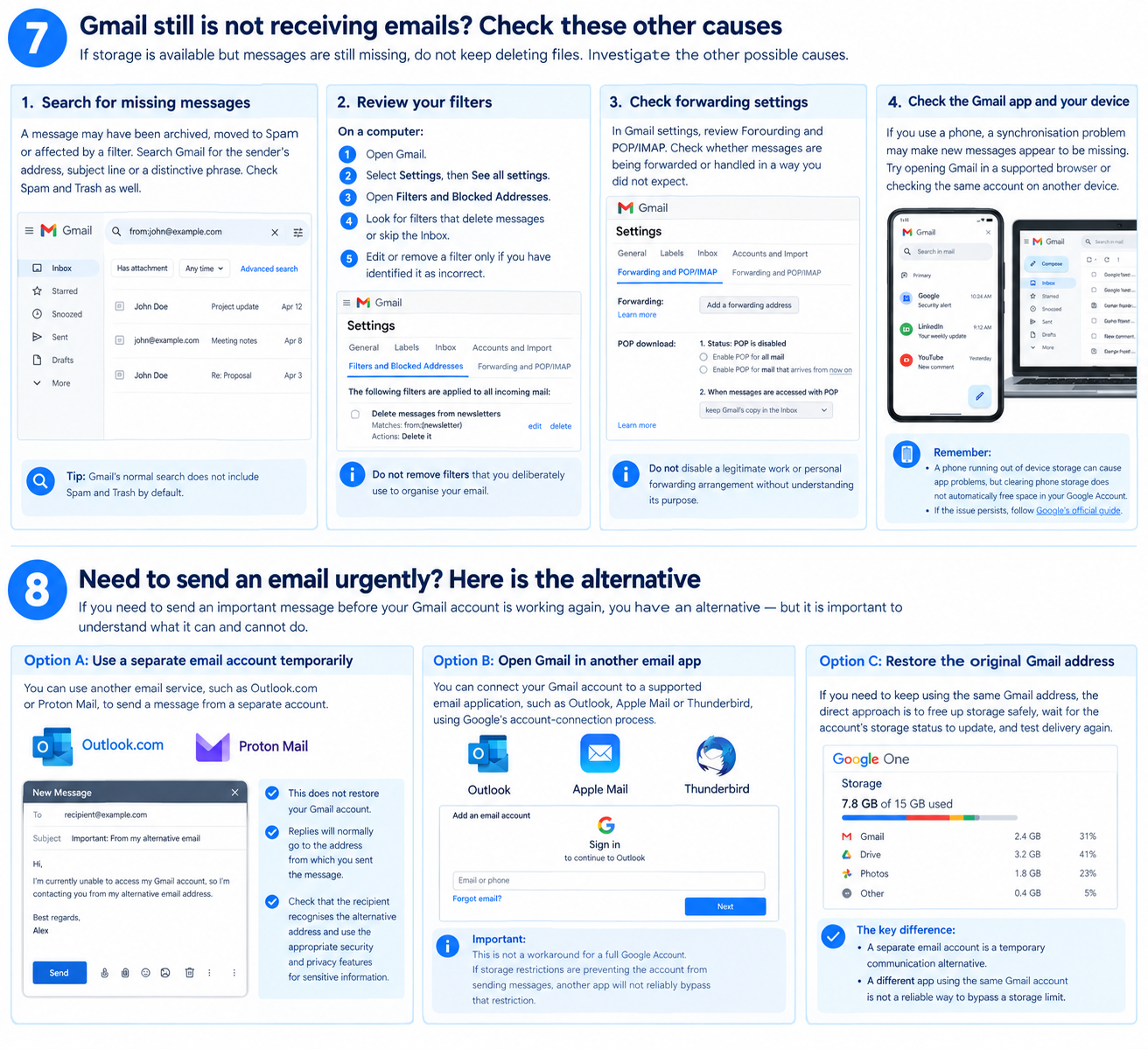
8. Need to send an email urgently? Here is the alternative
If you need to send an important message before your Gmail account is working again, you have an alternative — but it is important to understand what it can and cannot do.
Option A: Use a separate email account temporarily
You can use another email service, such as Outlook.com or Proton Mail, to send a message from a separate account.
For example, if you need to contact your employer, university or a customer, you can send the message from your alternative address and explain briefly that your usual Gmail address is temporarily unavailable.
Before sending, check that the recipient recognises the alternative address. If the message contains sensitive information, use the security and privacy features appropriate to that communication.
This does not restore your Gmail account. It simply gives you another way to communicate while you fix the original problem. Replies will normally go to the address from which you sent the message.
Option B: Open Gmail in another email app
You can connect an existing Gmail account to a supported email application, such as Outlook, Apple Mail or Thunderbird, using Google’s supported account-connection process.
However, this is not a workaround for a full Google Account. If Google’s storage restriction is preventing the account from sending messages, opening the same account in another application will not reliably bypass that restriction.
A different application can help diagnose an app-specific problem. It cannot substitute for restoring the storage available to the account.
Option C: Restore the original Gmail address
If you need to keep using the same Gmail address, the direct approach is to free up storage safely, wait for the account’s storage status to update, and test delivery again. If you cannot free enough space, consider an appropriate Google storage plan.
The distinction is simple: a separate email account is a temporary communication alternative; a different app using the same Gmail account is not a reliable way to bypass a storage limit.
The practical trick: use a targeted cleanup instead of a mass deletion
If you want a concise recovery plan, follow this order:
- Check your storage at Google One.
- Identify which service is consuming the most space.
- Search Gmail for large attachments using
has:attachment larger:10M. - Review and remove only messages and files you no longer need.
- Review the relevant Trash, Spam and Bin folders before permanently deleting anything.
- Check your storage again and allow time for the displayed figure to update.
- Send a new test email from another account.
- If you urgently need to communicate, use a separate email account while you restore Gmail.
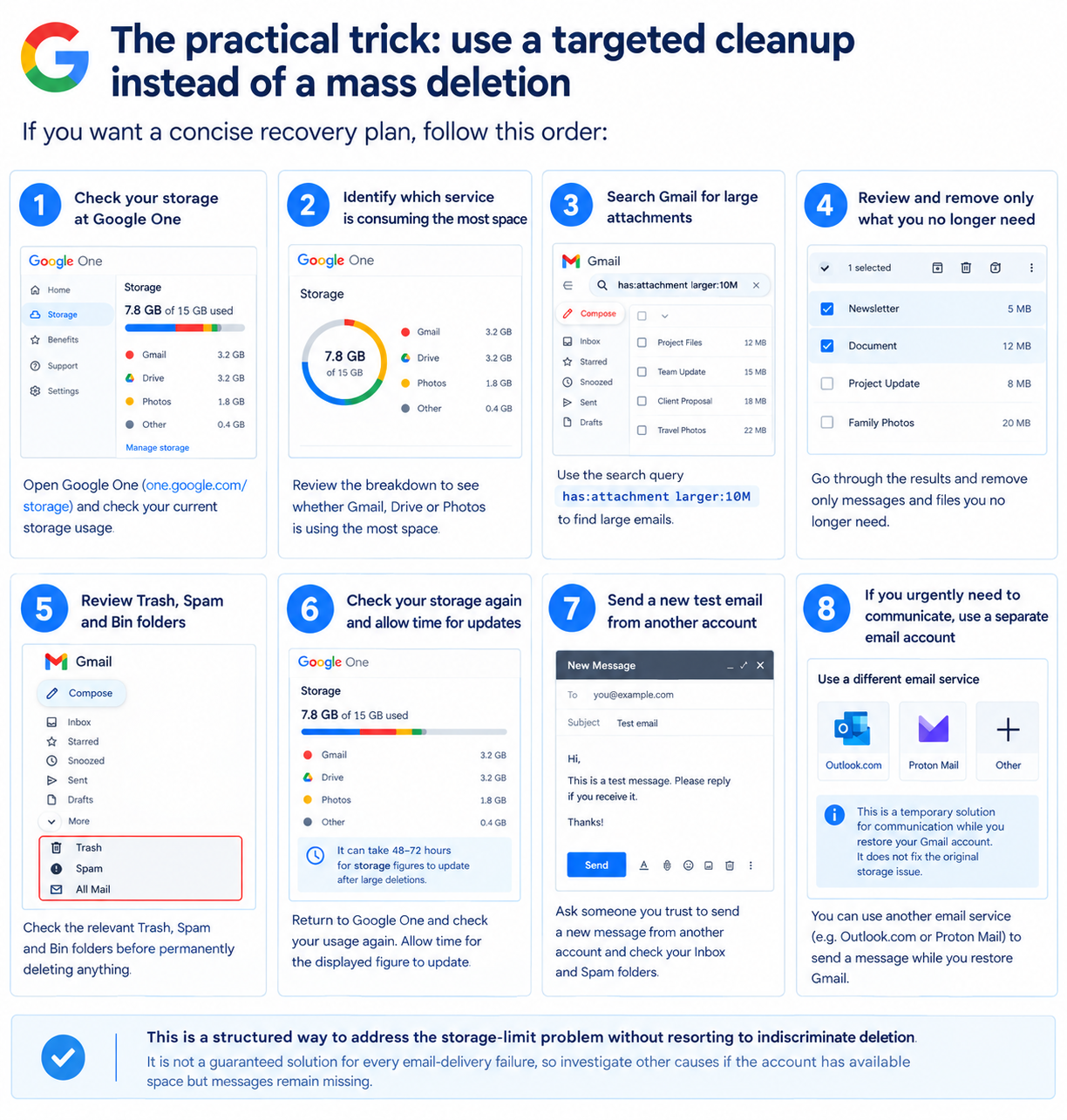
This is a structured way to address the storage-limit problem without resorting to indiscriminate deletion. It is not a guaranteed solution for every email-delivery failure, so investigate other causes if the account has available space but messages remain missing.
Frequently asked questions
Quick answers to common Gmail storage and delivery problems.
Why has Gmail suddenly stopped receiving emails?
A full Google Account is one possible reason. Storage is shared across Gmail, Google Drive and Google Photos, so files in another service can affect email delivery. Other possible causes include Spam placement, filters, forwarding settings and synchronisation problems.
Will deleting emails free up Google storage immediately?
Not always. Messages in Trash can continue to count towards storage until permanently deleted. After large deletions, Google’s systems can take 48–72 hours to update storage figures accurately.
Will emails sent while my account was full arrive later?
Not necessarily. Messages sent to an account at its storage limit may be returned to the sender. Ask the sender to resend any important message after your account has recovered.
Can I use Outlook or Thunderbird to send emails from my Gmail account if storage is full?
Connecting the same Google Account to another email application does not reliably bypass Google’s storage restriction. Use a separate email account for urgent communication or restore the storage available to your original account.
Do I need to pay for more Google storage?
Not necessarily. First identify what is using your space and remove files you no longer need. If you cannot safely free enough space, a larger storage plan is an option.
Is a full Gmail inbox the same as full Google storage?
No. Having a large number of messages does not automatically mean your account has reached its storage limit. Check the actual storage usage before deleting anything.
The bottom line
If Gmail has stopped receiving emails, check your Google Account’s storage before trying more disruptive fixes. Gmail, Drive and Photos share storage, so the files causing the problem may not be in your inbox.
Identify the biggest storage consumer, remove only unnecessary items, review the relevant Trash folders and test Gmail with a new message. If storage is available but emails are still missing, investigate filters, Spam, forwarding and synchronisation instead of continuing to delete files.
If you need to communicate urgently, a separate email account can serve as a temporary alternative. But if you want your original Gmail address to work again, you must address the underlying account problem.
The goal is not simply to make space. It is to restore email delivery while protecting the messages, photographs and documents you still need.
Sources
Official Google documentation used for this guide.
-
01
Google Account Help: Manage storage in Drive, Gmail and Photos support.google.com · Google Account Help
-
02
Google Account Help: How Google storage works support.google.com · Google Account Help
-
03
Gmail Help: Refine searches in Gmail support.google.com · Gmail Help
-
04
Gmail Help: Gmail messages are missing support.google.com · Gmail Help
-
05
Google One Help: Clean up and fix storage issues support.google.com · Google One Help
Community discussion
Join the conversation
0 comments
Be the first to join in
There are no comments yet. Sign in to start a thoughtful discussion.
Sign in to comment
Join the conversation with your Secritic account. Comments are available to signed-in readers.